
On Kobo, load Kepub for image-heavy, map-heavy, or footnote-dense books where fast flip, popup notes, and zoom matter. Load standard EPUB when kerning, ligatures, and hyphenation carry a novel's typography. Skip to the conversion steps below when you're ready to act.
TL;DR:
- Kepub offers faster page turns and more reliable zooming on Kobo, making it ideal for image-heavy or highly interactive books.
- EPUB provides better typographic quality, including proper ligatures, hyphenation, and embedded font support, which benefits literary and design-focused works.
- Kepub is a modified packaging of EPUB with sentence-level markup that enhances navigation and reading stats, but both formats are fundamentally EPUB underneath.
- Use tools like kepubify for quick conversions or Calibre with the KoboTouch Extended driver for ongoing library management, and always validate EPUB files before publishing.
- Researchers and authors should match the format to the book's content, perform quick tests to choose the better option, and keep original EPUBs to ensure future compatibility.
Table of Contents
- Kepub Vs EPUB: The Quick Comparison Kobo Readers Notice
- What Kepub Actually Is (the Technical Basis)
- How Kepub and EPUB Actually Behave on a Kobo Device
- When Should You Choose Kepub Over Standard EPUB?
- How to Convert EPUB to Kepub (and Back) Without Losing Your Place
- Fixing Common Kepub and EPUB Problems on Kobo
- How Authors Should Prep EPUBs for Kobo Before Publishing
- A Formatter's Honest Take on Kepub Vs EPUB
- Get Kobo-Ready EPUBs Without Fighting Two File Formats
- Sources
- FAQ
Kepub Vs EPUB: The Quick Comparison Kobo Readers Notice
The visible differences show up the moment you start turning pages. Kepub feels quicker to navigate; EPUB tends to look more polished on the page.
What you'll notice with Kepub:
- Faster page turns and more responsive "fast flip" browsing
- Chapter-based reading stats and time-left estimates that stay accurate
- Tap-to-expand popup footnotes instead of jumping to an endnote page
- Pinch-to-zoom that behaves more reliably on images
What you'll notice with EPUB:
- Cleaner kerning and letter spacing in justified text
- Proper ligatures (the fused "fi" or "fl" characters serif fonts rely on)
- More consistent hyphenation at line breaks
- Embedded fonts that render closer to how the designer intended
Kepub's speed advantage isn't just anecdotal. Kepubify, the open-source converter most Kobo owners reach for, is widely reported to process most files in a fraction of a second, well ahead of older full-repackage conversion methods. That speed is why so many Kobo power users convert everything by default rather than reading standard EPUB at all.
What Kepub Actually Is (the Technical Basis)
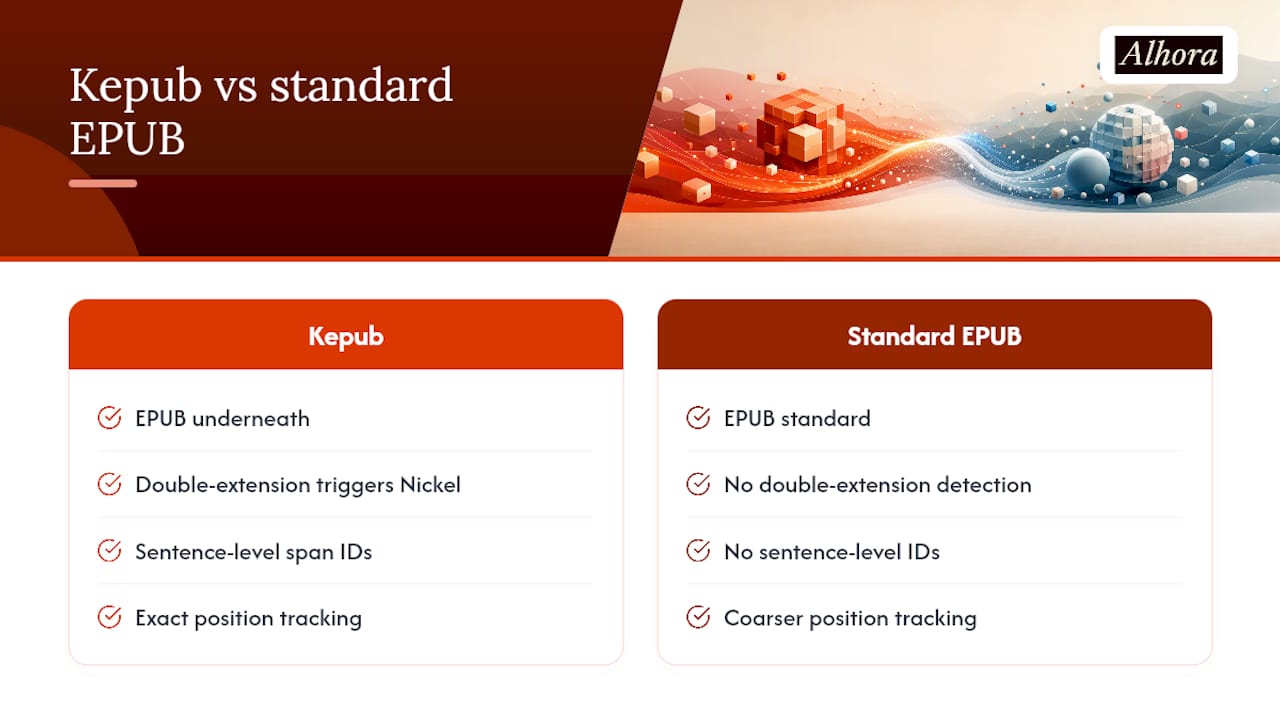
Kepub is a Kobo-optimized variant of EPUB, not a separate file format. Every Kepub file is still EPUB underneath. What changes is the packaging: Kobo devices detect the .kepub.epub double extension in the filename and switch their internal engine, called Nickel, into a different rendering mode.
That mode depends on markup Kobo injects at the sentence level. Each sentence in the book's text gets its own span tag with a unique ID, and those IDs are what let Nickel track your exact position, calculate reading time per chapter, and offer instant page counts instead of estimating them. Standard EPUB has no equivalent granularity, so Kobo falls back to coarser, slower calculations when reading one.
This sits differently from the fixed-layout question you may have run into elsewhere. EPUB 3 supports a genuinely separate mechanism, pre-paginated fixed-layout, meant for books where the exact position of text and images cannot shift, think comics, children's picture books, or heavily designed cookbooks. Kepub is not that. It stays reflowable; it just adds Kobo-specific scaffolding on top of ordinary reflowable text. Understanding that distinction matters when you're deciding whether either format will handle an image-heavy book, which we cover in the images in EPUB guide.
How Kepub and EPUB Actually Behave on a Kobo Device
The trade-offs aren't theoretical. MobileRead's long-running community threads document the same pattern release after release: Kepub wins on interactivity, EPUB wins on typographic fidelity.
Kepub's real advantages on Kobo:
- Faster page-turn response, especially in long, chapter-heavy books
- Popup footnotes that expand in place instead of forcing a jump to the back of the book
- More reliable image zoom, useful for maps, charts, and diagrams
- Accurate per-chapter reading-time and page-count stats
EPUB's real advantages on Kobo:
- Better kerning and letter spacing in justified paragraphs
- Proper ligature rendering in serif and display fonts
- More consistent hyphenation, particularly in long words at line ends
- More faithful embedded font support overall
Community testing on MobileRead reports specific typographic complaints tied to Kepub, including broken hyphenation, dropped ligatures, and occasionally clipped glyphs. Many of these are firmware-dependent. A bug reported on one Kobo firmware version sometimes disappears after the next update, and sometimes a fix for one model introduces a new quirk on another. That inconsistency is the single biggest reason experienced Kobo owners keep both formats around instead of committing to one permanently.
Pro Tip: If you're not sure which format a book is currently in, check the file name in your Kobo's library folder. A .kepub.epub extension means Kobo already converted it; a plain .epub means you're reading the standard rendering engine.
When Should You Choose Kepub Over Standard EPUB?
Match the format to what the book actually needs rather than defaulting to one for everything.
- Choose Kepub for image-heavy or reference-style books. Field guides, atlases, cookbooks with photos, and anything where you'll be zooming into detail benefits from Kepub's more dependable zoom behavior.
- Choose Kepub for heavily footnoted or annotated nonfiction. Academic texts, annotated classics, and books with frequent citations read faster with popup notes instead of endnote jumps.
- Choose EPUB for typographically sensitive fiction. Literary fiction, poetry, and anything where the publisher invested in custom kerning or embedded display fonts will look noticeably better in standard EPUB.
- Run a two-minute test when you're unsure. Load both versions of the same chapter, check hyphenation on a justified paragraph, tap a footnote if there is one, and pinch-zoom an image. Whichever version handles your book's specific content better wins.
How to Convert EPUB to Kepub (and Back) Without Losing Your Place
Two tools cover nearly every Kobo owner's conversion needs, and they solve different problems.
- Use kepubify for fast, local, one-off conversions. It's a small open-source utility that adds Kobo's sentence-span markup and renames the file correctly in one pass. Kepubify is widely recommended because it converts files in a fraction of a second, which makes it the practical choice for batch-converting a folder of DRM-free EPUBs before a trip.
- Use Calibre with the KoboTouch Extended driver for ongoing libraries. Rather than converting files ahead of time, this driver keeps your library as standard EPUB and converts to Kepub automatically at the moment you send a book to your device. That avoids storing two copies of every book, and it's the better long-term workflow if you manage a large library across multiple readers.
- Avoid online converters for anything you care about. Web-based kepubify wrappers exist and work fine for a quick test, but sending files to a third-party server carries privacy exposure and is a bad habit to build if any of your library carries DRM.
- Never just rename the extension. Changing
.epubto.kepub.epub(or the reverse) without running an actual conversion tool does nothing useful. Kobo needs the sentence-span markup injected into the file itself; a bare rename just tricks the device into using the wrong rendering engine for content that isn't structured for it. - Test on the device before deleting anything. Load the converted file, jump to a chapter with a footnote or image, and confirm popups and zoom behave the way you expect.
Pro Tip: Keep your original EPUB files even after converting. If a firmware update changes how Kepub renders on your model, you'll want the clean source file to reconvert rather than fighting with a file that's already been altered once.
Before converting anything, it's worth confirming the EPUB itself is clean. A general ebook formatting workflow catches structural problems that no conversion tool will fix for you.
Fixing Common Kepub and EPUB Problems on Kobo
Most reported issues trace back to one of three causes: a bad rename, stale annotations, or firmware drift.
- Pagination or slider position looks wrong after conversion. Reconvert from the original EPUB rather than troubleshooting the converted file; a fresh pass usually resolves mismatched page counts.
- Annotations or bookmarks disappeared. Renaming a
.kepub.epubback to.epub(or vice versa) switches Kobo's rendering engine and can break saved locations, because Kepub relies on unique sentence-span IDs that a simple rename never creates. Reconvert properly instead of renaming. - Fonts, hyphenation, or ligatures look off in Kepub. This is often firmware-dependent. Check for a Kobo software update first; if the book is typography-critical, read it as standard EPUB instead.
- Kepub-specific features feel unresponsive. Confirm the file actually has the
.kepub.epubextension in your device's file browser; some transfer methods silently drop it. - Neither format behaves the way you want. Third-party reading apps like KOReader offer more granular control over fonts and pagination and are worth testing if you're troubleshooting a stubborn file.
How Authors Should Prep EPUBs for Kobo Before Publishing
Most Kobo compatibility problems start upstream, in the source EPUB, long before a reader ever converts it. Run EPUBCheck validation before distribution, and check that embedded fonts, image resolution, and internal links pass clean.
Real-time validation in some formatting tools can flag Kobo-relevant issues as you format, rather than after a reader reports a broken footnote. A typesetting engine that handles justification, hyphenation, and embedded fonts consistently across export targets can help ensure the EPUB file is optimized for Kobo's engine.
As for who should run the Kepub conversion itself: leave that step to the retailer or to a dedicated tool like kepubify. Your job as an author is to deliver a clean, validated EPUB. Kobo's own ingestion pipeline (or the reader's own device) handles the Kepub layer from there.
A Formatter's Honest Take on Kepub Vs EPUB
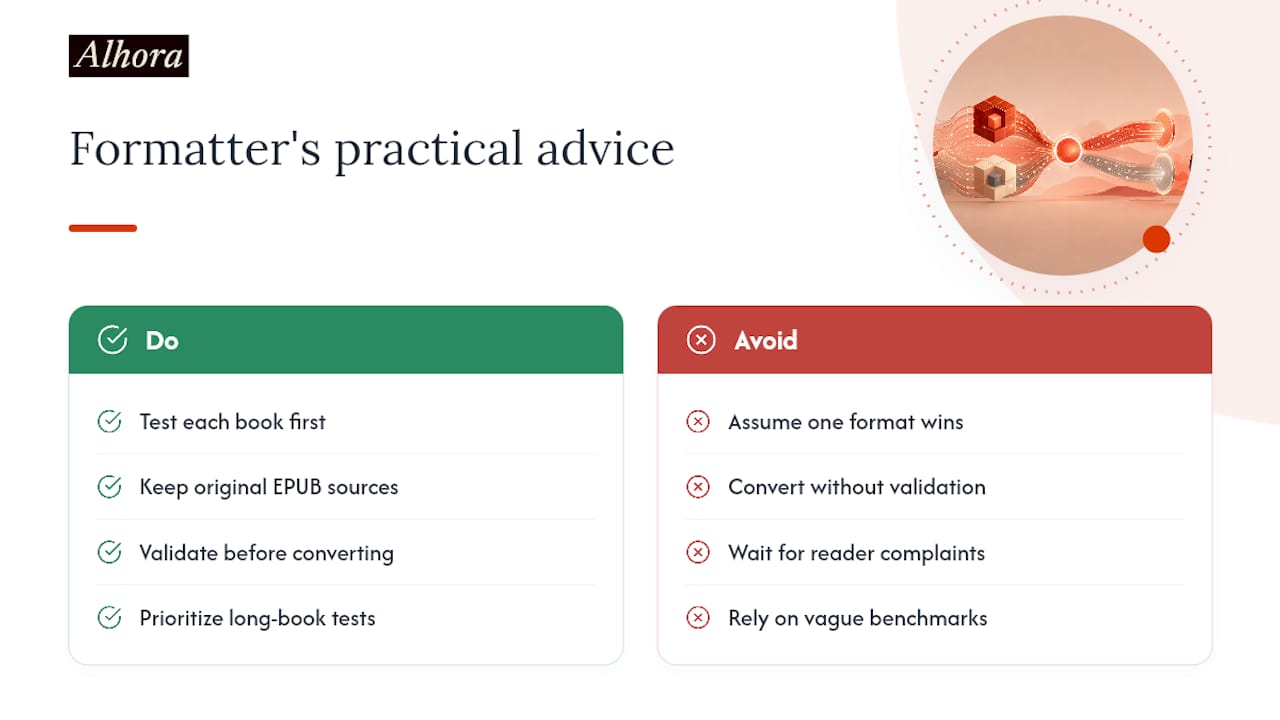
Most of the "which format wins" debate online overstates the gap. Kepub's speed advantages are real but narrow, mostly visible in long, chapter-dense books where page-turn responsiveness compounds over hundreds of taps. For everything else, the honest answer is: test the specific book, not the format in the abstract.
Keep your source EPUB files. Validate before you convert, not after a reader complains. That single habit prevents more support headaches than choosing the "right" format ever will.
— James
Get Kobo-Ready EPUBs Without Fighting Two File Formats
Kepubify and Calibre solve the device-side conversion problem well, but they can only work with whatever EPUB you hand them. This tool helps ensure the starting EPUB file is clean before it reaches a converter, catching justification, hyphenation, and embedded-font issues that can cause visible Kepub bugs on a Kobo device.

Alhora's ebook formatting software runs real-time validation against publishing standards as you typeset, across Mac, Windows, Linux, and ChromeOS, so you catch problems before export instead of after a reader reports them. Its built-in AI assistant, Inkia, flags formatting issues without ever touching your prose, and the feature set covers the typesetting and export controls that keep fonts and spacing consistent across every retailer, Kobo included. Kepub conversion itself still belongs to device-specific tools like kepubify, but the EPUB you feed into them doesn't have to be a guess. A one-off license runs £99 per book. Export a validated EPUB and see what Kobo does with it before you publish anywhere else.
Sources
For deeper technical detail, see the MobileRead Wiki entry on Kepub, the MobileRead forum discussion comparing Kepub and EPUB, and Teleread's conversion walkthrough. For format strategy beyond Kobo, this comparative piece on paperback versus ebook is worth a read.
- MobileRead Wiki — Kepub
- Why and how to convert DRM-free EPUBs to Kobo’s KEPUB format — Teleread
- kepub vs. epub - MobileRead forums
- EPUB fixed-layout documentation (IDPF)
FAQ
How Do I Convert a Kepub File Back to EPUB?
Use Calibre or a dedicated converter to strip the Kobo-specific sentence-span markup rather than simply renaming the file, since a bare rename can leave broken annotations and inconsistent pagination.
Does Calibre Automatically Convert EPUB to Kepub?
Not by default, but adding the KoboTouch Extended driver lets Calibre convert automatically at the moment you send a book to your device, so your library stays in standard EPUB while your Kobo receives Kepub.
What Is a Kepub File, Exactly?
It's a Kobo-optimized EPUB that uses a .kepub.epub filename and sentence-level markup to enable Kobo-specific features like fast flip, popup footnotes, and accurate reading stats.
What Is the Difference Between EPUB and an eBook in General?
EPUB is one specific eBook file format, arguably the most widely supported one; "eBook" is the general term covering any digital book, including PDF, MOBI, and Kepub variants built on top of EPUB.
Should Authors Deliver Kepub Files to Retailers?
No. Retailers and devices handle the Kepub conversion themselves; authors should focus on delivering a clean, validated EPUB, which tools like Alhora's formatting software are built to produce.