
Google Play Books accepts .epub files, with EPUB 3.3 preferred over the still-supported EPUB 3.0.1 and EPUB 2.0.1, plus .pdf files for layout-critical work. Before anything else, run the file through EpubCheck; a failed validation is the most common reason uploads stall in processing. Submit a PDF alongside your EPUB when the original page design matters, and preview the result through Content Reviewer in the Web Reader before you hit publish.
TL;DR:
- EPUB 3.3 is preferred for better rendering, but ensure your file passes EpubCheck validation to avoid upload stalls.
- Google supports embedded fonts and media overlays but does not reliably support JavaScript, MathML, or complex layouts.
- Files up to 2 GB are accepted, with cover images needing a minimum of 640 pixels on the short side, and proper ISBN-based filenames prevent ingestion errors.
- Always validate your EPUB with EpubCheck and review it in Adobe Digital Editions before uploading to catch issues early.
- Including a PDF fallback is recommended if your layout depends on unsupported features, and preview your book as a reader to prevent publishing on assumptions.
Table of Contents
- Supported EPUB Versions and When to Use Each
- File Types, Sizes, and Cover Requirements
- Validate Your EPUB Before You Upload
- How to Upload EPUB and PDF Files to Partner Center
- Fixed Layout, Multimedia, and What Actually Renders
- DRM, Adobe Content Server, and Reader Compatibility
- Metadata, Preview Settings, and Cover Best Practices
- Common Processing Errors and How to Fix Them
- A Practical Workflow for Upload-Ready EPUBs
- An Editorial Take on What Actually Matters Here
- Sources
Supported EPUB Versions and When to Use Each
Google's Partner Center accepts EPUB 3.3, EPUB 3.0.1, and EPUB 2.0.1, but 3.3 gets the best rendering treatment and the widest feature support across Google's readers. If you're exporting fresh, there's little reason to target anything older.
EPUB 3 unlocks embedded fonts and media overlays for synced narration, both of which Google's readers render correctly. What it won't render reliably: JavaScript, MathML, and some multi-column layouts. These aren't edge cases you can patch around with clever markup.
- Embedded fonts: supported
- Media overlays (audio sync): supported
- JavaScript: not supported
- MathML: not supported
- Complex multi-column layouts: inconsistent support
If your book depends on any of the unsupported items, that's your cue to supply a PDF as the authoritative version instead of fighting the reflowable format.
File Types, Sizes, and Cover Requirements
Content files accepted are .epub and .pdf. Cover images can be .jpeg, .png, .tiff, or .pdf, and you can zip these together as long as the archive contains only accepted file types.
Individual files can run up to 2 GB, which accommodates nearly all typical reflowable and illustrated titles. Covers need a minimum width or height of 640 pixels, capped at 7,200 pixels on the long edge.
- Use the electronic ISBN as the filename for your EPUB
- Use the print ISBN for the accompanying PDF
- Embed the front cover inside the EPUB itself, even if you also upload a separate cover file
- Keep filenames simple and consistent to avoid mismatch errors during ingestion
Clean, ISBN-based naming isn't a formality. It's what prevents Google's ingestion system from pairing the wrong cover with the wrong manuscript, which is a surprisingly common source of support tickets.
Validate Your EPUB Before You Upload
Skipping validation is the single most avoidable mistake in this whole process. EpubCheck is the industry-standard tool, and a clean report from it dramatically cuts your odds of a stuck upload.
- Run EpubCheck locally (via command line) or through an online validator to catch structural issues early.
- Read the output for the recurring offenders: missing navigation documents, invalid XML, and bad character encoding.
- Open the file in Adobe Digital Editions as a real-world sanity check. EpubCheck catches spec violations; ADE shows you what a reader actually sees.
Pro Tip: Don't just glance at the EpubCheck summary line. Scroll through every warning, not just the errors. Warnings often point to the exact spot that will render fine on your laptop and break on a phone.
How to Upload EPUB and PDF Files to Partner Center
Once your files pass validation, the upload itself is mechanical. Sign in to Partner Center, then follow this sequence:
- Go to Content, then select Upload content.
- Choose your files, uploading the EPUB first, then the PDF, then any separate cover file.
- Wait for processing. Files show up on the Content tab once Google finishes ingesting them, which isn't instant.
- Add yourself as a Content Reviewer so you can preview the finished product in the Web Reader before it goes live to buyers.
That reviewer step matters more than most self-publishers realize. It's the only way to see your book exactly as a reader will, rather than trusting that the upload "probably worked."
Fixed Layout, Multimedia, and What Actually Renders
Fixed layout books work in both EPUB 2 and EPUB 3, but you have to test them, not just assume they'll behave. Rendering differs across the Web Reader, Android tablets, and other Google clients, so a spread that looks perfect on your desktop preview can shift on a phone screen.
- Embedded audio and video: supported when wrapped in standard HTML5 tags
- JavaScript: disallowed outright
- MathML: disallowed outright
- Complex interactive elements: generally unreliable
When a feature falls outside what Google supports, don't spend a weekend building a workaround. Strip it, or supply a PDF as the version of record for that layout.
DRM, Adobe Content Server, and Reader Compatibility
Google uses Adobe Content Server to handle DRM on downloadable files, and readers access ACS-protected EPUBs and PDFs through supported software like Adobe Digital Editions. Buyers go through a one-time authorization the first time they download a protected file, after which the reading app handles the rest.
- You don't package or manage ACS encryption yourself; Google applies it on its end
- Follow Partner Center's policy guidance for how your content gets wrapped
- Readers need Adobe Digital Editions or another ACS-compatible app for offline downloads
Metadata, Preview Settings, and Cover Best Practices
Title, author, description, BISAC subject codes, and ISBN all affect how discoverable your book is and how it previews to shoppers. Sloppy or incomplete metadata increases the odds a listing gets manually flagged for review.
- Keep cover text and focal elements inside a safe area so nothing gets cropped in thumbnails
- Meet the 640 to 7,200 pixel resolution range on the long edge
- Embed the cover inside the EPUB even when you also submit it separately
- Use the same naming convention for optional cover files as you do for content files
Accurate, complete metadata does more than help search. It signals to Google's automated review systems that the listing is legitimate, which reduces friction at the policy check stage.
Common Processing Errors and How to Fix Them
Most stuck uploads trace back to a short list of causes: failed EpubCheck validation, a malformed navigation document or XHTML file, a missing front cover inside the EPUB, an oversized file, or a ZIP archive containing file types Google doesn't accept.
- Run EpubCheck first and fix every error, not just the blocking ones.
- Open the corrected file in Adobe Digital Editions to confirm it actually reads correctly.
- Strip any EPUB 3 feature Google doesn't support, or re-export cleanly as EPUB 3.3.
- If the problem persists, add a PDF fallback rather than chasing a fix indefinitely.
- If none of that resolves it, contact Google support with your EpubCheck log, screenshots of the error, and your Partner Center file IDs ready to go.
Pro Tip: Save your EpubCheck log every time, even when the file passes. If a book fails months later after a metadata update, you'll have a baseline to compare against instead of debugging from scratch.
A Practical Workflow for Upload-Ready EPUBs
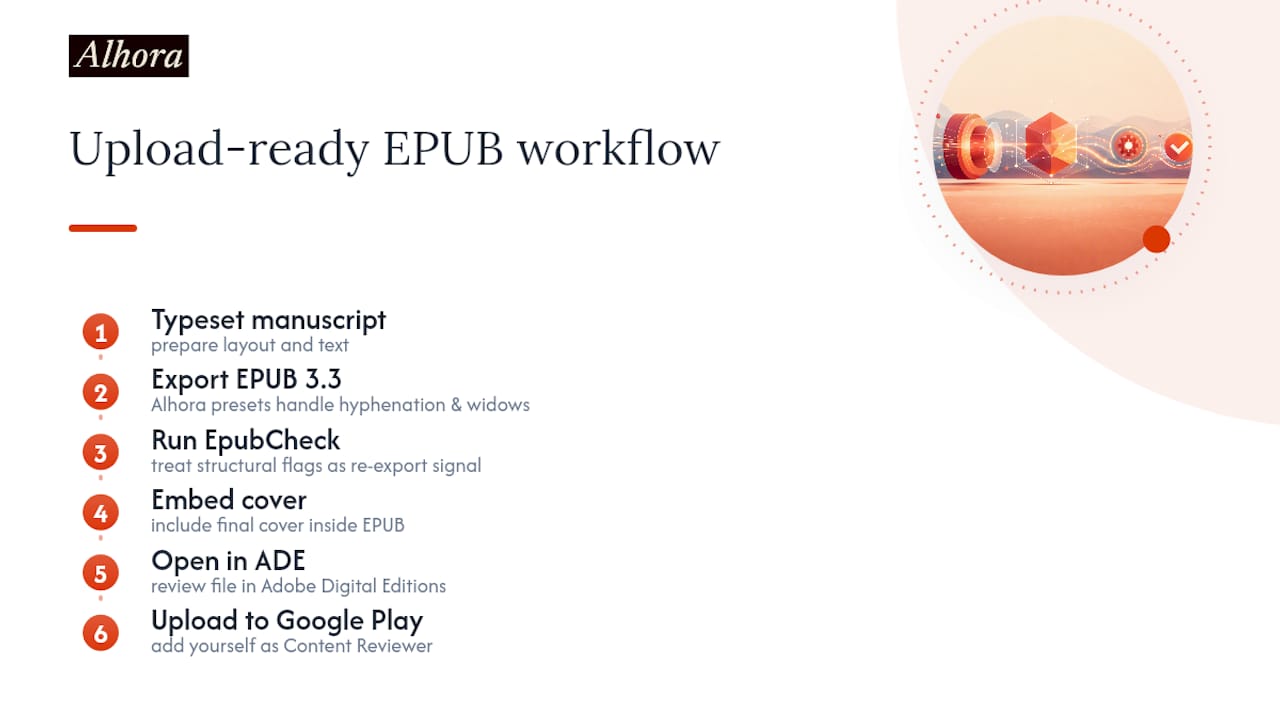
A dependable sequence looks like this: typeset your manuscript, export as EPUB 3.3, run EpubCheck, embed the cover, open the file in Adobe Digital Editions, then upload and add yourself as Content Reviewer. Alhora's export presets handle the typesetting details, hyphenation, and widow/orphan control automatically, so the export you generate is already close to Google Play spec before validation even starts. When EpubCheck flags something structural rather than cosmetic, that's usually a signal to re-export from your source file rather than patch the EPUB by hand.
An Editorial Take on What Actually Matters Here
Most guides bury the real priority under a wall of formatting trivia. Focus on two things: get a clean EPUB 3.3 export, and get a clean EpubCheck report. Everything else, filenames, cover pixels, metadata, is real but secondary. Supply a PDF whenever layout is non-negotiable, embed your cover inside the EPUB regardless of what else you upload, and always preview through the Web Reader as a Content Reviewer before release. Skip that last step and you're publishing on faith.
— James
Ready to skip the manual export headaches? Alhora's ebook formatting software generates clean, validated EPUB 3.3 files with typesetting, hyphenation, and widow/orphan control handled automatically, so what you upload to Partner Center is already close to spec.