
Run EPUBCheck, save the full report, and sort every line by severity before you touch a single file. Fatal Errors and Errors block store acceptance on platforms like KDP; Warnings usually don't. Group the messages by the file path they point to, because one broken tag or one duplicate ID often produces multiple lines that all disappear the moment you fix the root cause. Apply the smallest fix that resolves the flagged issue: rename a duplicate id, add a missing item to the manifest, or repack the file so mimetype sits first and uncompressed. Then re-run EPUBCheck immediately. Don't chase Warnings until every Error is gone.
Here's the sequence, stripped down:
- Run
epubcheck yourbook.epuband save the output to a text file. - Sort messages by severity; Fatal and Error come first, always.
- Group by affected file path, not by message text.
- Fix the root cause, repack, and validate again before moving to the next issue.
- If you'd rather skip the manual repair entirely, a platform like Alhora exports a pre-validated EPUB so you never see this report in the first place.
Key Takeaways
Clearing EPUBCheck errors comes down to fixing Error-level messages first, grouping them by file, and re-validating after each change until the report comes back clean.
| Point | Details |
|---|---|
| Severity determines urgency | Fatal and Error levels block store uploads; Warnings rarely do, so fix them last. |
| Read the message anatomy | Each line gives a code, a file path, and coordinates that point straight to the fix. |
| Group before you fix | One root cause often produces several reported lines that clear together. |
| Know when to rebuild | Dozens of scattered parsing errors usually mean the source file needs re-exporting, not patching. |
| Alhora skips the manual step | Its typesetting engine and validation checks produce a store-ready EPUB without a manual EPUBCheck cleanup. |
Table of Contents
- How to Read an EPUBCheck Error Message
- What Order Should You Fix Errors In?
- Common EPUBCheck Error Families and How to Fix Them
- Which Tools Actually Help You Fix These Errors?
- Step-by-Step Checklist to Get From Failing to Passing
- Should You Repair the File or Rebuild It From Source?
- What the EPUBCheck Report Actually Teaches You
- Skip the Manual Repair With a Validated EPUB Export
- Where to Verify Error Codes and Specifications
- Frequently Asked Questions
- Sources
How to Read an EPUBCheck Error Message
EPUBCheck reports five severity levels: Fatal Error, Error, Warning, Info, and Usage. Only Fatal and Error levels typically block distribution, since platforms run automated EPUBCheck validation on every upload and reject files that fail at those levels. Warnings flag style or best-practice issues that won't stop an upload, though ignoring too many tends to produce a sloppier reading experience.
A typical message looks like this:
ERROR(RSC-005): OEBPS/chapter03.xhtml(45,12): Error while parsing file: element "img" not allowed here
Break it into four parts. RSC-005 is the message code, and it tells you the category of problem. OEBPS/chapter03.xhtml is the exact file to open. (45,12) is the line and column, when EPUBCheck can determine one. The final phrase is the human-readable explanation, which is usually specific enough to point you straight at the broken tag.
Sometimes you'll see (-1,-1) instead of real coordinates. That's not a bug in the tool. It means EPUBCheck couldn't map the problem to an exact spot in the file, which often signals something structural rather than a stray typo: a broken namespace declaration, a corrupted zip archive, or a packaging error that touches the whole document rather than one line of it.

Pro Tip: When you see (-1,-1), stop looking for a single character to fix. Check the file's XML declaration, its namespace attributes, and whether the archive itself unzips cleanly first.
Codes cluster into families worth memorizing:
- RSC codes point to resource problems: missing files, broken links, malformed markup.
- OPF codes point to the package document,
content.opf: manifest, spine, and metadata errors. - PKG codes point to container-level packaging: mimetype order,
container.xml, zip structure. - MED codes point to media issues: unsupported image formats, bad font embeds.
Knowing the family before you open a single file cuts your troubleshooting time roughly in half, because you already know which part of the EPUB to inspect.
What Order Should You Fix Errors In?
Fix Errors before Warnings, every time, without exception in the early rounds. Practitioner guidance consistently recommends clearing hard Errors first, because chasing warnings early can introduce new errors when you're still restructuring files that have deeper problems.
Here's the workflow that keeps this manageable:
- Save the raw report. Redirect EPUBCheck's output to a text file before you edit anything. You'll want the original for comparison.
- Group by file path, not by message text. If ten lines all point to
chapter07.xhtml, that's one broken file, not ten separate problems. - Isolate the first Fatal or Error and fix only that. Resist the urge to fix everything you see in one pass; one structural error can mask others behind it.
- Repack and re-run EPUBCheck immediately. Don't batch five fixes before you validate. One root fix commonly makes several reported lines vanish at once, so re-checking after each change tells you what's actually left.
- Repeat until zero Errors remain, then decide how much time you want to spend on Warnings.
Pro Tip: Keep a running count of total messages after each fix. If the count drops by more than the one line you targeted, you just found a root cause. That's the fix worth remembering for your next export.
This loop feels slow the first time through a messy file. By the third or fourth grouped fix, most authors find the remaining list has shrunk to something manageable, often a handful of genuine one-off issues rather than a large number of messages they started with.
Common EPUBCheck Error Families and How to Fix Them
Most EPUBCheck reports boil down to a short list of repeat offenders. Here's what each one means and the minimal edit that clears it.
Duplicate ID attributes. Two elements sharing the same id value trip EPUBCheck immediately, and it's one of the easiest fixes on this list. Search the file for the duplicated value, rename one instance, and check whether any href="#anchor" links or IDREFs point to the old ID. Update those references too, or you'll trade one error for a broken internal link.
Missing resource, code RSC-001. This fires when content.opf or an XHTML file references something that doesn't exist in the package, usually a mistyped filename or an image that got deleted after the manifest was built. Fix the href if it's a typo, or add the missing file to both the manifest and the actual zip archive if it should exist.
Malformed XHTML, code RSC-005. This is the most common family for manuscripts converted from Word or Google Docs. Look for unclosed tags, unescaped ampersands (& needs to be &), and a missing or incorrect XML declaration at the top of the file. Every XHTML file in an EPUB needs the proper namespace declaration on its <html> tag or the parser rejects the whole document.
OPF errors, including OPF-030 and metadata problems. These live in content.opf. Check that every file listed in the manifest actually has a matching <item> entry, that the spine references valid manifest IDs, and that unique-identifier in the metadata points to a real, matching identifier element. A missing <item> for a font or image you added later is the usual culprit.
Package-level errors. These are about the container itself, not your content. The mimetype file must be the first entry in the zip archive and stored uncompressed. container.xml must point to the correct path for your .opf file. Get either wrong and EPUBCheck throws PKG errors before it even looks at your chapters.
Navigation problems. EPUB 3 requires a nav.xhtml file with properties="nav" declared in the manifest. EPUB 2 exports need a valid NCX file instead. Missing or malformed navigation is one of the more common rejection reasons on newer exports where a plugin or converter skipped this step.
Unsupported media types. Fonts and images outside EPUB's accepted formats will fail MED-level checks. Converting non-standard image types to JPEG, PNG, or SVG resolves most of these, and font files need to be embedded in a supported format, not just linked externally.
| Error family | Typical code | Fastest fix |
|---|---|---|
| Duplicate IDs | Various RSC | Rename the duplicate, update linked IDREFs |
| Missing resource | RSC-001 | Correct the href or add file to manifest |
| Malformed XHTML | RSC-005 | Close tags, escape entities, fix namespace |
| Manifest/metadata | OPF-030 and related | Add missing item, fix unique-identifier |
| Packaging structure | PKG-family | Reorder mimetype, fix container.xml path |
| Missing navigation | Various NAV codes | Add nav.xhtml (EPUB 3) or NCX (EPUB 2) |
Which Tools Actually Help You Fix These Errors?
The core tool is free and it's the same one every store uses to check your file. Running it yourself first saves you from finding out about a rejection after you've already submitted.
- Run EPUBCheck from the command line. The basic command is
java -jar epubcheck.jar yourbook.epub. Add-eor--errorto see only Error-level and above,-wor--warnto include warnings, or--failonwarningsto make warnings trigger a non-zero exit code for stricter builds. - Unzip the EPUB and inspect it directly. An EPUB is a zip archive. Rename the extension to
.zip, extract it, and you'll seecontent.opf,nav.xhtml, your chapter files, CSS, and images laid out as a normal folder structure. - Edit in a text or XML-aware editor, not a word processor. Repackage carefully afterward, making sure
mimetypegoes back in first and uncompressed, or you'll trade your content errors for a fresh packaging error. - Use an online validator's auto-fix sparingly. Some validators can safely patch mimetype ordering or a missing
dc:languagetag automatically, but duplicate IDs, malformed XHTML, and ambiguous anchors generally need a human to look at them rather than an automated pass.
Pro Tip: Keep a clean, working backup of your EPUB before you start unzipping and editing. A single misplaced closing tag can turn a fixable Error into a file that won't open at all.
Step-by-Step Checklist to Get From Failing to Passing
Work through this in order, and don't skip the re-validation step between edits.
- Run EPUBCheck and save the complete output to a file you can reference.
- Scan for the first Fatal or Error-level message and identify which file it points to.
- Open that file, apply the smallest fix that resolves the specific issue, then repack the EPUB with correct mimetype placement.
- Run EPUBCheck again. Compare the new report to the old one and confirm the message count dropped.
- Repeat steps two through four until zero Error-level messages remain.
- Once Errors are clear, decide whether remaining Warnings are worth addressing for polish or reading-system compatibility.
- If the file still won't clear after several honest attempts, that's your signal to consider rebuilding rather than patching further.
Most single-issue files clear in one or two loops through this checklist. Files with a dozen or more Errors on the first run usually point to a source-file problem, not a packaging mistake, which is worth knowing before you sink an evening into manual edits.
Should You Repair the File or Rebuild It From Source?
Manual repair makes sense for isolated, countable problems: a handful of duplicate IDs, one missing manifest entry, a packaging error in container.xml. These are surgical fixes measured in minutes, not hours.
Re-exporting from source is the better call when the report shows dozens of parsing errors scattered across many chapters, especially in files converted straight from Word or Google Docs through an automated pipeline. Sloppy HTML conversion tends to repeat the same structural mistake in every chapter file, so patching each one individually just delays the inevitable.
Before you re-export, check your source settings: image format, CSS handling, and whether navigation export is enabled. Fixing the setting that caused the problem prevents you from re-fighting the same errors on your next book.
- Repair manually for a few duplicate IDs or a single missing manifest item.
- Rebuild from source when errors repeat across many chapters or the file came from a rough Word/HTML conversion.
- Keep a short changelog of what you fixed, so recurring issues get corrected at the source, not patched again next time.
What the EPUBCheck Report Actually Teaches You
Most advice on EPUBCheck treats every red line as equally urgent, and that's the biggest misconception in this whole process. It isn't. A file with forty Warning-level messages and zero Errors will upload fine to most retailers. A file with two Error-level messages and no Warnings at all will get bounced. Severity is the entire game, and too many authors burn an afternoon polishing Warnings before they've cleared the Errors that actually block distribution.
The other thing conventional advice glosses over: EPUBCheck tells you where, not always why. A duplicate ID error reads clean and specific. A (-1,-1) structural error reads like a dead end, and that's exactly where authors give up and start googling instead of checking their namespace declarations. Reading the report is a skill, not a lookup task.
If you're formatting your own books regularly, learning to read these codes pays off fast. If you're formatting one book and never want to see epubcheck.jar again, that's a legitimate choice too, and it's the reason tools that export a pre-validated file exist in the first place.
Skip the Manual Repair With a Validated EPUB Export
Alhora gets you a store-ready file without the report full of RSC and OPF codes in the first place. Its typesetting engine handles justification, hyphenation, and widow and orphan control automatically, which removes the layout-level mistakes that trigger a large share of EPUBCheck's Error-level messages before you ever run the tool. Every export goes through Alhora's own validation checks, so what leaves the platform is built to clear the same standards KDP, Apple Books, and Kobo check against.

The AI-assisted checks flag formatting problems, a missing nav entry, an inconsistent style, without ever rewriting or altering your actual text. You stay the author of every word; Alhora just makes sure the packaging around those words won't bounce. If manual troubleshooting isn't how you want to spend your afternoon, start a project on Alhora and get a validated, platform-ready EPUB without opening a single line of markup.
Where to Verify Error Codes and Specifications
- EPUBCheck Messages: the full, current list of message codes and their definitions.
- EPUBCheck CLI Documentation: command syntax and severity flags for command-line runs.
- W3C EPUB Validator: a quick online check for smaller files.
- Accessible Publishing Knowledge Base: practical guidance on reading and grouping validation results.
Frequently Asked Questions
What does it mean when EPUBCheck shows no line number for an error?
A coordinate of (-1,-1) means the tool couldn't map the problem to a specific spot in the file. Check namespace declarations, the XML header, and whether the archive itself is structured correctly before hunting for a single bad character.
Can I ignore EPUBCheck warnings and still publish?
Usually yes. Warnings flag recommended practices rather than blocking issues, and most retailers accept files with warnings intact. Error-level and Fatal-level messages are the ones that typically cause a rejection.
Why does fixing one error make several other messages disappear?
A single structural problem, like a bad namespace or a missing manifest entry, often triggers multiple downstream messages. Fix the root file and re-run EPUBCheck rather than treating each line as a separate task.
Do I need to know XML to fix EPUBCheck errors myself?
Basic familiarity helps a lot, since most fixes involve closing tags, correcting attribute values, or editing content.opf directly. If that's more time than you want to spend, a formatting platform like Alhora produces validated exports without requiring any markup editing.
How often should I run EPUBCheck while fixing a file?
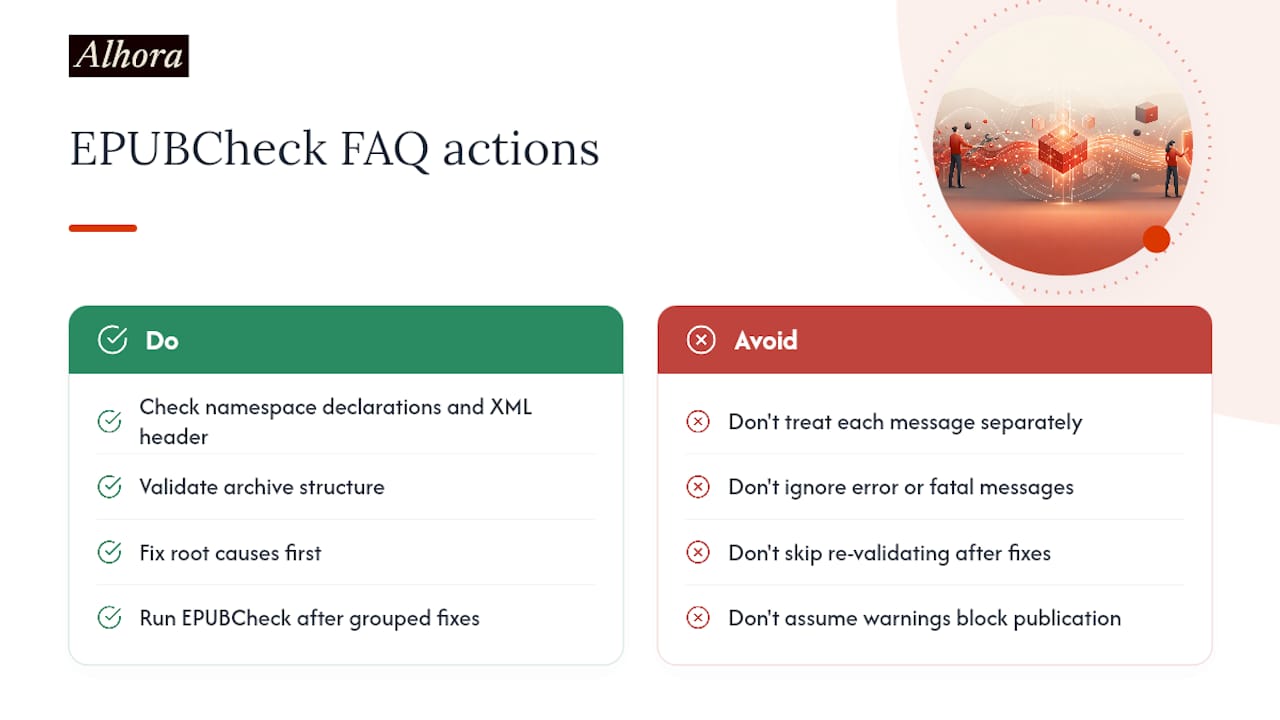
After every grouped fix, not just once at the end. Re-validating immediately shows you which messages actually resolved and prevents you from making unnecessary edits to warnings that a structural fix would have cleared anyway.
Sources
- Messages - EPUBCheck
- EPUBCheck - Accessible Publishing Knowledge Base
- How to fix epubcheck errors — Origami