
To publish on Google Play Books, you need one validated EPUB file with the front cover image embedded inside it, correctly named using your book's ISBN, and uploaded through Partner Center. A matching PDF is optional but recommended. Before you touch Partner Center, run your EPUB through EPUBCheck and open it in Adobe Digital Editions.
Here is exactly what you need ready before upload:
- A validated EPUB (EPUB 3.3 preferred; EPUB 3 and EPUB 2 accepted) with the front cover image embedded inside the file
- An optional PDF for readers who want the original page layout
- A separate marketing thumbnail (JPEG or PNG, minimum 640px) for the storefront
- Filenames based on your ISBN:
[ISBN].epuband[ISBN].pdf - Complete metadata inside both files (title, author, language, identifier)
Start by running EPUBCheck on your export, or use a typesetting tool that runs validation automatically.
Key Takeaways
A validated EPUB with an embedded front cover, correct ISBN-based filenames, and complete metadata is the minimum required to publish successfully on Google Play Books.
| Point | Details |
|---|---|
| Embed the cover inside the EPUB | A separate thumbnail does not replace the internal cover; missing it causes processing rejection. |
| Validate before upload | Run EPUBCheck, then open in Adobe Digital Editions to catch structural and rendering errors. |
| Name files by ISBN | Use your electronic ISBN for the EPUB and print ISBN for the PDF to avoid duplicate listings. |
| Upload both EPUB and PDF | Google recommends both formats so readers get reflowable text and original-page layout options. |
| Use Alhora for turnkey exports | Alhora automates typesetting, validation, and metadata for Google Play–ready files. |
Table of Contents
- What are the Google Play Books EPUB file requirements?
- How do you create a publication-quality EPUB for Google Play?
- How do you validate and test your EPUB before uploading?
- How do you upload your EPUB to Google Play Partner Center?
- Common EPUB errors on Google Play and how to fix them
- Should you use reflowable or fixed-layout EPUB for Google Play?
- Why should you upload both EPUB and PDF to Google Play?
- Alhora produces Google Play–ready EPUB and PDF files
- When outsourcing EPUB production makes more sense than doing it yourself
- Sources
What are the Google Play Books EPUB file requirements?
Before you build or export anything, confirm your files meet Google's file and upload requirements. The table below covers the essentials.
| Format | Role | Filename example |
|---|---|---|
.epub | Reflowable ebook (flowing text) | [ISBN].epub |
.pdf | Fixed original-page layout | [ISBN].pdf |
| JPEG / PNG / TIFF / PDF | Marketing cover thumbnail | [ISBN]_cover.jpg |
Key rules at a glance:
- Accepted content formats: EPUB and PDF
- Cover thumbnail formats: JPEG, PNG, TIFF, or PDF; minimum 640px on the shortest side
- Maximum file size: 2 GB per file
- Embedded cover: the EPUB must contain the front cover image internally; a separate thumbnail does not replace it per Google's book file guidelines
- Filenames: use your electronic ISBN for the EPUB and your print ISBN for the PDF when both exist
- DRM: Google applies its own platform DRM; do not encrypt files yourself before upload
How do you create a publication-quality EPUB for Google Play?
The goal is a semantically structured, validated EPUB with an embedded cover, complete metadata, and properly licensed embedded fonts. Here is the ordered workflow:
- Prepare your manuscript and front matter. Confirm title page, copyright page, table of contents, and dedication are in place before you typeset. Missing front matter causes sample-preview problems on the storefront.
- Typeset and proof in your source tool. Use a desktop or cloud typesetting engine that handles justification, hyphenation, and widow/orphan control automatically. Fixing these manually in raw HTML later is slow and error-prone.
- Embed the front cover inside the EPUB. Add the cover image as an item in the EPUB manifest, reference it in the metadata (
<meta name="cover" content="cover-image"/>in EPUB 2, or acoverproperty in EPUB 3), and include a cover page in the spine. This is the single most common cause of processing rejection. - Include complete metadata. Your
content.opf(or package document) must carry the title, author, language (xml:lang), and a unique identifier (ISBN or GGKEY). Missing or malformed identifiers cause Partner Center to create duplicate listings. - Embed fonts legally and reference them in CSS. Only embed fonts you are licensed to distribute. Declare each font in the manifest with
media-type="application/x-font-ttf"(or the correct MIME type for your font format), then reference it in your CSS with a@font-facerule pointing to the relative path inside the EPUB container. Never use absolute paths. - Optimize interior images. Keep raster images at 96–150 DPI for reflowable text; use 300 DPI for fixed-layout or image-heavy books. Compress PNGs and JPEGs before packaging to stay well under the 2 GB ceiling.
- Build accessible structure. Include a proper
<nav>element (EPUB 3) ortoc.ncx(EPUB 2) with landmarks pointing to bodymatter. This controls where the sample starts on the storefront. - Export and validate. Run EPUBCheck immediately after export. Zero errors is the target; warnings about deprecated features are lower priority but worth reviewing.
- Produce a PDF if you have original-layout pages. Export from the same source file to keep metadata consistent between the two formats.
Google supports EPUB 3.3, EPUB 3, and EPUB 2, but EPUB 3.3 gives you the cleanest semantic structure and the best compatibility with Play Books' rendering engine going forward.
Pro Tip: Set your EPUB nav's first landmark to bodymatter so the free sample opens at Chapter 1, not the copyright page. Readers who see a sample starting at legal boilerplate abandon the preview.
How do you validate and test your EPUB before uploading?
Validate with EPUBCheck first, then open the file in Adobe Digital Editions, then preview fixed-layout books in the Google Web Reader as a Content Reviewer. That sequence catches the three failure layers: structural errors, rendering problems, and layout-specific display issues.

Running EPUBCheck. Download the latest EPUBCheck JAR from the W3C/DAISY repository and run java -jar epubcheck.jar yourbook.epub from the command line. Errors block ingestion; warnings are advisory. Prioritize: missing manifest items, incorrect MIME types, invalid spine references, and malformed metadata identifiers.
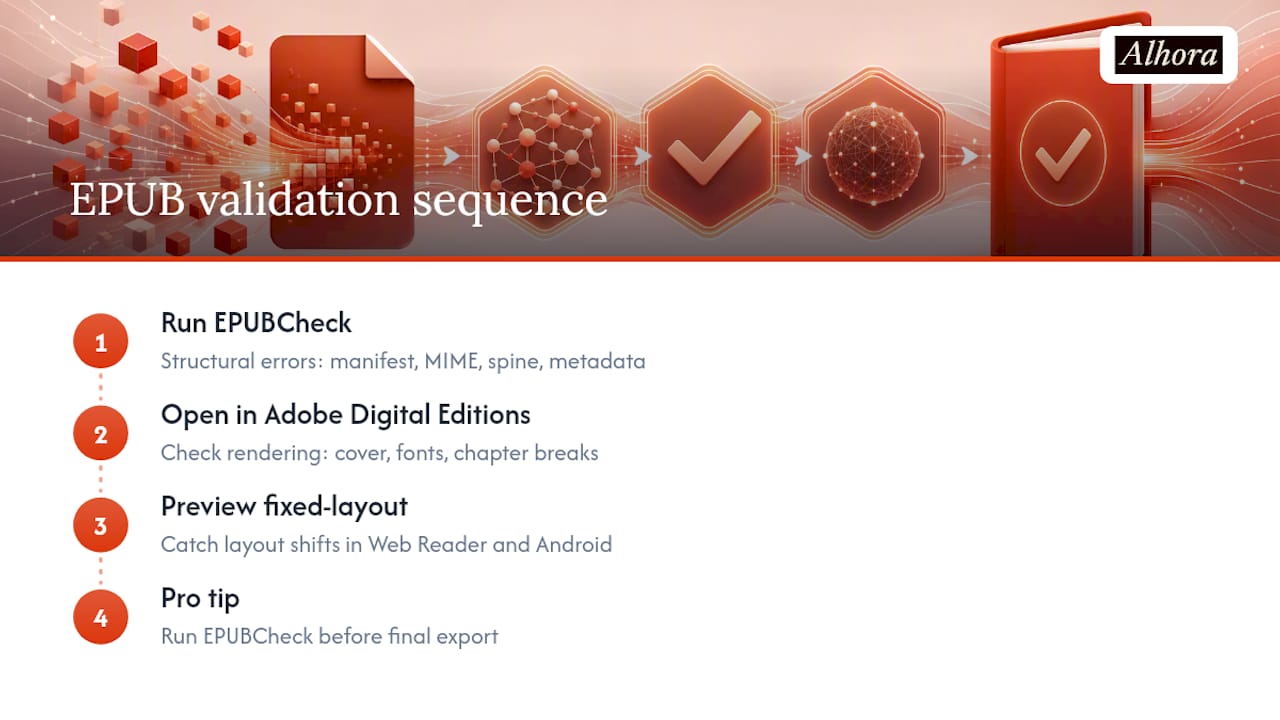
Opening in Adobe Digital Editions. If the EPUB renders cleanly in ADE, it is a strong signal it will pass Google's processor. Check that the cover displays on the first screen, fonts load correctly, and chapter breaks fall where expected. ADE is free and available for Windows and macOS.
Fixed-layout preview. For fixed-layout EPUBs, add yourself as a Content Reviewer in Partner Center and preview the book in the Google Web Reader and on an Android tablet if you have one. Google's display engine for fixed-layout titles has its own quirks, and this step catches layout shifts that EPUBCheck cannot detect.
Pro Tip: Run EPUBCheck before you finalize your export settings, not after. Catching a manifest error at the source-file stage takes minutes; hunting it down inside a packaged EPUB takes much longer.
How do you upload your EPUB to Google Play Partner Center?
The Partner Center upload sequence is straightforward, but filename discipline prevents the most painful mistake: accidentally creating a duplicate book listing.
- Sign in to Play.
- Click Content in the left navigation.
- Click Upload content.
- Click Choose files and select your EPUB and PDF.
- Wait for processing. Successfully ingested files appear in the Content tab; processing can take several minutes.
Filename conventions matter more than most publishers realize. Per Google's identifier-based naming guidance, use your electronic ISBN for the EPUB and your print ISBN for the PDF:
| File type | Recommended filename | When to use |
|---|---|---|
| EPUB with embedded cover | [ISBN].epub | Standard upload for all reflowable titles |
| PDF (print ISBN) | [ISBN].pdf | When print and electronic ISBNs differ |
| PDF interior only | [ISBN]_interior.pdf | When cover is a separate PDF file |
| Cover image | [ISBN]_cover.jpg | Separate marketing thumbnail upload |
Pro Tip: You cannot delete an uploaded file in Partner Center. To replace content, upload a file with the same filename or identifier prefix. If you change the filename, Google treats it as a new book and creates a separate listing. Users who downloaded the previous version must re-download to receive the update.
Common EPUB errors on Google Play and how to fix them
The fastest path to a clean ingestion is fixing the issues that block processing entirely. Missing embedded covers, manifest errors, and EPUBCheck failures are the most common blockers.
Missing internal cover. The EPUB contains no cover image in its manifest, or the cover is referenced but the file path is wrong. Fix: add the cover image to the EPUB's OEBPS/images/ folder, declare it in content.opf with properties="cover-image" (EPUB 3) or <meta name="cover"> (EPUB 2), and add a cover page HTML file to the spine as the first item.
Incorrect font MIME types. A font declared as application/x-font-ttf when the file is actually an OTF causes a manifest error. Fix: match the MIME type to the actual font format (font/otf for OpenType, font/ttf for TrueType in EPUB 3).
Broken image paths. Images referenced with absolute paths (/images/fig1.png) instead of relative paths (../images/fig1.png) fail when the EPUB is unpacked. Fix: use relative paths from each HTML file's location within the container.
Spine and manifest mismatches. An HTML file listed in the spine but absent from the manifest (or vice versa) triggers an EPUBCheck error that blocks processing. Fix: open content.opf, compare the <manifest> and <spine> sections, and remove or add entries until they match.
Wrong sample start point. The book's sample opens at the copyright page because the nav landmarks are missing or point to the wrong file. Fix: add a bodymatter landmark in the EPUB 3 nav pointing to your first chapter file.
Pro Tip: After uploading a replacement file, check the Content tab a few minutes later to confirm the new version processed correctly. Google does not send a notification when replacement processing completes.
Should you use reflowable or fixed-layout EPUB for Google Play?
Use reflowable for almost everything. Fixed-layout is a deliberate choice for books where the page design is the content itself.
Choose reflowable when:
- The book is narrative fiction, memoir, or standard nonfiction
- Readers benefit from adjustable font size and line spacing
- You want the widest device compatibility across phones, tablets, and web browsers
- You are publishing a series and need consistent, low-maintenance exports
Choose fixed-layout when:
- Page design is inseparable from meaning: comics, graphic novels, heavily illustrated children's books, or image-first cookbooks
- Multi-column layouts or precise text positioning cannot survive reflow
- You have embedded media or interactivity tied to exact page coordinates
Google prioritizes reflowable EPUBs because they support font changes and text resizing, which directly affects reader satisfaction on mobile. Fixed-layout titles work, but they require an extra verification step: after upload, add yourself as a Content Reviewer and check the Web Reader and an Android tablet before publishing.
Why should you upload both EPUB and PDF to Google Play?
Google explicitly recommends submitting both formats so readers can choose between a reflowable reading experience and the original page layout. For a novel, the EPUB is the primary experience. For a cookbook or art book, the PDF preserves the design the author intended.
Practically, the EPUB handles font customization and accessibility; the PDF handles exact pagination and print-faithful layout. Readers who buy a heavily designed book and receive only a reflowable EPUB sometimes leave negative reviews because the layout collapses on their device.
Pro Tip: Export both formats from the same source file in the same session. Exporting them separately at different times risks metadata inconsistencies between the EPUB and PDF, which can confuse Partner Center's ingestion.
Alhora produces Google Play–ready EPUB and PDF files
Getting a clean, validated EPUB out of a raw manuscript is where most self-publishers lose hours. Alhora is built specifically to close that gap: its typesetting engine produces professionally formatted EPUB and PDF exports that conform to Google Partner Center requirements from the first export.

Alhora handles the details that cause ingestion failures: embedded cover images, correct font declarations and MIME types, accessible EPUB structure with proper nav landmarks, and metadata templates that match Google's identifier conventions. Its automated validation checks flag EPUBCheck-class errors before you ever open Partner Center. For small publishers managing a catalog or a series, the batch formatting and version control features cut iteration cycles significantly.
Ready to export a Google Play–ready EPUB without the manual troubleshooting? Start with Alhora and go from manuscript to validated export in one session.
When outsourcing EPUB production makes more sense than doing it yourself
The honest answer: outsource when the cost of a formatting error exceeds the cost of hiring help. For a single novel with no interior images, a careful author can learn the workflow. For a fixed-layout children's book, a series of ten titles, or any book where the design is load-bearing, the iteration cycles add up fast.
A short decision checklist worth running through before you start:
- Time: do you have 4–8 hours to learn EPUB structure, run validation cycles, and fix manifest errors?
- Volume: are you formatting more than two or three titles at once?
- Complexity: does the book use fixed-layout, custom fonts, interior images, or multi-column design?
- Series: do you need consistent formatting across multiple books with shared styles?
If you answered yes to two or more of those, a professional formatting service or a purpose-built typesetting tool will pay for itself in time alone. The technical floor for a clean Google Play submission is higher than most authors expect the first time through.
Sources
- Files and uploading overview - Google Play Books Partner Center Help