
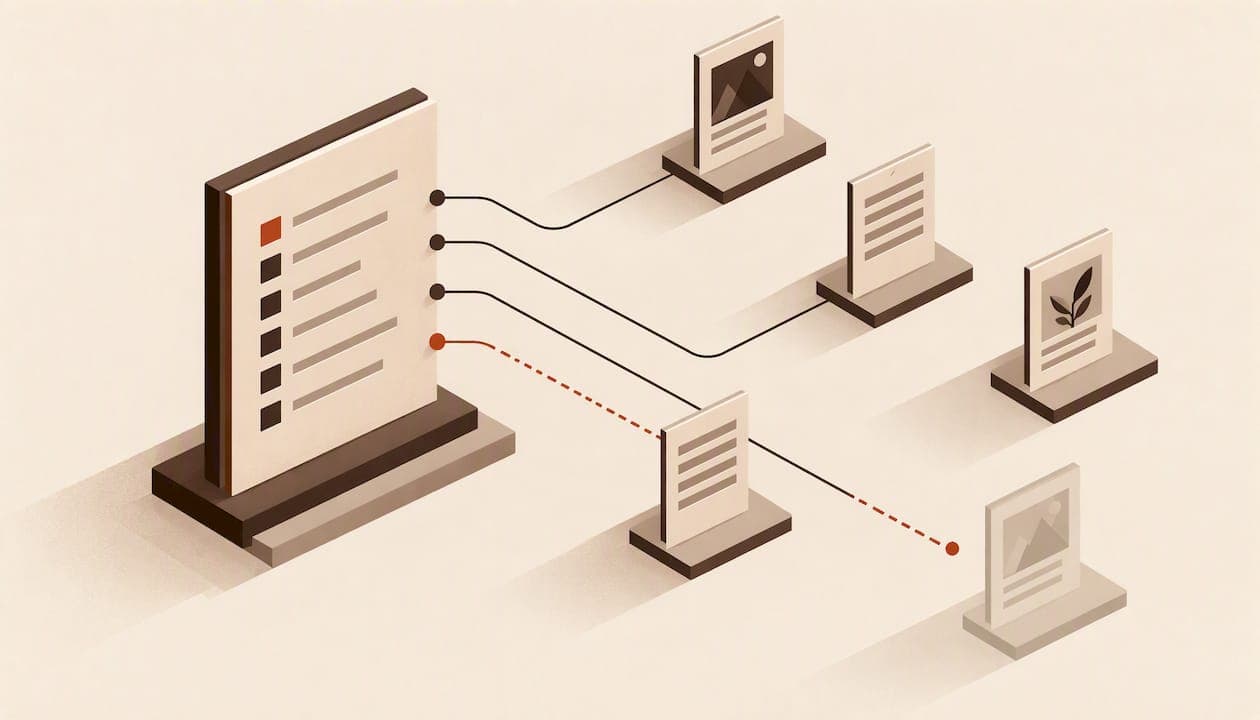
The EPUB navigation document is the required, XHTML-based global navigation layer in EPUB 3 that reading systems must process. It holds up to three structures: a toc (required), landmarks (recommended) and a page-list (optional). Declare the file in the OPF manifest with properties="nav", and reading systems will treat it as the book's logical table of contents.
Key Takeaways
The EPUB navigation document is essential for accessibility and must be properly structured and declared for reading systems to function correctly.
| Point | Details |
|---|---|
| Navigation must include a toc | Every EPUB requires a table of contents wrapped in a nav element with correct links to content anchors. |
| Landmarks improve accessibility | Landmarks provide quick access to major sections and should be flat nav lists with specific epub:type values. |
| Page-list is optional but helpful | A page-list links content to static print page numbers and is necessary only for books reproducing print layouts. |
| Declare nav in the OPF manifest | Include the navigation file in the package with properties="nav" so reading systems recognize it. |
| We ensure structural accuracy with Alhora | Alhora offers real-time validation to catch structural problems during EPUB production. |
Table of Contents
- What is the EPUB navigation document and why does the standard require it?
- How do you build the toc nav?
- What goes in the landmarks nav?
- When do you need a page-list nav?
- How do you declare the navigation document in the OPF?
- Why must the TOC match the spine order?
- Does a good nav document make a book accessible on its own?
- How do you validate and test the navigation?
- What is the quick checklist for navigation structure?
- Where do authors usually go wrong?
- How can Alhora speed up EPUB navigation checks?
- FAQ
- Sources
What is the EPUB navigation document and why does the standard require it?
The navigation document is a specialized XHTML content document. It carries navigation that people can read and software can parse, and it is constrained by the EPUB navigation document specification rather than being free-form HTML. EPUB 3.4 keeps the same rule: a publication must contain one, and the reading system must process it.
That requirement replaced an older approach. EPUB 2 used the NCX file. The move to an HTML5 navigation document was driven by accessibility needs, because it keeps a cleaner hierarchy and full semantic meaning that NCX could not.
For you as the file's creator, this means the navigation document is not optional polish. A book without a valid one fails the standard.
How do you build the toc nav?
The toc is the one structure every book needs. Wrap an ordered list in <nav epub:type="toc">, give each <li> an <a> that points to a content anchor, and nest further <ol> lists for sub-entries.
<nav epub:type="toc">
  <ol>
    <li><a href="ch01.xhtml">Chapter 1</a>
      <ol>
        <li><a href="ch01.xhtml#s1">Opening scene</a></li>
      </ol>
    </li>
  </ol>
</nav>
A few rules keep it usable:
- Every entry needs a link target that exists in a content file.
- Use a
<span>for a heading that should not link anywhere. - Keep entry order identical to spine order.
- Add the
hiddenattribute to a branch when you include the nav in the spine and do not want a redundant visual chapter. Reading systems ignorehiddenwhen they present the nav outside the spine, so the links still appear in generated menus.
Pro Tip: Build the toc from your real heading anchors, then click every link in a preview app. Dead anchors are one navigation issue to check for.
Our guide to a clickable eBook table of contents walks through the same steps for indie authors.
What goes in the landmarks nav?
Landmarks give readers and reading systems quick access to major sections. Unlike the toc, the list is flat: one <nav epub:type="landmarks"> with a single <ol> and no nested items. Each link carries an epub:type value naming the section, as the DAISY landmarks guidance shows.
Common values and when they help:
bodymatter: jumps readers to where the story or main text begins.toc: points to the table of contents page.bibliography: useful in nonfiction with a long reference list.glossary: helps readers of technical or fantasy titles with invented terms.index: lets readers reach the back-of-book index in one tap.
Landmarks are not the same thing as ARIA landmarks. ARIA landmarks describe regions inside a single page for assistive technology. EPUB landmarks describe the book as a whole, so every reader benefits from them, not only people using screen readers. Our EPUB landmarks guide covers more values with examples.
When do you need a page-list nav?
A page-list is <nav epub:type="page-list">. Its job is to sync digital content with the static page numbers of a print or source edition. It is optional, but include it when your book reproduces a print edition with fixed page breaks.
EPUB Accessibility 1.1 asks for links to all page-break markers reproduced from the source edition, plus an identification of that source edition in the package metadata. Practically, that means a page-break anchor in the text for every print page, one list entry per anchor, and the source ISBN recorded in your metadata.

Fixed-layout books are a special case. Their content does not reflow, so locations are harder to find. The fixed-layout accessibility guidance recommends robust structural metadata and a page-list or thumbnail navigation where possible.
How do you declare the navigation document in the OPF?
Navigation only works when the package document points to it. In the manifest, add the nav file with properties="nav":
<item id="nav" href="nav.xhtml"
      media-type="application/xhtml+xml" properties="nav"/>
Without that property, reading systems cannot identify the file as the logical table of contents. The EPUB packages specification states that the declaration is what lets a reading system display it in the book's navigation menu. Some platforms read this manifest entry to fill their Go To menus.
Spine placement is a separate choice. If you list the nav in the spine, readers see it as a visible page in the book, which suits a printed-style contents page. If you leave it out of the spine, it stays out of the reading flow but still powers the menus. Pick one deliberately instead of letting an export tool decide.
Why must the TOC match the spine order?
The toc must follow the order of documents in the spine, and the order of sections inside each document. EPUB Accessibility Techniques 1.2 says entries should match the linear reading order, and it advises against linking supplementary content such as figures or tables straight from the main toc. Give those their own custom nav lists instead.
Three quick checks catch most mismatches:
- Validate that every anchor resolves.
- Step through the spine in a reading app and note where each chapter lands.
- Compare the nav outline against the actual headings in each file.
If a chapter appears in the toc before the one that precedes it in the spine, readers will jump backward and lose their place. Our guide to cross references and export testing shows how to test anchors after export.
Does a good nav document make a book accessible on its own?
No. A navigation document cannot compensate for a poorly structured book. The JSTOR accessibility guidelines call for logical h1–h6 heading structures inside the content documents, so global navigation and internal markup both have to be right.
Landmarks and the page-list also support the WCAG idea of offering multiple ways to find content. Reading systems must process the nav and should support jumping to page breaks when a page-list exists, so these structures feed real widgets in real apps.
Practical habits:
- Write link text that makes sense out of context, not "click here."
- Give non-text elements alt text, since reading systems may replace them with it in generated menus.
- Use the HTML5 semantic markup and
epub:typeapproach that EPUB for Developers describes. - Choose the most specific
epub:typeavailable over a generic one.
Pro Tip: Skim your headings alone, without the nav. If the outline reads like a sensible book, your toc will too.
Our EPUB accessibility checklist maps these points to WCAG and EPUB requirements.
How do you validate and test the navigation?
Professional EPUB production uses three layers, each catching what the previous one misses. Follow this order:
- Run EPUBCheck for standards conformance. It flags a missing nav declaration or broken links.
- Run Ace by DAISY for automated accessibility checks. Its Outlines tab puts the table of contents and heading structure side by side, so mismatches stand out.
- Do manual SMART checks to judge semantic meaning, which machines cannot reliably assess.
The DAISY validation overview describes the same sequence. After you fix what the tools report, open the file in reading apps and devices. Behavior differs, and a nav that passes validation can still look odd in a particular app. If EPUBCheck throws errors you do not recognize, see our walkthrough on how to fix EPUBCheck errors.
What is the quick checklist for navigation structure?
Use this list to build or audit a book:
- Include a nav document and declare it in the OPF with
properties="nav". - Build the toc with correct anchors.
- Add a landmarks nav.
- Add a page-list when the book comes from print.
- Confirm toc and spine order match.
- Run EPUBCheck, then Ace.
- Audit headings by hand.
- Preview in reading apps.
Pro Tip: If the nav sits in the spine, hide the branches you do not want shown. Prefer specific epub:type values such as glossary over generic ones so reading systems can act on them.
If you want the full set of structural values, the DAISY navigation guidance has examples for both EPUB 2 and EPUB 3.
Where do authors usually go wrong?
Most navigation bugs I see are boring ones: anchors that no longer exist after a chapter was renamed, a nav file missing properties="nav", and headings chosen for looks instead of structure. Spend your QA time there before anything else. For step-by-step fixes, browse the how-to posts on our blog linked throughout this article.
— James
How can Alhora speed up EPUB navigation checks?
We built Alhora to catch structural problems while you work, not after a store rejects your file. Validation runs in real time against publishing standards, and export lives in the same place as formatting.

- Real-time checks against publishing standards as you format.
- Export-ready EPUB files for the major stores.
- One workflow from manuscript to finished file.
If you want to see how that fits your book, start with our ebook formatting software page.
FAQ
What is an EPUB navigation document?
It is a specialized XHTML file that holds a book's table of contents and other navigation lists. EPUB 3 requires it, and reading systems must process it. It replaces the NCX file used in EPUB 2.
Which navigation structures should every EPUB include?
The toc is required for all books. Landmarks are recommended, and the page-list is optional, as the DAISY toc guidance explains. Add a page-list only when you need to match static page numbers from a source edition.
How do I tell reading systems which file is the navigation document?
Declare it in the package manifest with properties="nav". Without that property, reading systems cannot identify the file as the logical table of contents, as the EPUB packages specification describes.
Should the navigation document be in the spine?
It can be, if you want readers to see a contents page in the flow of the book. Otherwise leave it out. When you include it, use the hidden attribute on branches you do not want displayed.