
Yes: every ebook needs a clickable in-book Table of Contents and a separate navigation document (nav.xhtml for EPUB3, toc.ncx for EPUB2). Skipping either one is the fastest way to get flagged during retailer review or leave readers stranded mid-chapter. Confirm your heading styles are consistent, build the visible TOC page, generate the navigation file, then run a validator before you upload anything.
TL;DR:
- Retailers prioritize the navigation document, such as nav.xhtml or toc.ncx, over the visible table of contents page for proper EPUB validation.
- Applying heading styles correctly in Word and adding bookmarks where styles lack ensures the clickable TOC links work reliably across devices and formats.
- The navigation file must be declared in the EPUB manifest with the properties="nav" attribute and validated with EPUBCheck to prevent validation failures.
- Testing the EPUB on multiple devices and tools, including Kindle Previewer and real e-readers, confirms that chapter links function correctly and the Start Reading location is appropriately set.
- Using an ebook formatting software automates navigation file creation and validation, reducing mechanical errors and saving time on revisions.
Table of Contents
- What's the Difference Between an Ebook Table of Contents and a Navigation Document?
- How Do You Build a Clickable TOC in Word and Kindle Create?
- What Are the Most Common Ebook TOC Mistakes?
- How Do You Test and Validate an Ebook TOC?
- Why a Formatting Studio Cuts TOC Risk for Independent Authors
- Get a Clickable TOC and Validated Navigation Without the Manual Rebuild
- Sources
- FAQ
What's the Difference Between an Ebook Table of Contents and a Navigation Document?
An ebook actually carries two separate navigation systems, and confusing them is where most first-time formatters go wrong.
The HTML TOC is a page inside the book itself, the kind a reader taps through while flipping pages, listing chapter titles with clickable links that jump to each section. The navigation document is a hidden file that powers the reading app's own menu, the "Go To" or "Contents" button in the corner of the screen. In EPUB3, that file is nav.xhtml; older EPUB2 files use toc.ncx instead, and many retailers still expect the legacy file for backward compatibility.

Here's the part that trips people up: retailers care more about the navigation document than they do about your visible TOC page. Amazon's own guidance treats the interactive Kindle TOC as a requirement, not a nice-to-have, because that's what powers the device's jump-to menu. A book with a gorgeous, hand-linked contents page but no nav.xhtml will still fail validation.
Both systems need to agree with each other. That means:
- Keep your visible TOC entries matching your actual chapter titles, word for word.
- Flatten the hierarchy to three levels at most (part, chapter, subhead) so the navigation menu doesn't turn into a maze.
- Include front-matter entries like the title page, copyright, and dedication, since readers navigating nonfiction often jump straight to a foreword or index.
- Skip page numbers in the ebook version entirely. Reflowable text has no fixed pages.
Fiction readers rarely open the TOC at all. Nonfiction readers use it constantly, jumping between recipes, exercises, or reference sections, which is exactly why the visible page still earns its place even though the hidden nav file is the one doing the heavy lifting for retailers.
How Do You Build a Clickable TOC in Word and Kindle Create?
Getting both navigation systems right comes down to sequencing. Do these steps out of order and you'll spend an evening untangling broken links instead of writing.
- Apply heading styles before anything else. Every chapter title gets Heading 1. Subheads inside a chapter get Heading 2. Word's TOC generator reads these styles directly, so a chapter title formatted with bold text and a bigger font size, but no actual heading style, won't show up in your contents page at all.
- Insert the TOC in Word. Go to References → Table of Contents, choose an automatic style, and Word builds the list from your headings. Then strip out page numbers, since they mean nothing once the file reflows on a screen.
- Add bookmarks for anything the heading styles miss. A dedication page, an author's note, or a bonus chapter without a formal heading still needs a manual bookmark and a linked TOC entry pointing to it.
- Move to Kindle Create if you're targeting Amazon directly. Import your finished DOCX, then use Insert Kindle Interactive TOC. Kindle Create scans your headings and assembles a device-native contents menu automatically, matching KDP's own requirement for an interactive TOC.
- Check the EPUB export for
nav.xhtml. Whatever tool converts your manuscript to EPUB, confirm the navigation file exists and carries theproperties="nav"attribute in the manifest. Without that flag, some reading apps won't recognize it as navigation at all. - Add
toc.ncxif you need EPUB2 compatibility. Some older devices and a handful of retailer pipelines still read the legacy format, so including it costs little and covers more ground. - Handle image-based headings differently. If your chapter titles are designed graphics rather than styled text, Draft2Digital's workflow recommends giving each chapter image a unique bookmark name so the conversion pipeline can detect the break and link the TOC entry correctly.
Pro Tip: Name your bookmarks something you'll recognize weeks later, like "ch12start" instead of "bookmark47." When you're fixing a broken link at midnight before a launch, that naming choice saves real time.
Once the manuscript is built, the workflow is simple: build, validate, preview, upload. Skip a step and you'll find the missing piece during retailer review instead of before it, which is a much worse time to discover it.
For a broader look at prepping a manuscript before it ever reaches export, Alhora's step-by-step ebook formatting guide walks through the earlier stages in more detail.
What Are the Most Common Ebook TOC Mistakes?
Four mistakes account for nearly every TOC complaint authors post in self-publishing forums, and all four are checkable before you ever hit upload.
- No navigation document at all. The EPUB validates as a file but the reading app has nothing to build its menu from.
- Broken anchors. A TOC entry links to a bookmark that was renamed or deleted during editing, so the link goes nowhere.
- The nav file exists but isn't declared in the spine or manifest. This is one of the most common reasons a properly structured EPUB still fails retailer checks, because the file is present but the reading system doesn't know to use it.
- Nesting too deep. A TOC with five heading levels turns a simple menu into a scroll-fest nobody uses.
Before you upload, run through this list: heading styles applied consistently, bookmarks named and linked, the nav manifest property present, an EPUBCheck pass with zero navigation errors, a preview on at least one device or app, and the Start Reading location set correctly on KDP.
If a link is broken, the fix is almost always a mismatch between the bookmark name and the TOC entry pointing to it. Reopen both, confirm they match character for character, and relink.
How Do You Test and Validate an Ebook TOC?
Running EPUBCheck against your finished file is the closest thing to a mandatory step in this entire process. It catches missing navigation files, malformed manifest entries, and broken internal links, the exact errors that cause silent rejections or reader complaints after launch.
After EPUBCheck passes clean, move to device-level testing:
- Load the file into Kindle Previewer and tap through the interactive TOC to confirm every entry jumps to the right spot.
- Open it in Apple Books' preview tool and check that chapter links behave the same way.
- If you have access to an actual e-reader or tablet, test there too. Emulators don't always catch everything a real device will.
- On KDP specifically, set the Start Reading location deliberately rather than letting Amazon guess, so readers land on chapter one rather than the copyright page.
Alhora's guide to EPUB navigation semantics covers how landmarks and manifest properties interact if you want to go deeper on the technical side of what a validator is actually checking.
Why a Formatting Studio Cuts TOC Risk for Independent Authors
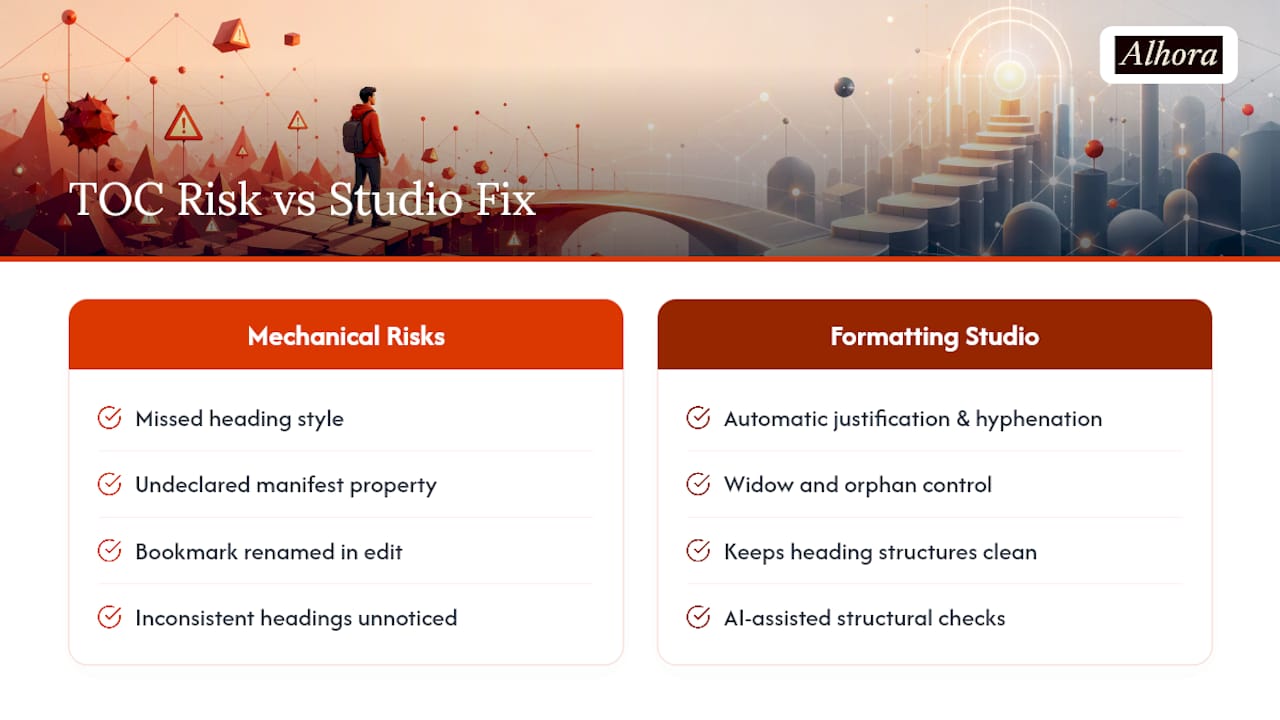
Most TOC failures aren't creative mistakes. They're mechanical: a missed heading style, a manifest property left undeclared, a bookmark renamed during a late edit. Alhora exists because that mechanical layer shouldn't be where an author's attention goes.
Its typesetting engine applies justification, hyphenation, and widow and orphan control automatically, the same discipline that keeps heading structures clean enough for a navigation document to build correctly the first time. Its AI-assisted checks flag structural problems, including inconsistent headings, without ever touching the words on the page. That distinction matters to authors who want technical help without giving up creative control over their own manuscript.
— James
Get a Clickable TOC and Validated Navigation Without the Manual Rebuild
Everything above, heading styles, bookmarks, nav.xhtml, toc.ncx, EPUBCheck, works. It also takes an evening or two to get right the first time, and another round of checking every time you push a revised edition. Alhora's ebook formatting software builds the navigation document and the visible TOC from your existing heading structure automatically, then runs validation checks before you ever reach a retailer's upload screen.

If Amazon is your primary retailer, the KDP-specific formatting page covers interactive TOC requirements and Start Reading placement directly. Authors managing a series or a backlist benefit most, since a fix applied once carries forward across every title instead of getting rebuilt by hand each time. Export a sample chapter through Alhora's workflow and check the generated navigation file before committing to a full manuscript run.
Sources
FAQ
How Do I Get to the Table of Contents on My Kindle?
Tap the top of the screen while reading to bring up the menu bar, then tap the contents icon, usually shown as lines or a small book symbol, to open the interactive TOC.
How Do I Get Back to the Table of Contents in Kindle?
Use the same menu bar tap, then select the TOC icon again. It's a navigation shortcut readers can use from anywhere in the book, not just the opening pages.
What Is the Best Format for an Ebook?
EPUB3 is the current standard most retailers expect, since it supports nav.xhtml and reflowable text across devices. Amazon KDP also accepts EPUB and converts it internally, so a clean EPUB3 file with proper navigation covers the widest range of stores.
Where Can I Find the Table of Contents in a Book?
In a physical book, the contents page is typically the first item after the title and copyright pages. In an ebook, the visible TOC page sits in the same front-matter position, while the navigation menu is accessible from your reading app's toolbar at any point in the book.