
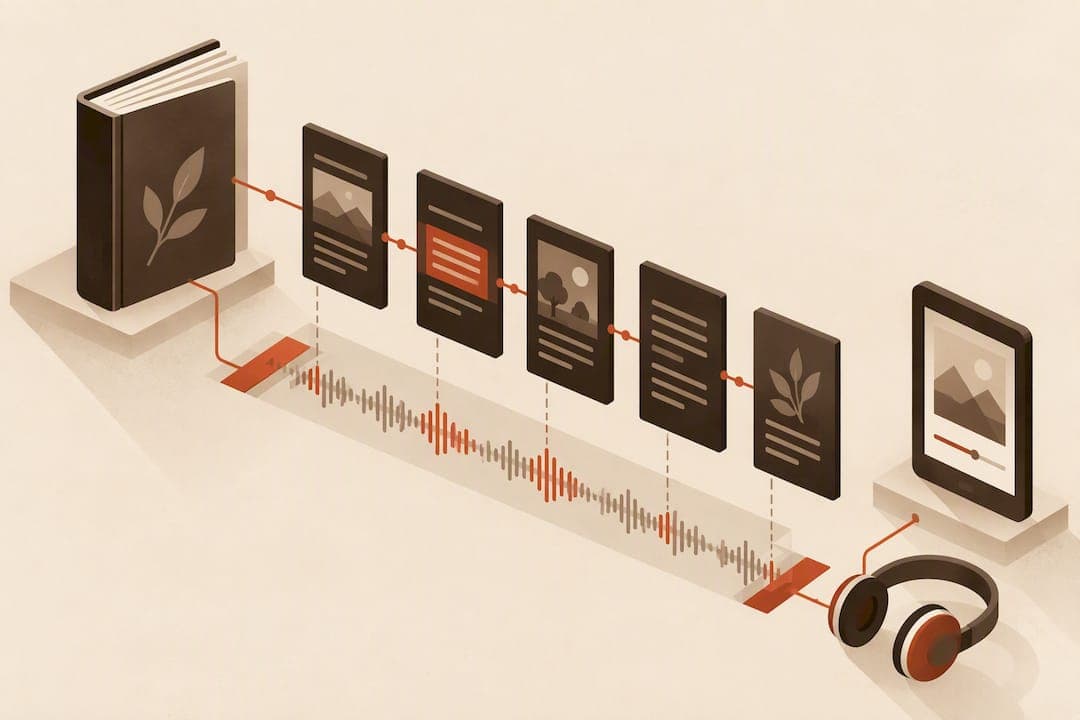
EPUB Media Overlays are a SMIL-based way to synchronize prerecorded audio with XHTML content so reading systems can highlight text as it is read. We rely on them for synchronized highlighting, accessible read-aloud experiences, and language learning tools. Reading-system support is optional, but the manifest linkage that tells a reading system where to find an overlay is required for any of it to work.
Key Takeaways
Media overlays in EPUB use simplified SMIL structures to synchronize audio with text, improving accessibility and language learning experiences.
| Point | Details |
|---|---|
| Overlay structure | EPUB media overlays use a simplified SMIL 3.0 subset with smil, body, seq, and par elements to sync audio with text. |
| Manifest linking | To activate overlays, a SMIL file must be referenced in the EPUB manifest with a specific media-overlay attribute linking to the correct media overlay ID. |
| Highlighting setup | A media:active-class property must be declared in OPF metadata, and matching CSS rules are needed to make active text visually distinguishable. |
| Content preparation | Build overlays on a single chapter first by creating synchronized SMIL, verifying with CSS, and ensuring all IDs and paths are correct before scaling up. |
| Use of Alhora | We recommend using Alhora's software to validate overlays, manifest, and CSS during development to prevent common mistakes and ensure compatibility. |
Table of Contents
- How media overlays work: SMIL structure and content document links
- Package and metadata requirements for manifest linkage
- Step-by-step: building a working overlay for one chapter
- Making overlays accessible: escapability, TTS, and focus
- Hosting audio: bundled files versus remote resources
- Testing media overlays across reading systems
- Common pitfalls and quick fixes
- Minimal working examples: SMIL, OPF, and CSS
- When overlays are worth the production investment
- Validating your overlays before you publish
- FAQ
- Sources
How media overlays work: SMIL structure and content document links
Media Overlays use a subset of SMIL 3.0, not the full specification. EPUB 3.4 keeps this scope narrow on purpose: overlay documents are application/smil+xml files that associate audio clips with fragments of an XHTML content document, and nothing more elaborate than that pairing is needed. Full SMIL 3.0 supports layout, transitions, and complex timing graphs. Overlays strip that down to four elements that matter: smil, body, seq, and par, plus the text and audio children that do the actual work.
Each overlay document opens with a root smil element wrapping a body. Inside the body, seq elements establish sequence, usually one seq per chapter or section, and par elements establish parallel playback: one text element paired with one audio element, played together. A par is the basic sync unit. It says, in effect, "while this audio clip plays, this text fragment is active."
The text element references content in the XHTML document through an IRI fragment identifier, typically something like chapter01.xhtml#sentence12. That fragment has to correspond to an id attribute already present in your content document, which means overlay authoring is really two coordinated tasks: marking up the chapter with enough id attributes to serve as anchor points, then building a parallel SMIL file that references them.
The DAISY Knowledge Base adds a detail that trips up a lot of first-time implementers: seq elements can carry an epub:textref attribute pointing to a structural element in the content document, such as a heading or a list container. This lets a seq represent a structural unit (a paragraph, a list) while the par children inside it represent the sentence-level or phrase-level sync points. Reading order in the XHTML document and sequence order in the SMIL file need to match: reading systems walk both in parallel, and a mismatch produces skipped highlights or audio that plays out of step with visible text.

Package and metadata requirements for manifest linkage
Once your SMIL file exists, the reading system has no way to find it unless the OPF package document says so explicitly. Two things have to happen in the manifest.
First, add a manifest item for the .smil file itself, with media-type="application/smil+xml". Second, on the manifest item for the XHTML content document that the overlay narrates, add a media-overlay attribute whose value is the id of the SMIL manifest item. That attribute is the only thing linking a chapter to its narration. Miss it, and a reading system that fully supports overlays will render the chapter silently, with no highlighting and no audio, even though the SMIL file is sitting right there in the package.
Highlighting itself depends on a second piece of metadata, declared at the package level rather than per item. EPUB 3.4 and the earlier EPUB 3.3 media overlays vocabulary both specify a <meta property="media:active-class"> element in the OPF metadata, naming the CSS class a reading system should apply to the text fragment currently being read aloud. A related playback-active-class property can be declared for the class applied to the active audio or video element itself. Neither class does anything by default: you still have to define it in your stylesheet with a background color, underline, or border that makes the active fragment visually distinct. Declare the property without matching CSS, and supporting reading systems add the class name to the DOM with no visible effect.
A short pre-flight checklist catches most manifest problems before they reach a reading system:
- Confirm every SMIL manifest item has a unique
idand the correctapplication/smil+xmlmedia type. - Confirm the
media-overlayattribute on each XHTML item points to the matching SMIL item'sid, not its filename. - Confirm
hrefpaths in the manifest are relative to the OPF file's location, not the project root. - Confirm
media:active-classis declared once in OPF metadata and that the named class exists in your CSS. - Confirm every fragment
idreferenced by atext srcin SMIL actually exists in the target XHTML file.
Small mismatches here, an id typo, a path written relative to the wrong directory, are the single most common reason overlays "don't work" despite otherwise correct SMIL markup.
Step-by-step: building a working overlay for one chapter
Building your first overlay is easiest on a single chapter, since you can verify the full chain, audio, SMIL, manifest, CSS, before scaling to a whole book.
- Prepare your audio. Record or source narration as a single audio file per chapter rather than many small clips; using one file with timed offsets (
clipBeginandclipEnd) keeps packaging simple and avoids duplicate assets scattered across the container. Bundle the file inside the EPUB whenever the content is essential to the reading experience. - Mark up your XHTML with anchor IDs. Add an
idattribute to each sentence or phrase you intend to sync, choosing a consistent naming pattern such ass1,s2,s3within each chapter. - Build the SMIL document's skeleton. Open with
<smil>and<body>, then add one<seq>per chapter section, withepub:textrefpointing at the relevant structural heading or container when useful. - Add
parelements for each sync point. Inside theseq, write one<par>per sentence or phrase, each containing a<text src="chapter01.xhtml#s1"/>and an<audio src="chapter01.mp3" clipBegin="00:00:01.200" clipEnd="00:00:04.800"/>. - Update the OPF manifest. Add the manifest item for the new
.smilfile with the correct media type, then add themedia-overlayattribute to the XHTML item it narrates. - Check the spine. No spine changes are required for overlays themselves, but confirm the narrated XHTML file is still referenced correctly in reading order.
- Declare
media:active-classin OPF metadata and add the matching CSS rule to your stylesheet. - Validate and test. Run the file through EpubCheck, then open it in two or three reading systems that support overlays to confirm playback, highlighting, and navigation behave as expected.
A few details are worth double-checking before you call a chapter done. Clip timings should use the hh:mm:ss.sss format consistently, and it helps to log them in a spreadsheet alongside each fragment id so you can spot gaps or overlaps at a glance. Fragment IDs need to be unique within a document and spelled identically in both the XHTML and the SMIL file; a mismatched case or a missing digit silently breaks that one sync point. Every content document referenced in a .smil file should declare its own xml:lang and charset correctly, since TTS fallback and text rendering both depend on that metadata being accurate.
Pro Tip: Build and test one chapter end to end, including manifest and CSS, before duplicating the pattern across the rest of the book. Fixing a structural mistake once is far cheaper than fixing it in forty files.
Making overlays accessible: escapability, TTS, and focus
A working sync is not the same as an accessible one. Accessibility depends on a few additional choices that are easy to skip under deadline pressure.
Structural escapability matters most in lists and nested content. The DAISY Knowledge Base recommends marking list containers with epub:type="list" and list items with epub:type="list-item", wrapped in their own seq elements. This lets a reading system offer listeners a way to skip past a long list rather than forcing them to sit through every item read aloud in sequence, the audio equivalent of a sighted reader's eye skimming past a bullet list. Our own EPUB landmarks guide covers the broader epub:type vocabulary if you want the full picture of navigation semantics beyond overlays.
Not every piece of text needs prerecorded audio. EPUB 3.4 specifies that when a text element has no audio sibling, reading systems capable of text-to-speech should render that content through TTS instead. This is useful for front matter, footnotes, or incidental text that is not worth the production cost of full narration, as long as the referenced content is phrased in a way that reads sensibly aloud without visual context.
Visual focus during playback deserves attention too:
- Style the
media:active-classtarget with enough contrast to be visible against your base text color, not just a subtle shade shift. - Test that the active class is removed from the previous fragment when a new one becomes active, not left behind as stale highlighting.
- Confirm the highlighted fragment stays within the visible viewport, scrolling if necessary, rather than requiring the listener to scroll manually to keep up.
Hosting audio: bundled files versus remote resources
Where you host your audio changes how reliably an overlay performs. Bundling audio files inside the EPUB container is the more reliable choice for anything central to the reading experience: the file travels with the book, works offline, and sidesteps network failures entirely.
Remote hosting is sometimes unavoidable for large audiobook-style narration, but it comes with real trade-offs. The DAISY Knowledge Base on remote resources notes that remote-hosted audio can fail outright on reading systems that restrict network fetches for security reasons, and that any manifest item pointing to a remote file needs the remote-resources property declared so reading systems know to expect it.
A few fallback practices reduce the risk:
- Provide a text transcript alongside remote audio so the content remains accessible if the fetch fails.
- Bundle at least the most essential audio (opening chapters, critical instructional content) inside the container even if the rest is remote.
- Offer multiple audio formats where feasible, since not every reading system decodes the same codecs.
When in doubt, bundle. The reliability gap between a file that ships inside the EPUB and one that depends on a live network connection is the single biggest factor in whether an overlay actually works for a given reader.
Testing media overlays across reading systems
Because overlay support is optional, testing has to answer two separate questions: does this reading system support overlays at all, and if so, does it behave correctly? EPUB 3.4 lays out what a supporting reading system must do: discover overlays through the manifest's media-overlay attribute, apply and remove the active-class correctly during playback, resume overlay playback appropriately after a reader navigates, and respect the TTS fallback for text without an audio sibling.
A practical testing pass should walk through:
- Start and stop playback on a narrated chapter and confirm audio and highlighting begin and end together.
- Watch the active-class behavior as playback moves from one
parto the next, checking that the class is added and removed cleanly. - Test escapability on any list marked with
epub:type="list"to confirm a listener can skip past it. - Trigger the TTS fallback on a text element with no audio sibling and confirm it reads sensibly.
- Navigate away and back, confirming playback resumes or restarts in a way that makes sense rather than breaking silently.
Run your file through EpubCheck first to catch manifest and SMIL structure errors before worrying about playback behavior at all. Our EpubCheck preflight guide for Google Play Books walks through the validation step in more detail. From there, test on at least two or three representative reading systems, ideally including one that supports overlays fully and one that does not, so you can confirm the file degrades gracefully rather than breaking.
Common pitfalls and quick fixes
Most overlay problems trace back to a handful of repeat offenders.
Word-level sync looks impressive in a demo but multiplies your markup and maintenance burden many times over; phrase or sentence-level sync is the practical standard recommended by DAISY for most trade publishing.
Missing or unstyled media:active-class is the most common reason highlighting silently fails even when the SMIL mapping is correct: the class gets added to the DOM, but with no CSS rule behind it, nothing changes visually.
Remote audio that fails to load on certain reading systems leaves listeners with silence and no indication why; a bundled fallback or a transcript prevents that dead end.
Mismatched manifest IDs and off-by-one clip timings are tedious to track down by eye. A spreadsheet of fragment IDs and clip boundaries, checked against the SMIL file before packaging, catches most of these before a reader ever does.
Minimal working examples: SMIL, OPF, and CSS
Here is a minimal .smil file for a short passage:
A minimal SMIL document needs only a seq wrapping a few par elements, each pairing one text fragment with one audio clip and its boundaries, exactly the structure EPUB 3.4 describes as the core sync unit.
| File | Purpose | Key line |
|---|---|---|
| chapter01.smil | Defines sync points | <par><text src="chapter01.xhtml#s1"/><audio src="chapter01.mp3" clipBegin="00:00:00.000" clipEnd="00:00:03.500"/></par> |
| content.opf | Links overlay to chapter | <item id="chap01" href="chapter01.xhtml" media-type="application/xhtml+xml" media-overlay="chap01-ov"/> |
| content.opf | Declares the SMIL item | <item id="chap01-ov" href="chapter01.smil" media-type="application/smil+xml"/> |
| content.opf | Names the highlight class | <meta property="media:active-class">epub-media-overlay-active</meta> |
| style.css | Styles the highlight | .epub-media-overlay-active { background-color: #fff3b0; } |
For a list that should be escapable, wrap its seq with epub:textref pointing at the list container and mark the container itself with epub:type="list" in the XHTML, so a supporting reading system can offer listeners a way to skip past it entirely.
When overlays are worth the production investment
Overlays earn their cost when read-aloud genuinely matters: picture books, early readers, language-learning materials, or titles aimed at readers with print disabilities. For a straight prose novel with no accessibility mandate, the production hours rarely pay off.
Sync granularity should scale with your resources. Sentence-level sync is the practical default for most trade titles; phrase-level sync is worth the extra effort only for language learners who benefit from finer timing. Our EPUB accessibility checklist is a useful companion once your overlays are built, since synchronized audio is only one piece of a genuinely accessible EPUB.
— James
Validating your overlays before you publish
Building a correct overlay by hand means tracking SMIL syntax, manifest attributes, and CSS class names across every chapter of a book, and a single mismatched ID can silence a chapter's narration without any obvious error message. Software tools exist to catch exactly these problems in real time, checking manifest entries and overlay metadata against the EPUB specification as you work rather than after you have already exported a file and uploaded it to a store.

For authors and publishers producing accessible EPUB exports, that live validation means fewer round trips through EpubCheck and fewer silent failures discovered by readers instead of by you. If you are also tightening up accessibility across your own website or storefront, AccessWiser offers broader scanning and remediation guidance beyond file-level checks. Start a project in Alhora and see your manifest and overlay structure validated as you build it.
FAQ
What are the disadvantages of EPUB files?
EPUB files depend heavily on the reading system to render layout, fonts, and interactive features consistently, so the same file can look or behave differently across devices. Advanced features like Media Overlays also see inconsistent support, since reading-system conformance for overlays is optional under the EPUB 3.4 specification.
How do I add a cover photo to an EPUB file?
A cover image is added as a manifest item in the OPF package document, typically marked with the cover-image property so reading systems recognize it as the book's cover. The image file itself is bundled inside the EPUB container alongside your other assets, with its manifest entry pointing to the correct relative path.
What is the best app to edit EPUB files?
The right tool depends on whether you need basic metadata edits or full typesetting and accessibility validation; dedicated formatting software like Alhora is built for authors who need professional typesetting alongside real-time validation against publishing standards. Simpler EPUB editors exist for quick fixes but generally lack built-in checks for structures like Media Overlays or manifest conformance.
Which format is better, EPUB or MOBI?
EPUB is the open, widely supported standard accepted by most major retailers and reading apps, while MOBI was Amazon's older proprietary format and has largely been phased out in favor of EPUB-based formats even on Kindle. For nearly all new publishing projects, EPUB is the practical choice since it works across the broadest range of stores and devices.