
EPUB fully supports images. Use JPEG, PNG, or SVG for the widest compatibility, declare every image in the OPF manifest, reference it from XHTML with a proper <img> tag, size it with percentage-based CSS, add alt text, and run epubcheck before you distribute. That six-step sequence prevents the vast majority of missing-image, blurry-image, and validation failures you'll encounter.
Quick checklist before you go further:
- Format: Use
image/jpeg,image/png, orimage/svg+xmlfor guaranteed cross-reader support; treat WebP/AVIF as optional enhancements with fallbacks. - Manifest: Every image file needs an
<item>entry in the OPF<manifest>with a matchingid,href, andmedia-type. - XHTML reference: Use
<img src="../Images/filename.jpg" alt="description" />in your content documents; avoid CSSbackground-imagefor meaningful content. - Responsive CSS: Set
width: 100%; max-width: 100%; height: auto;on images in reflowable EPUBs. - Alt text: Every non-decorative image needs a descriptive
altattribute; usealt=""for purely decorative ones. - Validate and preview: Run epubcheck, then sideload to at least one real device or vendor previewer before publishing.
Key Takeaways
Correct image handling in EPUB requires the right format, a complete manifest, responsive CSS, alt text on every meaningful image, and a validated export before distribution.
| Point | Details |
|---|---|
| Use core media types | JPEG, PNG, and SVG are guaranteed across all conforming readers; treat WebP as an enhancement with a fallback. |
| Manifest every image | Every image file needs an OPF <item> with matching id, href, and media-type or it won't render. |
| Responsive CSS for reflowable | Set width: 100%; max-width: 100%; height: auto; and avoid CSS transforms that can collapse images to a single pixel. |
| Alt text is required | Missing alt text is the most common accessibility failure in ebooks and can trigger retailer rejection. |
| Alhora automates the pipeline | Alhora links images to the manifest, applies responsive CSS defaults, and runs epubcheck before export. |
Table of Contents
- Which image formats does EPUB actually support?
- Where do images live inside an EPUB file?
- How should you size images for reflowable vs. fixed-layout EPUBs?
- How do srcset, picture, and manifest fallbacks work in EPUB?
- How do you optimize images without wrecking quality?
- What tools and workflows convert, edit, and validate image EPUBs?
- Why aren't your images showing, and how do you fix them?
- How Alhora helps make images in EPUBs reliable
- Alhora handles the image pipeline so you don't have to
- Sources
Which image formats does EPUB actually support?
The EPUB 3.4 specification defines three core media types that every conforming reading system must handle: image/jpeg, image/png, and image/svg+xml. These are your safe defaults. WebP (image/webp) and AVIF were added in later EPUB 3.x revisions, but reading-system support remains uneven in 2026, particularly on older eInk hardware and some desktop apps. If you need broad distribution, stick with JPEG and PNG for raster images and SVG for vector graphics.
| Format | Best use case | Compatibility note |
|---|---|---|
| JPEG | Photos, covers, full-bleed artwork | Universal; core media type |
| PNG | Screenshots, illustrations, transparency | Universal; core media type |
| SVG | Icons, diagrams, scalable line art | Core media type; some older readers strip scripts |
| WebP | Compressed photos with transparency | EPUB 3.x addition; not guaranteed on older readers |
| AVIF | High-efficiency photos | EPUB 3.x addition; limited reader support in 2026 |
Pro Tip: When distributing across multiple retailers, default to JPEG for photos and PNG for anything needing transparency. Save WebP for projects where you control the reading environment or can add a JPEG fallback via the <picture> element.
Where do images live inside an EPUB file?
An EPUB is a ZIP archive. Images typically go in an Images/ folder alongside your OEBPS/ content documents, though the exact path is up to you as long as the manifest reflects it accurately.
Every image needs a manifest entry in your .opf file:
<item id="img-cover" href="Images/cover.jpg"
      media-type="image/jpeg" properties="cover-image"/>
<item id="img-chapter1" href="Images/ch1-diagram.png"
      media-type="image/png"/>
The properties="cover-image" attribute on your cover tells reading systems and retailers which image to use as the store thumbnail. Retailers like Kobo extract the cover from this declaration, not from a CSS background-image, which is why using an <img> tag in a dedicated cover XHTML file matters for store display.
In your content XHTML, reference images with a relative path:
<img src="../Images/ch1-diagram.png"
     alt="Diagram showing the water cycle" />
Common packaging mistakes that break image display:
- Missing manifest entry: The image file exists in the ZIP but has no
<item>in the OPF. - Filename case mismatch: The manifest says
Cover.jpgbut the file iscover.jpg. Linux-based validators and some readers treat these as different files. - Spaces in filenames: A filename like
chapter 1 image.pngbreaks some parsers; use hyphens or underscores instead. - Wrong
media-type: Declaring a PNG asimage/jpegcauses validation errors and rendering failures. - Cover not in its own XHTML: Some retailers expect the cover image to appear in a standalone XHTML spine item, not embedded mid-chapter.
Pro Tip: After renaming or moving any image file, run epubcheck immediately. A renamed file with a stale manifest entry is the single most common cause of "image not found" errors on devices that otherwise work fine.
How should you size images for reflowable vs. fixed-layout EPUBs?
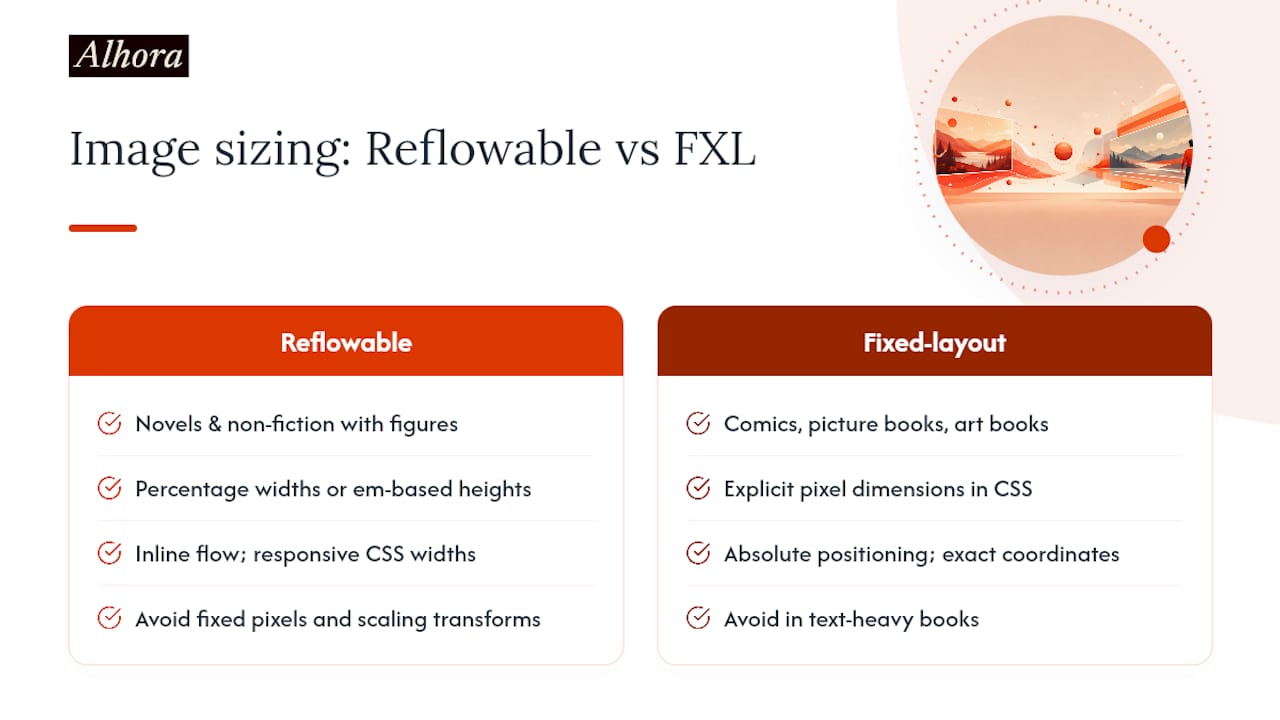
The choice between reflowable and fixed-layout (FXL) is the most consequential decision you'll make for image-heavy content. EPUB 3.3 defines both: reflowable EPUBs adapt to the reader's screen and font settings; FXL EPUBs lock the layout to exact pixel coordinates, like a PDF.
For most novels and non-fiction with occasional figures, reflowable is correct. For comics, children's picture books, or heavily designed art books where image placement is inseparable from meaning, FXL makes sense. Choosing FXL for a text-heavy book just because it has a few images is a common mistake that creates accessibility and resizing problems.
CSS that reliably works in reflowable EPUBs:
img {

  height: auto;
}
Kobo's epub-spec guidance explicitly recommends percentage-based sizing for reflowable images, and KDP guidance suggests using em units for inline image heights so they scale with the reader's chosen font size. Both approaches beat fixed pixel dimensions, which can produce images that overflow the screen or shrink to illegibility when a reader changes their text size.
Watch out for CSS transforms on images. Kobo's documentation warns that scaling transforms can reduce an image to a single rendered pixel on some eInk and desktop readers. An image that looks fine in your desktop browser preview can effectively disappear on a Kobo Libra or similar device if you've applied
transform: scale(0.5)expecting the reader to re-expand it. Replace transforms with responsive CSS width rules instead.
For FXL EPUBs, you'll set explicit pixel dimensions in the <meta name="viewport"> declaration and position images absolutely. That precision is the point of FXL, but it means you lose automatic adaptation to different screen sizes.
How do srcset, picture, and manifest fallbacks work in EPUB?
The <picture> element and srcset attribute work in EPUB XHTML the same way they do in HTML5, and they're the right tool when you want to offer a WebP version with a JPEG fallback:
<picture>
  <source srcset="../Images/photo.webp" type="image/webp"/>
  <img src="../Images/photo.jpg" alt="Aerial view of the canyon" />
</picture>
The EPUB 3.4 spec prefers these HTML-intrinsic fallback mechanisms over manifest fallbacks for images. Manifest fallbacks are designed for foreign resources in the spine, not for swapping image formats. Use <picture> when you want to offer WebP to capable readers while guaranteeing JPEG delivery to older ones.
One rule to keep straight: if you reference a non-core media type (like WebP) directly in an <img src> without a <picture> wrapper, you need a manifest fallback pointing to a core-media-type equivalent. With <picture>, the <img> fallback handles it natively, which is cleaner.
Pro Tip: Keep all srcset and <source> filenames in the manifest, even if they're only referenced as alternatives. An image file that exists in the ZIP but has no manifest entry will trigger an epubcheck error.
How do you optimize images without wrecking quality?
File size matters more in EPUBs than most creators expect. Large images slow delivery, push some retailers' file-size limits, and can raise distribution costs on platforms that charge per-megabyte delivery fees.
Practical targets to work from:
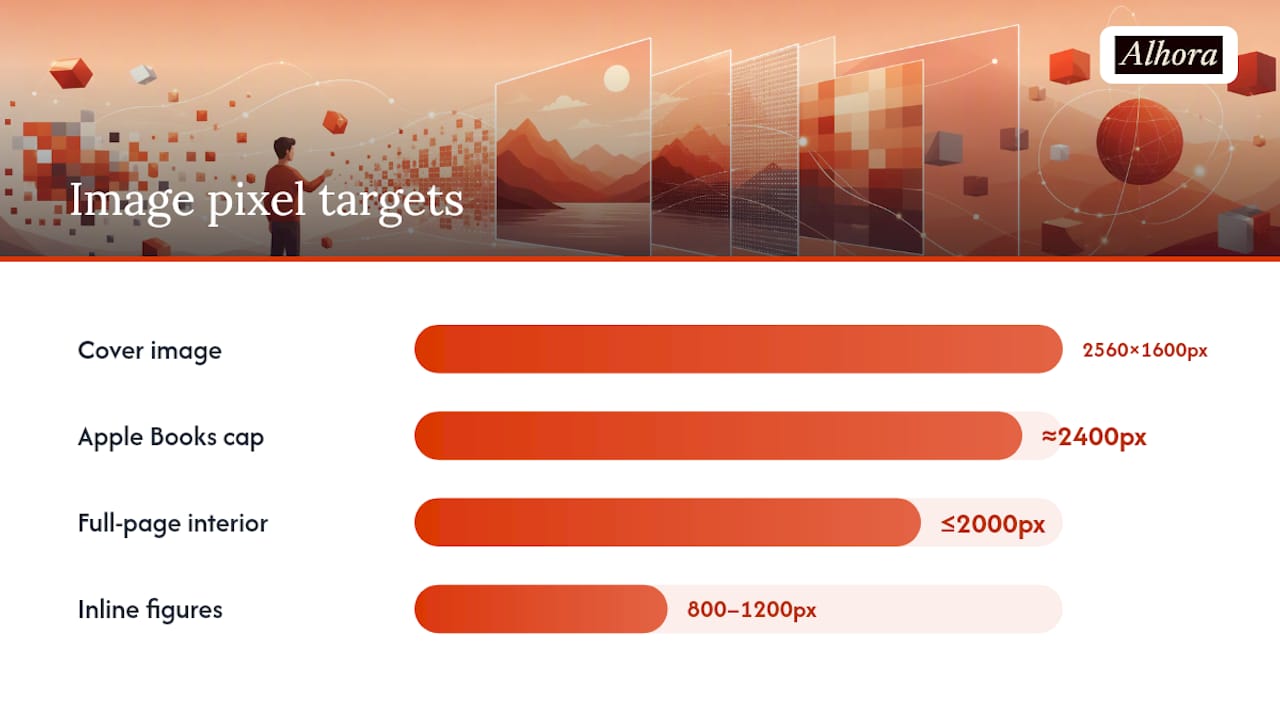
- Cover images: Aim for 2,560 × 1,600 pixels at a 1.6:1 aspect ratio; keep the file under 4 MB. Most retailers accept JPEG at quality 80–85 for covers without visible degradation.
- Full-page interior images: Stay under 2,000 pixels on the longest edge. Apple Books caps interior images at approximately 5.6 million pixels total, roughly 2,400 × 2,300 pixels, so exceeding that will cause rejection on that platform.
- Inline figures and diagrams: 800–1,200 pixels wide is usually sufficient; PNG for line art, JPEG at quality 75–80 for photographic content.
- SVG: Use for logos, icons, and diagrams with clean lines; SVG files are typically tiny and scale perfectly at any resolution.
Recommended optimizer tools:
- ImageOptim (Mac) or Squoosh (web-based): lossless and lossy compression with visual preview.
- ExifTool or ImageMagick: strip EXIF metadata, which adds file size without benefiting readers.
- SVGO: compresses SVG files by removing redundant paths and metadata.
Preserve the sRGB color profile when exporting. Apple Books requires sRGB for consistent rendering across devices, and stripping the color profile can cause color shifts on calibrated displays. Most export tools preserve it by default, but check if you're using aggressive metadata stripping.
Keep your total EPUB file size under practical delivery limits for your target retailers. A 650 MB photo book will cost significantly more to deliver on platforms with per-MB fees than a 50 MB equivalent with properly compressed images.
What tools and workflows convert, edit, and validate image EPUBs?
A reliable image-EPUB workflow has four stages: prepare assets, package them correctly, validate, and test on real devices.
Tool roles at a glance:
- Images_To_ePub (GitHub): converts a folder of images into a valid EPUB automatically. Useful for comics, photo albums, and any project where images are the entire content.
- Sigil: a visual EPUB editor where you can add, rename, and reorder images, edit the OPF manifest directly, and inspect XHTML content documents.
- Calibre: handles EPUB conversion and extraction; use it to pull images out of an existing EPUB or convert between formats.
- epubcheck: the canonical validator. Run it after every structural change.
The workflow that catches problems before they reach readers: Prepare your image assets (correct format, optimized, named without spaces) → add each file to the EPUB's
Images/folder → declare every image in the OPF manifest with the correctmedia-type→ reference images in XHTML with<img>andalttext → run epubcheck and fix every error before moving on → sideload to a physical device or vendor previewer (Kobo's desktop app, Apple Books on macOS) and scroll through every image. Errors that pass epubcheck sometimes still display wrong on specific hardware.
Sideloading is non-negotiable for image-heavy books. A validator confirms structural correctness; a real device confirms visual correctness. These are different things.
Why aren't your images showing, and how do you fix them?
Diagnostic checklist, ordered by how often each cause appears:
- Filename or manifest mismatch: Open the OPF and compare every
hrefagainst the actual filenames in the ZIP. Case differences count. - Wrong
media-type: A PNG declared asimage/jpegwill fail on strict readers. Match the declaration to the actual file format. - Missing manifest entry: Run epubcheck; it flags every referenced file that lacks a manifest item.
- CSS transform scaling: Replace
transform: scale()withwidth/max-widthpercentage rules. - Source image too small: A 72 × 72 pixel image scaled to fill a 1,200-pixel-wide screen will look pixelated. Re-export at the correct resolution.
- Missing alt text: Validators flag this as an accessibility error; some retailers reject EPUBs with missing alt attributes.
- Background-image for cover: Retailers extract covers from
<img>tags with thecover-imageproperty, not CSS backgrounds.
Platform-specific gotchas worth knowing: eInk readers sometimes ignore max-width on images inside <div> containers with overflow: hidden; move the CSS directly onto the <img> element. Desktop reading apps on Windows can render SVG differently than mobile apps on the same platform, so test SVG-heavy layouts on both.
Pro Tip: Build a one-page local test matrix: list your target reading systems (Kobo eInk, Kindle app on iOS, Apple Books on macOS, Adobe Digital Editions), sideload after every significant image change, and keep a checklist of what to look for on each. Regression testing takes ten minutes and saves hours of post-publication support.
How Alhora helps make images in EPUBs reliable
Alhora's export pipeline addresses the most time-consuming parts of image management automatically. Image issues that would otherwise surface only after sideloading get flagged at the export stage, where they're faster to fix.
The platform also prompts for alt text during the editing workflow, which reduces the chance of shipping an EPUB with missing accessibility attributes. For authors working on multi-chapter books with many figures, Alhora's batch formatting applies consistent image rules across the entire manuscript rather than requiring per-chapter manual checks.
Pro Tip: Use Alhora's batch formatting for image-heavy series or multi-chapter books. Consistent image CSS rules applied at the project level prevent the per-chapter drift that causes some images to display at full width and others to overflow or shrink unexpectedly.
Why image standards matter more than most creators realize
Getting images right in an EPUB isn't just a technical checkbox. A book with broken or blurry images generates returns and negative reviews that affect its ranking on retail platforms. More concretely, missing alt text is the most common accessibility failure in ebooks, and retailers are increasingly checking for it. An EPUB that fails an accessibility audit can be rejected or deprioritized in store search results.
Test on real devices before you publish. Integrate image validation into your pre-publication checklist the same way you'd proofread the text. The readers who encounter your book on a Kobo Libra or an iPad don't distinguish between "the author didn't know" and "the author didn't care." The image either works or it doesn't.
Alhora handles the image pipeline so you don't have to
Most image problems in EPUBs come down to the same handful of errors: a missing manifest entry, a wrong media-type, an image sized in pixels instead of percentages, or a missing alt attribute. Alhora automates all of those checks as part of its standard export workflow. You get a validated, retailer-ready EPUB with responsive image CSS, correct manifest declarations, and an epubcheck pass built in, without having to run each step manually.

Alhora's AI-assisted checks flag potential issues and offer suggestions, but they never rewrite your content. You keep full creative control over every image caption, layout decision, and design choice. The platform handles the structural correctness; you handle the creative vision. Start a validated export at Alhora and see how much of the image-management checklist disappears from your pre-publication workflow.
Sources
These are the primary sources to consult when you need the definitive rule, the validator, or retailer-specific requirements:
- Interior Image Requirements (Apple Books)
- kobolabs/epub-spec (Kobo guidance)
- Images in Ebooks: Sizing, Format, and Accessibility | Rahatt Blog