
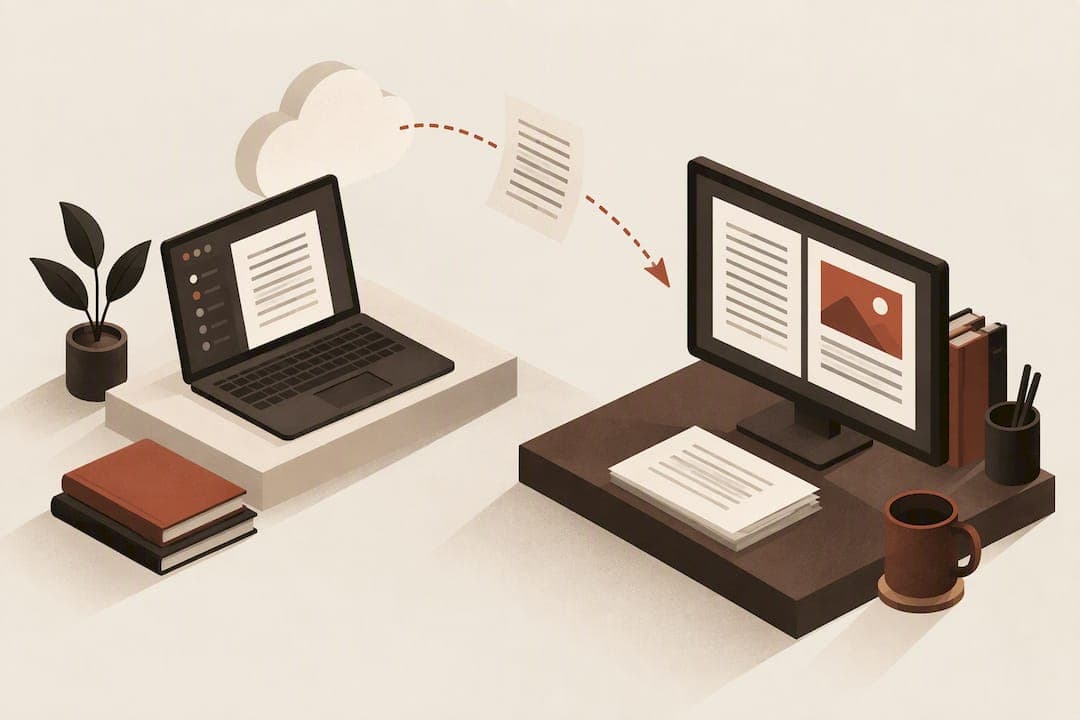
Web editors preserve basic formatting well, but page layout, pagination, and print output can shift between cloud and desktop. Fonts and editing-view limitations cause most of the drift. The sections below show how to diagnose the differences and build a workflow that keeps your manuscript consistent from draft to final export.
Key Takeaways
Cloud editors facilitate quick drafting and collaboration but cannot guarantee layout precision; desktop applications are essential for final composition and print-ready formatting.
| Point | Details |
|---|---|
| Cloud vs Desktop Rendering | Browser-based editors prioritize collaboration, while desktop apps focus on exact page layout and print metrics. |
| Causes of Formatting Drift | Font substitution, image anchoring, styles, add-ins, and printer metrics are common reasons for layout differences. |
| Format Choices Matter | Use DOCX for editing and collaboration, PDF for final layout, and test conversions between formats to prevent unexpected changes. |
| Validation Workflow | Open files in both environments, embed all fonts, and generate PDFs for proofing to ensure consistent formatting. |
| Alhora's Role in Book Formatting | Alhora offers a cross-platform validation engine with AI tools designed for authors to catch formatting issues before export. |
Table of Contents
- Why cloud editors and desktop apps render formatting differently
- Common causes of formatting drift and how to diagnose them
- File formats and round-tripping: what keeps layout and what risks it
- A testing checklist and workflow to preserve formatting
- How an author-focused formatting studio closes the gap
- Choosing the right tool for each stage of your manuscript
- Keep formatting consistent with Alhora
- FAQ
- Sources
Why cloud editors and desktop apps render formatting differently
Browser-based editors prioritize fast, collaborative editing over exact print rendering. Desktop apps prioritize precise page layout, so they calculate margins, page breaks, and print metrics down to the device driver. That split explains most of what authors see when a manuscript looks different depending on where they open it.
Microsoft's own guidance on Word for the web confirms this: Editing view in the browser does not display margins or page breaks, and it does not let you adjust page margins or line spacing directly. You can still see those elements correctly in Reading view or when printing, but the editing surface itself hides them.
A few specific gaps show up often enough to plan around:
- Fonts not installed on the viewing device get substituted, which can change line breaks and page counts.
- Some objects, such as certain charts or embedded elements, appear as placeholders rather than fully rendered in web editing view.
- Desktop-only controls, including gridlines, watermarks, and some document themes, are not available in the browser, according to the Word features comparison.
- Print-layout precision, including exact page breaks and margins, is only fully editable in the desktop app.
None of this means cloud editors are unreliable. It means they are built for a different job: drafting and collaborating, not final composition.
Common causes of formatting drift and how to diagnose them
When a manuscript looks right in the cloud and wrong on desktop (or vice versa), the cause is usually one of a short list of culprits. Working through them in order saves time.
- Font substitution. Check which fonts are installed locally, embed fonts in the file when your format supports it, or standardize on web-safe fonts for shared drafts.
- Image anchoring and wrapping. Confirm the anchor type on each image. Viewers like Teams or a browser preview can render wrapping differently than the desktop app does.
- Styles, numbering, and table of contents behavior. Local style definitions versus embedded styles often produce different numbering or spacing once a file moves between apps.
- Add-ins, macros, and protected content. Many web editors simply do not support these, so anything built on them needs a desktop check before you rely on it.
- Printer metrics. Different printer drivers calculate page dimensions differently, which can shift pagination even when nothing in the file itself changed.
Microsoft's Excel browser-versus-desktop guidance notes the same font-substitution risk for workbooks, so the pattern holds across document types, not just long-form manuscripts.
Pro Tip: Open the same file in both environments side by side before you commit to a layout decision. A five-minute comparison catches most drift before it reaches a reader.
File formats and round-tripping: what keeps layout and what risks it
Choosing the right file format for each stage of your workflow matters as much as choosing the right editor. Some formats are built to stay editable; others are built to stay fixed.
- DOCX is the typical canonical editable format for collaboration, but it can still render with minor differences across viewers and app versions.
- ODT conversion can shift spacing, bullet formatting, and object positioning. Microsoft's own comparison of ODT and DOCX formats flags this directly, so test any ODT conversion before sharing it further.
- EPUB and print-ready PDF are final distribution formats, not editing formats. Treat them as the last step, not a working draft.
- PDF is fixed-layout by design, which makes it the right choice for layout sign-off and proofing, never for ongoing edits.
A practical rule: keep one editable working file in DOCX for collaboration, and export to PDF only when you need a locked reference for review or final delivery. Repeated conversions between formats are where most unexpected formatting changes creep in.
A testing checklist and workflow to preserve formatting
A short, repeatable checklist prevents most formatting surprises before they reach a reader or a print vendor.
- Pick one canonical working file and one final export format, and avoid converting back and forth between formats unnecessarily.
- Verify that every font used is either installed on the target device or embedded in the file.
- Run a style audit: check headings, numbering, and table-of-contents entries for consistency.
- Check every image's anchor and wrapping setting before moving the file between apps.
- Open the file in desktop Print Layout view and generate a final PDF proof before distribution.
- Test the proof across at least one additional device or browser to confirm it holds up outside your own setup.
For teams without a local desktop install, a Windows 365 Cloud PC can run the full desktop version of Office remotely, which gives you accurate print-layout rendering without installing software on every machine.
Collaboration works best when styles are locked once a manuscript nears final form, PDFs are used for layout sign-off rather than DOCX redlines, and every exported version is saved with a clear label. Our line spacing guidance for self-publishers and our widow and orphan checks both fit naturally into this validation step.

Pro Tip: Treat your final PDF proof the same way a printer would: check it on an actual device, not just on screen at 100% zoom.
How an author-focused formatting studio closes the gap
A workflow built specifically for books removes most of the guesswork described above. Alhora runs as a comprehensive book formatting studio built for authors, and it supports Mac, Windows, Linux, and ChromeOS, so the same manuscript renders consistently regardless of which machine opens it.
Real-time validation against publishing standards can help catch formatting errors before export, potentially reducing the manual correction time caused by cross-platform drift. A few capabilities built for this exact problem:
- Some tools include a typesetting engine designed specifically for book-length manuscripts rather than general office documents.
- Certain platforms may offer a proof of authorship feature associated with projects.
- Some software includes an AI assistant to flag formatting issues before export without altering creative content.
A practical workflow looks like this: keep one canonical manuscript, run it through validation, then export directly to EPUB or print-ready PDF. That sequence removes the repeated conversions that cause most of the drift covered in the sections above.
Choosing the right tool for each stage of your manuscript
Desktop remains the right environment for final page composition and prepress work. It handles exact margins, print metrics, and the fine typographic control a finished book needs. Cloud editors earn their place earlier, for collaborative drafting and quick fixes where speed matters more than pixel-perfect pagination.
The pragmatic rule we'd give any author: collaborate in the cloud, then validate and export through a tool built for print and ebook output. Treat that final export step as non-skippable, not optional polish.
— James
Keep formatting consistent with Alhora
Font substitution, image wrapping, and page-break drift are exactly what our validation engine checks before you export. Instead of guessing whether a manuscript will hold its layout on another machine, we run it through automatic typography checks, trim and margin verification, and a proof simulator before you ever generate a final file.

See how our book formatting software handles cross-platform validation, or check the Windows build if desktop-grade export control is your main concern.
FAQ
Is it better to use Excel Online or desktop Excel?
Excel Online works well for quick edits and collaboration, and it displays most cell and number formatting the same way desktop does. For formula-heavy or font-sensitive work, Microsoft recommends testing in desktop Excel before final delivery, since some features behave differently in the browser.
Why does Word Online change formatting?
Word Online's Editing view does not display margins or page breaks and does not allow direct editing of page margins or line spacing, which is different from how desktop Word works. Font substitution for fonts not installed on the viewing device is another common cause, as described in Microsoft's browser-versus-desktop comparison.
How much does a cloud PC cost per month?
Windows 365 Cloud PC pricing is organized into multiple plans and tiers rather than a single flat rate, with details listed on Microsoft's plans and pricing page. Costs depend on the plan and configuration you choose, so check the current tiers directly before budgeting.
What are the differences between Office 365 cloud and desktop versions?
Office 365 cloud (web) apps and desktop apps share most everyday formatting features, but the Word features comparison lists desktop-only items such as gridlines, watermarks, and certain themes. Web apps prioritize collaborative editing, while desktop apps prioritize precise page layout and print output.
What file format best preserves book formatting across platforms?
A print-ready PDF is the most reliable format for preserving layout since it is fixed by design, while DOCX remains the better choice for ongoing editable collaboration. Converting between formats like ODT and DOCX can shift spacing and object positioning, so it's worth testing any conversion before sharing it further.