
A widow is a paragraph's last line stranded alone at the top of a new page or column; an orphan is a paragraph's first line stranded alone at the bottom of one. A runt is the smaller cousin, usually a single short word left dangling on its own line. Not every style guide draws these lines the same way, so check your house style. Fix isolated lines in professional print work; on the web, use judgment before you chase perfection.
TL;DR:
- Automatic widow and orphan controls should be used as a baseline, but manual tweaks are often necessary for perfect layout.
- Short final lines or single-word runts are more visually disruptive than widows or orphans at standard paragraph lengths.
- Fixes such as nonbreaking spaces, tracking adjustments, and rewriting phrasing are preferred over hard returns to manage line breaks.
- Different styles and contexts tolerate varying levels of widows, orphans, and runts, depending on genre and reader expectations.
- Automated typesetting tools like Alhora can handle large manuscripts by flagging layout issues, but editorial judgment remains essential.
Table of Contents
- What Do Widows, Orphans, and Runts Actually Mean?
- Why Do Isolated Lines Disrupt Reading?
- How Do You Spot Widows and Orphans in Your Layout?
- What Are the Best Fixes for Widows and Orphans?
- What Publisher Rules Should Guide Your Widow and Orphan Policy?
- How Does Alhora Handle Widows and Orphans During Formatting?
- What Should Designers and Authors Actually Prioritize?
- Format Your Manuscript Without Fighting Line Breaks Line by Line
- Sources
What Do Widows, Orphans, and Runts Actually Mean?
The definitions above reflect the majority view, but the terminology is genuinely inconsistent across the industry. Wikipedia's entry on the subject lays out the traditional split: widow at the top of the next page, orphan at the bottom of the one before it. Robert Bringhurst's The Elements of Typographic Style and Jan Tschichold's The Form of the Book both treat these as separate flaws worth separate names, rooted in centuries of hand-set page design.
Here's the catch: plenty of working designers flip the labels, or use "widow" as a catch-all for any short, awkward line regardless of position. Yale University Press's discussion of type terminology confirms the inconsistency is common enough that you shouldn't assume a colleague means what you mean.
A quick mnemonic that sticks: a widow is left behind (top of a new page, after the rest of the paragraph is gone). An orphan is left alone before its family arrives (bottom of a page, waiting for the paragraph's continuation).
- Widow: last line of a paragraph, alone at the top of a page or column
- Orphan: first line of a paragraph, alone at the bottom of a page or column
- Runt: a short final line, often one word, that looks thin and unbalanced regardless of position
Why Do Isolated Lines Disrupt Reading?
A single stray line breaks the visual rhythm a reader has settled into. Your eye expects a block of text with a certain shape, and a one-line paragraph fragment at the top of a page reads as a mistake even when the content is fine. It pulls attention away from the words and toward the layout, which is the opposite of what good typesetting should do.
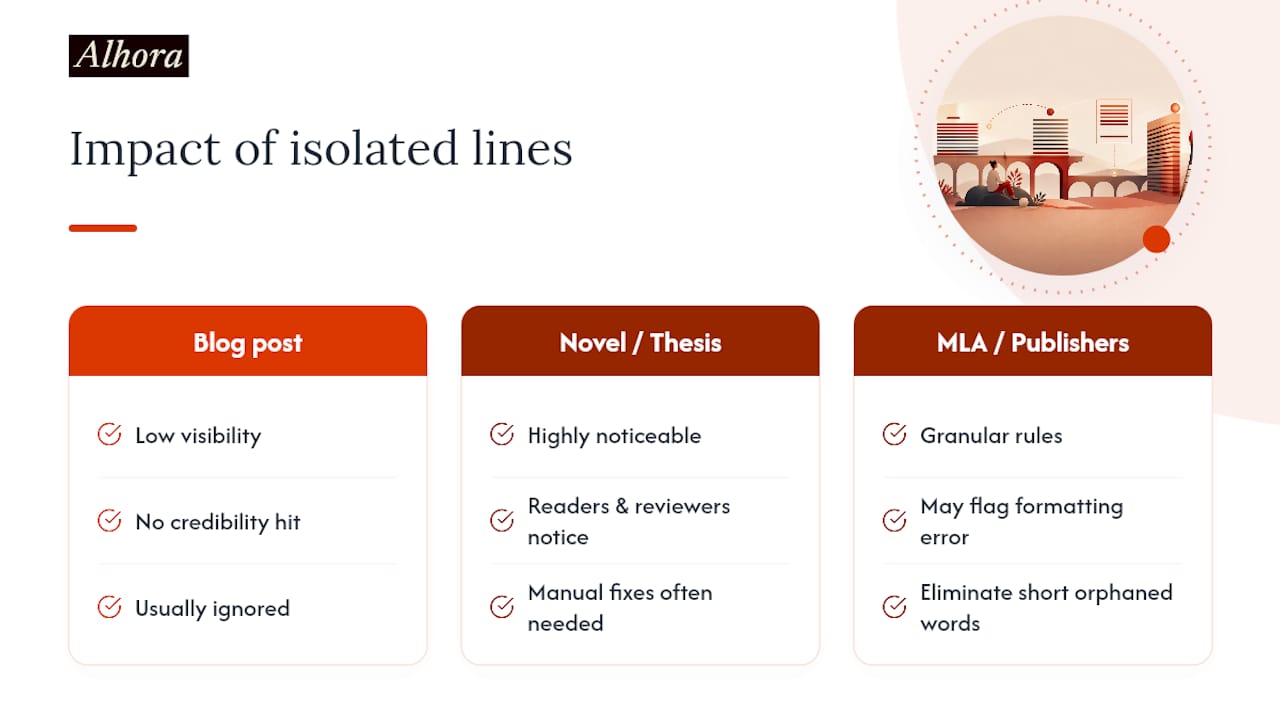
Context determines how much this matters. A 500-word blog post with one orphaned line costs you nothing in credibility. A printed novel, an academic thesis, or a print magazine spread is a different story: readers and reviewers notice, and in academic submissions a stray line can look like a formatting error serious enough to flag. MLA's guidance on orphaned words is strict enough that some publishers require manual intervention for any short word left dangling at a break, no matter how minor it seems.
The tradeoff is real. Chasing every widow and orphan can force other compromises, like uneven line spacing or awkward word breaks, so the fix should never cost more than the problem it solves.
Statistic Callout: MLA-style guidance singles out isolated short words specifically, sometimes requiring editors to eliminate any orphaned word under a set character length at a page break, which shows how granular strict publisher rules can get.
How Do You Spot Widows and Orphans in Your Layout?
Finding these issues before publication takes a few habits, whether you're working in a page-layout app, a word processor, or a browser.
- Scan printed proofs or exported PDFs page by page. Look specifically at the very top and bottom lines of every page for a paragraph fragment sitting by itself.
- In InDesign, use the Keep Options panel (Object > Paragraph Style Options > Keep Options) and preview with line numbers visible so orphaned or widowed lines show up before export, not after.
- In Word, open Paragraph > Line and Page Breaks and check the Widow/Orphan Control box, then scroll through the document manually since automatic control doesn't catch every runt.
- Watch for suspicious blank lines at the bottom of pages. That's often a sign the widow/orphan control just kicked in and pushed a line forward.
- On the web, inspect your rendered page in a browser and check whether your CSS declares the
widowsandorphansproperties, which set the minimum number of lines required at a break. - Use nonbreaking spaces in the markup for short phrases that shouldn't split, so a preview refresh doesn't reintroduce the same runt.
What Are the Best Fixes for Widows and Orphans?
Start with the automatic settings, then layer in manual tactics for the stragglers your software misses.
In Word: turning on Widow/Orphan Control under Line and Page Breaks handles the basic cases automatically. It's a blunt instrument, though. Butterick's Practical Typography notes that this kind of control is all-or-nothing: flipping it on can push a paragraph's final line onto the next page just to avoid a widow, leaving a gap at the bottom of the page you started with. For a short final word that keeps breaking awkwardly, insert a nonbreaking space between it and the word before it so they travel together.
In InDesign: use Keep Lines Together and Keep With Next options at the paragraph style level, especially for headings and short opening paragraphs that shouldn't get separated from their first line of body text. Small adjustments to tracking or leading can pull a stubborn line back onto the previous page without any visible distortion. Discretionary hyphenation and optical margin alignment give you finer control over where lines break in the first place.
On the web: the CSS widows and orphans properties set a minimum line count at a break, though browser support for these properties is inconsistent, so pair them with nonbreaking spaces and, for tricky cases, a script-based reflow check.
Editorial fixes are often the cleanest solution: rewrite a phrase to shorten or lengthen a paragraph by one line, or manually move a word up. What you should never do is insert a hard return to force a break. It looks fine until someone edits the text or changes the trim size, and then you've got a broken line in the middle of a paragraph with no obvious cause.
- Enable automatic widow/orphan control as your baseline, not your only tool
- Use nonbreaking spaces for short words and phrases that must stay together
- Adjust tracking, leading, or hyphenation before resorting to a rewrite
- Never use a manual carriage return to force a line break
Pro Tip: Fixing a widow by pulling a line forward can accidentally create a fresh orphan two pages later. Always reflow and recheck the following spread before you call a fix finished.
What Publisher Rules Should Guide Your Widow and Orphan Policy?
Set numeric rules before you start proofing, and the whole process gets faster. A common baseline: never leave fewer than two lines of a paragraph together at a page break, and treat single-word runts as a separate, stricter category, since they look worse than a two-word widow even at the same line length.
The bigger decision is philosophical. Some designers accept an occasional widow or orphan to preserve squared-off, even page bottoms across a whole chapter, and The Book Designer's take on pagination styles frames this as a legitimate editorial choice, not a shortcut. Genre and audience matter here: a literary novel reader may never notice a squared-off page with one widow, while an academic reviewer might flag it immediately.
- Keep at least two lines of any paragraph together at a page or column break
- Apply a stricter rule to single-word runts than to standard widows
- Decide up front whether squared-off pages or zero widows takes priority for this project
- Recheck every reflowed spread before final export
| Decision point | Squared-off priority | Zero-widow priority |
|---|---|---|
| Best for | Literary fiction, trade books | Academic theses, technical manuals |
| Tolerance for occasional widow | Accepted | Not accepted |
| Manual QA workload | Lower | Higher |
How Does Alhora Handle Widows and Orphans During Formatting?
Manual fixes work, but they don't scale across a 300-page manuscript or a five-book series. Alhora's typesetting engine automatically handles justification, hyphenation, and widow and orphan prevention as part of the core formatting pass, so the baseline layout problems get caught before you ever open a proof.
Its AI-assisted checks flag potential issues and suggest fixes, but they never compose or rewrite your text. That distinction matters for authors who want a polished result without handing creative control to software. You still decide whether a suggested fix, like adjusting a line break or tightening a paragraph, actually happens.
- Automated detection catches widows, orphans, and awkward breaks across the full manuscript at once
- AI-assisted suggestions flag problems without touching your prose
- Manual editorial judgment stays available for the tricky, genre-specific calls a numeric rule can't cover
- Batch formatting extends the same checks across an entire book series
Use an automated pass for the first sweep on any manuscript over a chapter or two, then reserve manual review for the stubborn runts and any page where squared-off styling versus zero-widow policy needs a human call.
What Should Designers and Authors Actually Prioritize?
Most advice on this topic treats widows and orphans as a binary you either fix or fail. That's the wrong frame. The real skill is knowing which context you're in before you touch a single line break.
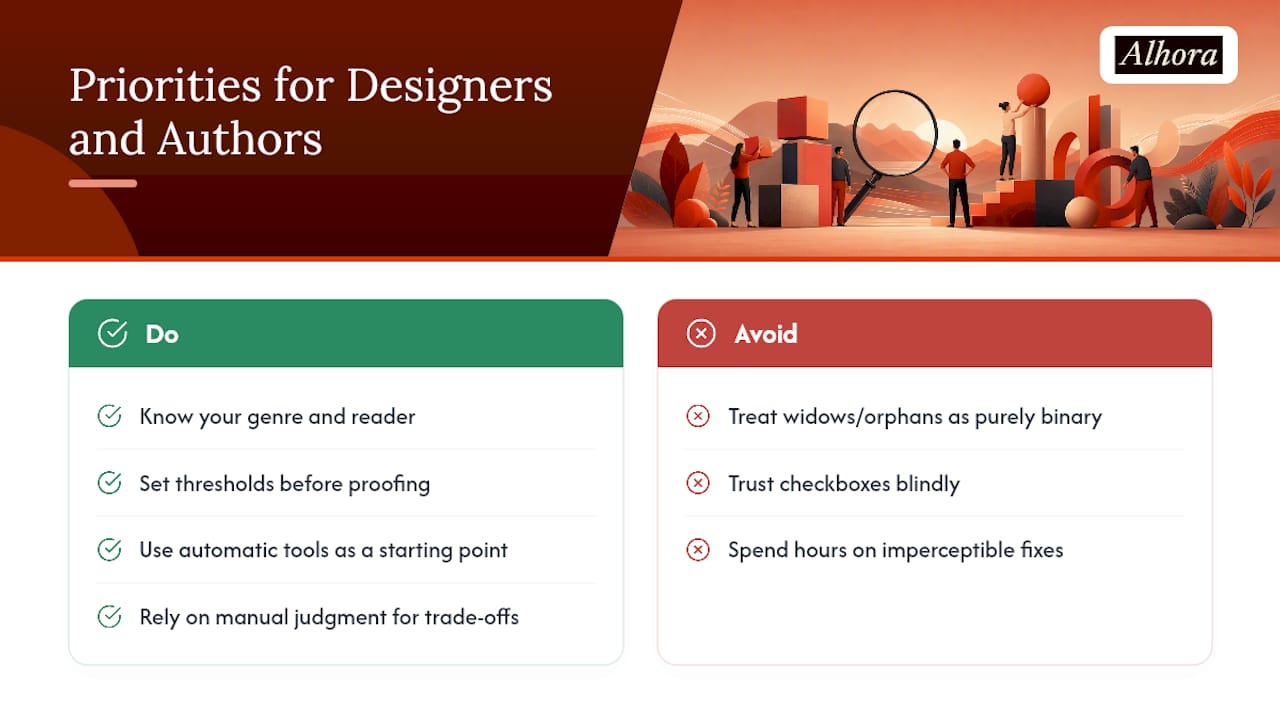
A self-published novelist chasing zero widows across 400 pages is often spending hours on something no reader will consciously register. Meanwhile, a thesis writer who ignores a single orphaned word at a page break, thinking it's cosmetic, can get flagged by a committee that follows MLA's stricter conventions. The rule isn't "always fix" or "never bother." It's "know your genre, know your reader, and set your threshold before you start proofing," not while you're deep in page 240.
The other overlooked point: automatic controls are a starting line, not a finish line. Word's widow/orphan checkbox and InDesign's Keep Options catch the obvious cases, but they can't judge whether a squared-off page matters more than a stray line for your specific book. That judgment call is still yours. Software that flags problems without rewriting your sentences, the way Alhora's AI-assisted checks do, gets you further than either pure manual proofing or blind trust in an all-or-nothing toggle.
— James
Format Your Manuscript Without Fighting Line Breaks Line by Line
If you've made it this far, you already know how much time widow and orphan cleanup can eat into a production schedule. Alhora is built to take that specific task off your plate. Its typesetting engine automatically manages justification, hyphenation, and widow and orphan prevention while you're still writing, so you're not hunting for stray lines across 300 pages the night before export.
AI-assisted checks flag layout issues and suggest fixes without composing or altering prose, allowing authors to keep full creative control while addressing runts and page layout tradeoffs. That matters whether you're formatting a single novel or batch-processing an entire series for publication across major platforms. If you're ready to see how your current manuscript reflows with automated widow and orphan handling built in, start with Alhora's ebook formatting software and import your file to check the results yourself.
Sources
- Widows and orphans - Wikipedia
- Widow and orphan control | Butterick’s Practical Typography
- Orphaned words | MLA Style Center
- Widows and orphans: Tony Seddon on type terms - Yale University Press