

EPUB 3 supports SVG as both a standalone content document and an inline element, so vector art is fair game for your ebook. The catch is reading-system support, which varies enough that you need a raster fallback and real device testing before you ship. Three moves matter: use SVG where it earns its keep, wire in a fallback image through the manifest, and validate the package against actual EPUB content-document rules before calling it done.
TL;DR:
- Referenced SVG files are generally safer for EPUB because they reduce validation risks and are easier to handle, but lack CSS styling control inside the SVG.
- Inline SVG offers better styling flexibility and text searchability but introduces higher validation risks and restrictions on embedded features like foreignObject.
- Proper fallback chains require declaring SVGs with specific manifest properties, including consistent filenames, correct media types, and associated raster images, to ensure reliable rendering across devices.
- Testing reading-system support precisely involves checking rendering fidelity, zoom behavior, text search, and accessibility features, especially since support varies widely among devices and apps.
- Using SVG for line art and diagrams is ideal, but raster images remain more compatible for photo-realistic images, which should always have a fallback for broadest device compatibility.
Table of Contents
- Quick Authoring Checklist Before You Export an EPUB with SVG
- Referenced SVG vs. Inline SVG: Which Method Should You Use?
- How Do You Declare SVG Fallbacks in the Manifest?
- Reading Systems Handle SVG Differently. Here's How to Test Yours
- Fixing Blank Pages and Validation Errors in SVG Content
- Alhora's Workflow Tips for Cleaner SVG Exports
- Accessibility Best Practices for SVG Content in EPUBs
- Should You Use Animation or Scripting in EPUB SVG?
- Handling Interactivity and User Input Inside SVG
- How SVG Support Differs Across EPUB Reading Systems
- When Should You Choose SVG Over Raster Images?
- How EPUB exports with SVG can be handled
- Where to Verify the Technical Details
- Sources
- FAQ
Quick Authoring Checklist Before You Export an EPUB with SVG
Before you package anything, run through this list. It catches most of the mistakes that turn a clean manuscript into a rejected upload.
- Declare the file as
image/svg+xmlin the manifest and keep the.svgextension consistent with the actual file. - Decide upfront whether you're referencing the SVG (via
<img>or<object>) or embedding it inline in XHTML. The two behave differently under validation. - Add an explicit
viewBoxand set width and height attributes. Missing dimensions are one of the most common causes of blank rendering. - Generate a raster fallback (PNG or JPEG) and reference it properly in the manifest fallback chain.
- Confirm your manifest item properties reflect the embedded SVG, then run an EPUB validator before export.
Pro Tip: Export your master illustration as SVG once, then batch-generate PNG fallbacks at 2x resolution. It saves you from redoing fallback art every time you tweak the vector file.
Referenced SVG vs. Inline SVG: Which Method Should You Use?
You have two ways to get SVG into an EPUB, and they are not interchangeable. Referenced SVG treats the image like any other embedded file, called through <img src="diagram.svg" alt="Sales chart"> or <object data="diagram.svg" type="image/svg+xml">. Inline SVG drops the <svg> markup directly into your XHTML content document, sitting in the same DOM as your text.
Referenced SVG is the safer default. It's isolated from your page styles, easy to swap for a fallback, and less likely to trip validation because the SVG lives in its own file with its own namespace declarations intact. The tradeoff: CSS rules in your XHTML stylesheet won't reach inside the referenced file, so if you want text inside the graphic to inherit your book's fonts, this method won't do it.
Inline SVG solves that styling problem. Because the markup sits inside the XHTML content document, your existing CSS can target it, and any text within the SVG becomes selectable and searchable, which matters for accessibility and for readers who search inside a chapter. But EPUB Content Documents guidance restricts certain SVG features when embedded this way, including limits on foreignObject and how requiredExtensions gets handled. Elements that work fine in a standalone SVG file can throw validation errors once they're nested inside XHTML.
| Method | Styling control | Fallback ease | Validation risk |
|---|---|---|---|
Referenced (img/object) | Low (external stylesheet doesn't apply) | High | Low |
Inline <svg> in XHTML | High (CSS cascades in) | Lower (needs manual fallback logic) | Higher (feature restrictions apply) |
A basic referenced pattern looks like this in your manifest:
<item id="chart01" href="images/chart01.svg" media-type="image/svg+xml" fallback="chart01-png"/>
An inline fragment inside your XHTML file might look like:
<svg viewBox="0 0 400 200" width="400" height="200" xmlns="http://www.w3.org/2000/svg">
  <text x="20" y="40">Q1 Revenue</text>
</svg>
Both are legitimate under EPUB 3.4 authoring guidance, which treats SVG as a first-class content type alongside XHTML. The choice comes down to whether you need the styling reach of inline SVG or the isolation and simplicity of a referenced file.
How Do You Declare SVG Fallbacks in the Manifest?
Every SVG that isn't guaranteed to render everywhere needs a fallback chain in package.opf, and the syntax is stricter than it first looks.
- Add a manifest item with
media-type="image/svg+xml"and afallbackattribute pointing to a raster item ID, not a filename. - The raster fallback item itself needs its own manifest entry, typically
image/pngorimage/jpeg. - An SVG can serve as a spine (core content document) only when you're confident reading systems in your target audience render it reliably. Otherwise, treat it as a referenced asset with a fallback, not a spine document.
- Use the
properties="svg"attribute on any XHTML manifest item that contains inline SVG. Skip this and some reading systems fail silently even though the file validates cleanly. - Keep filenames descriptive and consistent (
chart01.svg,chart01-fallback.png) so the fallback chain stays easy to audit six months later.
Get this wrong and the practical result is a book that passes EPUBCheck but breaks on a device that doesn't parse SVG the way your validator does.
Reading Systems Handle SVG Differently. Here's How to Test Yours
EPUB 3 specifies SVG support, but that's a spec promise, not a guarantee. A W3C submission from Hachette Livre makes the point plainly: SVG is a first-class citizen in the standard, yet practical rendering quality across reading systems remains inconsistent. Don't assume an e-ink reader and a tablet app treat the same file the same way.
Build a short test plan before you finalize anything:
- Check rendering fidelity: does the SVG look the same, or does it distort, clip, or lose detail?
- Check scaling behavior when the reader adjusts font size or zoom level.
- Check whether text inside inline SVG remains selectable and searchable.
- Confirm the fallback image actually displays on a device or app that can't render SVG.
- Test accessibility features, like whether a screen reader announces the
<title>or<desc>elements correctly.
For the device matrix, prioritize by where your readers actually are: a dedicated e-ink reader, a tablet reading app, a phone app, and whatever previewer your distribution platform runs (audiobook or eBook for your everyday situation). Build one minimal SVG test file, a simple shape with visible text, and run it through each. Log what breaks.
Pro Tip: Keep your test SVG under 5KB and deliberately simple. If a bare-bones shape with text fails on a device, you've isolated a platform limitation, not a bug in your production artwork.
Fixing Blank Pages and Validation Errors in SVG Content
Most SVG failures in EPUB trace back to a handful of repeat offenders, and once you know the pattern, they're fast to fix.
- A missing
viewBoxor absent width/height attributes is the single most common cause of a blank page where the SVG should render. - Vector editors like Illustrator often inject a DOCTYPE declaration into exported SVG files. That leftover DOCTYPE frequently breaks EPUB parsers that don't expect it.
foreignObjectandrequiredExtensionscarry restrictions in embedded contexts that don't apply to standalone SVG files, and a W3C issue-tracker discussion shows how much confusion this causes, particularly aroundepub:typeand semantic attributes on embedded fragments.- The fix, in order: strip the injected DOCTYPE, confirm the SVG namespace declaration is intact, add or correct the
viewBox, and declare theproperties="svg"attribute where needed. - Re-run your EPUB validator after each fix, test on a real device, and double-check the fallback chain actually points to a valid manifest item ID rather than a dangling filename.
A good tool for catching these errors before submission will flag most of this automatically, but understanding the underlying cause saves you from repeating the mistake on your next title.
Alhora's Workflow Tips for Cleaner SVG Exports
Some export pipelines address several of these failure points before they reach the reader. Clean SVG presets can strip extraneous DOCTYPEs on export while preserving the viewBox, so files come out parser-friendly by default. Build systems may flag files containing SVG so the packager automatically adds the svg property to manifest items, which removes a step authors commonly forget. Raster fallbacks may generate automatically at export time and slot into the fallback chain without manual manifest editing. Pairing that with a short device QA pass, logging what breaks on each target reader, helps converge on the smallest SVG feature set that renders reliably everywhere it needs to.
Accessibility Best Practices for SVG Content in EPUBs
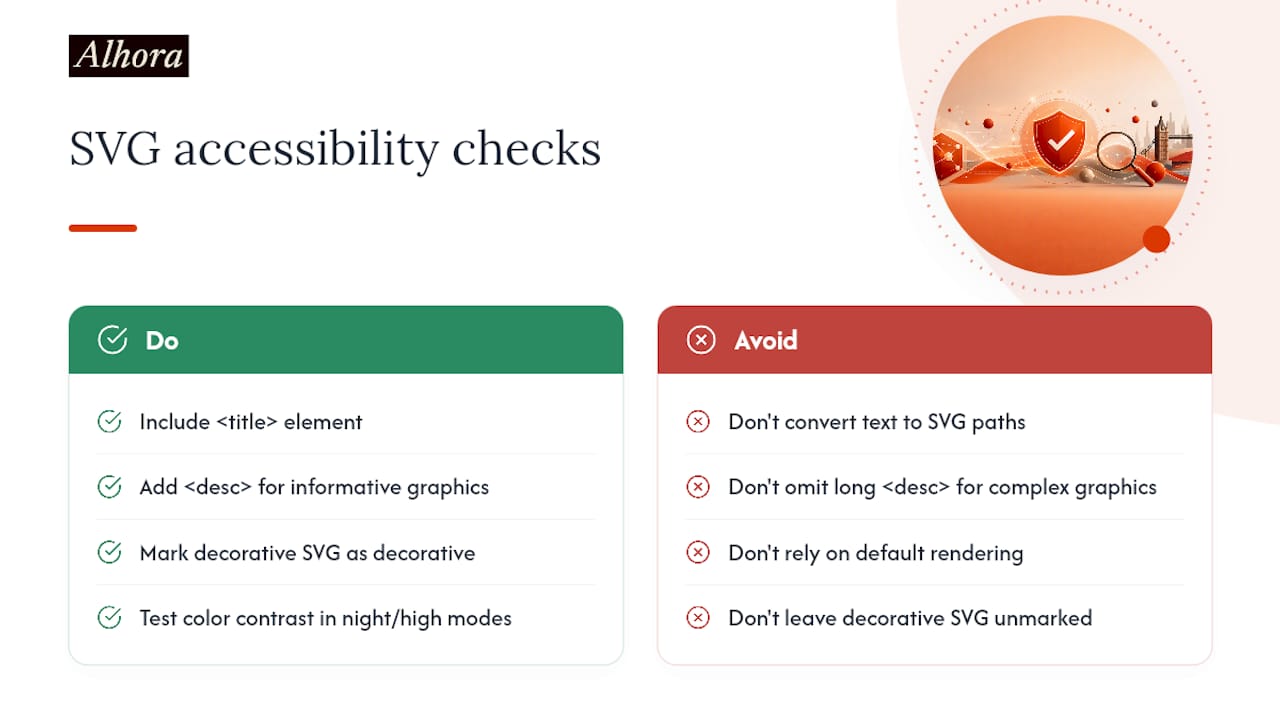
SVG accessibility in EPUB rests on a few concrete habits, not a checklist you can skip and fix later. Every meaningful SVG needs a <title> element describing its purpose and, where the graphic conveys real information, a <desc> element with enough detail that a screen reader user gets the same content a sighted reader gets from looking at the chart or diagram.
Decorative SVG, the kind that's purely visual flourish, should be marked so assistive technology skips it rather than announcing a meaningless label. Use role="img" with aria-label when a short description suffices, and reserve aria-describedby pointing to a longer <desc> block for complex graphics like data visualizations or maps.
Text rendered as SVG paths (converted to outlines rather than live text) is invisible to screen readers and unsearchable for sighted readers, so avoid that conversion unless the visual design genuinely requires it. If you must use path-based text, duplicate the content in an accessible text alternative nearby.
Color contrast inside SVG illustrations matters just as much as it does in your body text, particularly for readers with low vision using a reading system's night mode or high-contrast setting. Test your SVGs under those display modes, not just default rendering. A detailed accessibility checklist built around WCAG and EPUB accessibility standards is worth running your files through before final export, especially if you're distributing through a store that audits accessibility compliance.
Should You Use Animation or Scripting in EPUB SVG?
Animated or scripted SVG is technically possible in EPUB, and it's also where most reading-system failures concentrate. SMIL-based SVG animation and JavaScript-driven interactivity depend on the reading system's rendering engine supporting those features consistently, and that support is thin across dedicated e-readers in particular.
Publisher guidance, including the Hachette Livre submission to W3C, recommends conservative SVG feature use specifically to avoid animation, complex scripting, and foreignObject elements that maximize the odds of consistent rendering across devices. That's not caution for its own sake. An animated SVG that works perfectly in a browser-based previewer can render as a static, broken, or entirely blank image on an e-ink device that never executes the script layer at all.
If your book genuinely needs motion, an animated GIF or a short video file (where the platform supports EPUB video embedding) is often more reliable than SVG animation, precisely because reading-system support for those formats is more uniform. Reserve SVG for what it does best: crisp static line art, charts, and diagrams that need to scale cleanly at any zoom level.
When you do need interactivity, treat it as a bonus layer rather than a load-bearing feature. Any interactive or animated SVG element should degrade gracefully to something legible and useful when the reading system ignores the animation entirely, which many of them will.
Handling Interactivity and User Input Inside SVG
User interaction inside SVG, things like clickable regions, hover states, or toggled visibility, runs into the same reliability wall as animation. EPUB reading systems vary widely in whether they execute embedded scripting at all, and several disable it outright for security reasons, particularly on locked-down e-ink devices sold through major retail platforms.
Clickable SVG regions built with <a> elements pointing to internal anchors tend to be the most reliable interactive pattern, since that's essentially standard EPUB internal navigation wrapped inside a graphic rather than custom script logic. A clickable map region that jumps to a labeled section of your book, for instance, works across a wider set of readers than a hover-triggered tooltip built with embedded JavaScript.
Anything that depends on onmouseover, onclick handlers running custom script, or CSS :hover states inside the SVG itself should be considered enhancement-only. Build the SVG so it communicates its full content without any interaction at all, then treat click or hover behavior as something that improves the experience for readers whose reading system happens to support it.
If your book's core content depends on a reader tapping through an interactive diagram to understand it, you've built something closer to an app than an ebook, and EPUB's SVG support was never designed to carry that weight reliably across the full range of commercial reading systems.
How SVG Support Differs Across EPUB Reading Systems
Rendering fidelity gets most of the attention, but SVG support diverges in less obvious ways too, and these differences affect the reading experience just as much as whether a chart looks crisp.
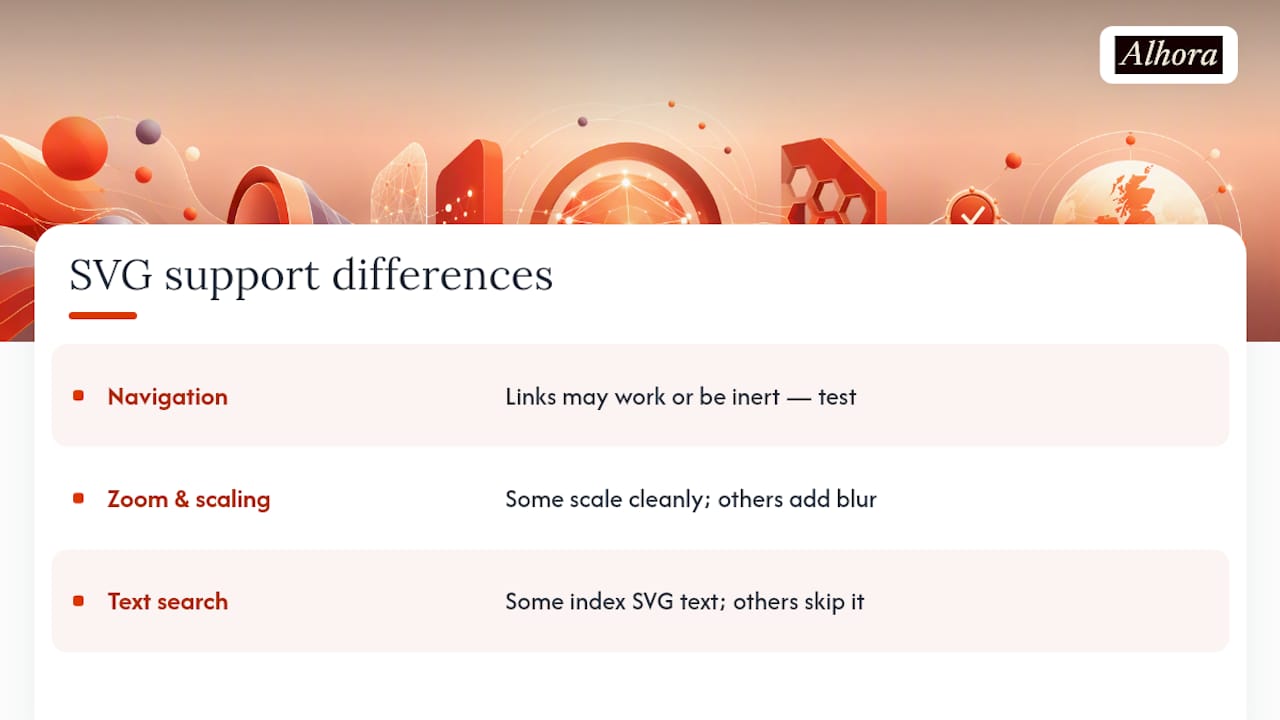
Navigation is one of them. Some reading systems let a reader tap or click within an SVG to follow an internal link the same way they'd tap a text hyperlink; others treat the entire SVG as a single inert image block, and any <a> elements inside it simply don't respond. Test this specifically, since it's easy to assume link behavior carries over from XHTML when it doesn't.
Zoom and pinch behavior also varies. A well-built SVG with a proper viewBox should scale cleanly when a reader zooms in, staying sharp at any magnification, which is the format's biggest advantage over raster images. Some reading systems honor that scaling faithfully; others apply their own zoom layer on top of the rendered SVG, occasionally producing blurry results despite the vector source. Store previewers used for platforms like Kindle or Apple Books sometimes render more conservatively than the actual consumer app does, so a preview that looks fine isn't a guarantee.
Text selection and in-book search inside inline SVG text is inconsistent enough to warrant its own test pass. Some reading systems index SVG text for search; others skip it entirely, meaning a reader searching for a term in that chart will find nothing even though the text is visibly there. If searchability matters for your content, referenced raster fallback with a properly described alt attribute may end up serving readers better than the technically fancier inline SVG.
When Should You Choose SVG Over Raster Images?
SVG earns its place for line art, charts, maps, and text rendered as graphics, anything that benefits from scaling cleanly at any zoom level. Photo-realistic images belong in raster formats every time. If your priority is the broadest possible device compatibility, lean toward raster with a solid fallback plan and a real testing budget. SVG saves file size and looks sharper, but it costs you extra QA hours you should plan for upfront, not discover during submission.
— James
How EPUB exports with SVG can be handled
Getting SVG right in an EPUB usually comes down to whether your export tooling handles the fallback chain and manifest properties correctly, without you having to hand-edit XML after every revision. Some typesetting engines build validated EPUB exports with the manifest fallback logic, svg property tagging, and raster fallback generation handled automatically during export, so the packaging errors covered above mostly never happen in the first place.

If you're formatting a book that includes charts, maps, or illustrated diagrams, start with the Ebook Formatting Software product page to see how the export and validation checks work across KDP, Apple Books, Kobo, and other retail platforms. For a deeper look at fallback strategy specifically, the Images in EPUB guide walks through raster and vector handling side by side. From there, run a trial export on your own manuscript and see what the validator catches before you ever submit to a store.
Where to Verify the Technical Details
For anything spec-related in this guide, go to the source rather than a secondhand summary.
- EPUB 3.4 Authoring covers current content-document requirements for SVG.
- EPUB Content Documents 3.2 details embedded and referenced SVG rules.
- EPUB Content Documents 3.1 documents the restricted SVG profile and reading-system conformance.
- W3C Issue #2555 tracks ongoing
epub:typeand embedded SVG clarifications.
Sources
- SVG support in EPUB Reading System — W3C submission (Hachette Livre)
- Clarify epub:type use with embedded SVG · Issue #2555
FAQ
What Can Open and Read an SVG File?
Any modern web browser renders SVG natively, and vector editors like Adobe Illustrator or Inkscape both open and edit them. Inside an EPUB specifically, rendering depends on the reading system's engine, which is why testing on your target device matters more than testing in a browser.
How Do I Open an EPUB File?
Dedicated apps like Apple Books, Kobo's reading app, or a reading system on a dedicated e-ink device all open .epub files directly, and most also accept the file through drag-and-drop import. Desktop options include Calibre, which also doubles as a useful validation and conversion tool.
How Do I Add an Image to an EPUB File?
Add the image file to your project, reference it in package.opf with the correct media type, then embed it in your XHTML using <img> for raster or referenced SVG, or inline <svg> markup for vector graphics that need to inherit your page styling. Some tools handle the manifest entry and fallback wiring automatically during export.
What Are the Disadvantages of EPUB Files?
Reading-system fragmentation is the biggest one. The same EPUB can render differently across devices, particularly with advanced features like inline SVG, animation, or complex CSS, which forces authors to test broadly and build fallbacks rather than assume uniform rendering.