

The fastest reliable ways to turn Markdown into a publish-ready EPUB depend on your project size. For a single file, run pandoc or an online converter. For a full book with chapters, images, and metadata, use a project CLI like md-to-epub, md2epub, or mkepub with YAML frontmatter. When you need typesetting, accessibility checks, and direct store exports, a formatting studio like Alhora removes the guesswork.
TL;DR:
- Smaller projects or single files can be converted quickly with online tools or pandoc, but book-length projects require dedicated CLI tools for reproducibility.
- Organizing chapters, images, and metadata into a structured folder system before building ensures correct sequencing and easier updates.
- Using relative image paths and prefer MathML or SVG for equations improves accessibility and prevents broken math equations in the EPUB.
- Validating EPUB files with EPUBCheck and testing in real reading apps like Calibre and Apple Books avoids store rejections and hidden errors.
- For complex books with illustrations or strict store requirements, professional formatting studios like Alhora streamline the process and ensure compliance.
Table of Contents
- Which Markdown to EPUB Method Fits Your Project?
- How Do You Build an EPUB From Markdown Step by Step?
- How Do You Handle Images, Covers, and Math in Markdown for EPUB?
- How Do You Validate an EPUB Before Publishing?
- Why Do Markdown to EPUB Conversions Break?
- When Does a Professional Formatting Studio Beat DIY Conversion?
- DIY Scripts or Professional Typesetting: What's the Real Trade-off?
- Skip the Rebuild Cycle With Alhora
- Where to Learn More About Markdown to EPUB Tools
- Sources
- FAQ
Which Markdown to EPUB Method Fits Your Project?
Converting Markdown to EPUB isn't a one-tool job. The right method depends on how many files you're working with, whether you need repeatable builds, and how polished the final file has to look before it hits a store shelf.
- Browser and online converters: fastest option for a single chapter, sample, or ARC file. You upload, download, done. They skip project scaffolding, CSS control, and preflight checks entirely, so treat them as disposable tools rather than a publishing pipeline.
- Pandoc: a one-command workhorse. It has a dedicated EPUB3 writer that bundles local images automatically and accepts a
--cssflag for styling, all without installing a heavier toolchain. - Project CLIs (md-to-epub, md2epub, mkepub): built for books, not files. They scaffold chapters, images, and metadata into a folder structure, then compile the whole thing with one command. This is where reproducible builds live.
- A typesetting studio like Alhora: worth it once your manuscript needs custom typography, illustrations, or guaranteed compliance across multiple stores instead of a single reader test.
Pick based on output frequency: one-off files favor speed, ongoing series favor structure.
How Do You Build an EPUB From Markdown Step by Step?
A reproducible workflow starts with file structure, not the build command. Get the layout right first and the rest falls into place.
- Organize your project. Create a
chapters/folder for numbered Markdown files, animages/folder for art and your cover, and either ametadata.yamlfile or YAML frontmatter block in your first chapter listing title, author, and language. - Run a quick pandoc build for testing.
pandoc chapters/*.md -o draft.epub --css=style.css -o mybook.epubgives you a fast preview build with your stylesheet applied and images pulled in automatically, per Pandoc's own documentation. - Compile the full project with a dedicated CLI. md2epub uses Cookiecutter-style scaffolding and a
md2epub compile my_new_bookcommand that enforces ordered spine items, which matters once you have a dozen chapter files that need to stay in sequence. md-to-epub works similarly through a.md-to-epubrcconfig file, supporting bulk directory conversion and CLI flags for cover images and metadata. - Set your cover and table of contents. Most CLIs read a
cover:field from frontmatter and auto-generate a nav-based TOC; override chapter titles in metadata if the filename isn't reader-friendly. - Validate before you call it done. Run EPUBCheck, then open the file in Calibre and Apple Books to confirm the TOC links work and images render.
- Iterate on CSS and metadata until the preview matches what you pictured on the page, then rebuild.
Pro Tip: Keep a metadata.yaml with an explicit chapter order list instead of trusting file naming. When you insert a new chapter mid-book later, you won't have to rename six other files just to keep the spine sequence correct.
How Do You Handle Images, Covers, and Math in Markdown for EPUB?
Broken images and garbled equations are the two most common reasons a Markdown-to-EPUB conversion looks unfinished. Both are avoidable with a few formatting habits.
- Use relative paths for every image reference (
images/chapter1-fig1.jpg), never absolute file system paths. Tools like mkepub and pandoc bundle images automatically only when the path resolves correctly from the project root. - Save photos as compressed JPG and line art or transparent graphics as PNG. mkepub can auto-convert PNG to JPG during the build specifically to shrink file size, which matters if you're publishing to a store with upload limits.
- For equations, favor tools that output MathML over rasterized images. MathML is the semantic format EPUB readers are built to scale and interpret correctly, while an image of an equation blurs on zoom and reads as nothing to screen readers.
- If your chosen tool can't produce MathML reliably, generate an SVG fallback rather than a low-resolution PNG. It stays crisp at any zoom level.
- Markdown footnotes and tables convert into standard XHTML footnote links and
<table>markup in most EPUB3 outputs, but always check that footnote anchors survive the round trip in your specific tool.
Statistic Callout: Accessibility guidance from the DAISY Knowledge Base treats MathML as the recommended standard specifically because image-based math breaks both screen reader compatibility and zoom scaling, two failure points that image fallbacks can't fix on their own.
How Do You Validate an EPUB Before Publishing?
Validation is the step most self-publishers skip, and it's the one that causes store rejections. Running it before upload saves a rejection email and a resubmission cycle.
- Run EPUBCheck first. It catches the errors that block store ingestion outright: missing manifest items, malformed XML, and broken internal references that pandoc or a CLI tool didn't flag during the build.
- Open the file in Calibre and Apple Books to eyeball what a real reader sees: does the TOC jump to the right chapter, do images load, does navigation feel intact?
- Confirm your spine sequence: cover, title page, TOC, then chapters in order. Tools like md2epub enforce ordered spine items by default, which is exactly the kind of structural detail that's tedious to fix manually after the fact.
- If you publish updates regularly, wrap EPUBCheck into a CI script or a local
maketarget so every build gets validated automatically instead of relying on memory. Our ebook formatting guide walks through the full preflight checklist store by store.
Pro Tip: Don't just fix the first EPUBCheck error and rerun. Read the full error log once, since a single bad file path often triggers three or four cascading warnings that all disappear together.
Why Do Markdown to EPUB Conversions Break?
Most conversion failures trace back to a handful of repeat offenders, and each one has a quick fix.
- Broken internal links: cross-references that point to a heading slug that changed after an edit. Search your Markdown for anchor links and confirm they match current heading text exactly, including case.
- Missing images: usually a file extension mismatch (
.jpgreferenced but the file is.jpeg) or a case-sensitivity issue between your file system and the build tool. Rename files to match references exactly. - CSS oddities: widows and orphans, or scene breaks that render as plain text instead of a visual separator. Add
orphans: 2; widows: 2;rules to your stylesheet and use a dedicated<hr class="scene-break">element rather than three asterisks. - Unrendered math: falls back to raw LaTeX text on-screen when the tool doesn't support MathML. Convert complex equations to SVG as a preflight step, and note the fallback in your accessibility statement for screen reader users.
When Does a Professional Formatting Studio Beat DIY Conversion?
CLI workflows handle straightforward prose well, but complexity scales fast once illustrations, footnotes, and multi-store requirements pile up. That's the point where a dedicated studio like Alhora earns its keep instead of adding another manual QA pass.
Some professional formatting studios run audit-gated validation directly against publishing standards as you format, catching the kind of manifest and spine errors that EPUBCheck would otherwise flag after the fact. Some tools support multiple desktop operating systems and export store-ready files for various publishing platforms from the same project.
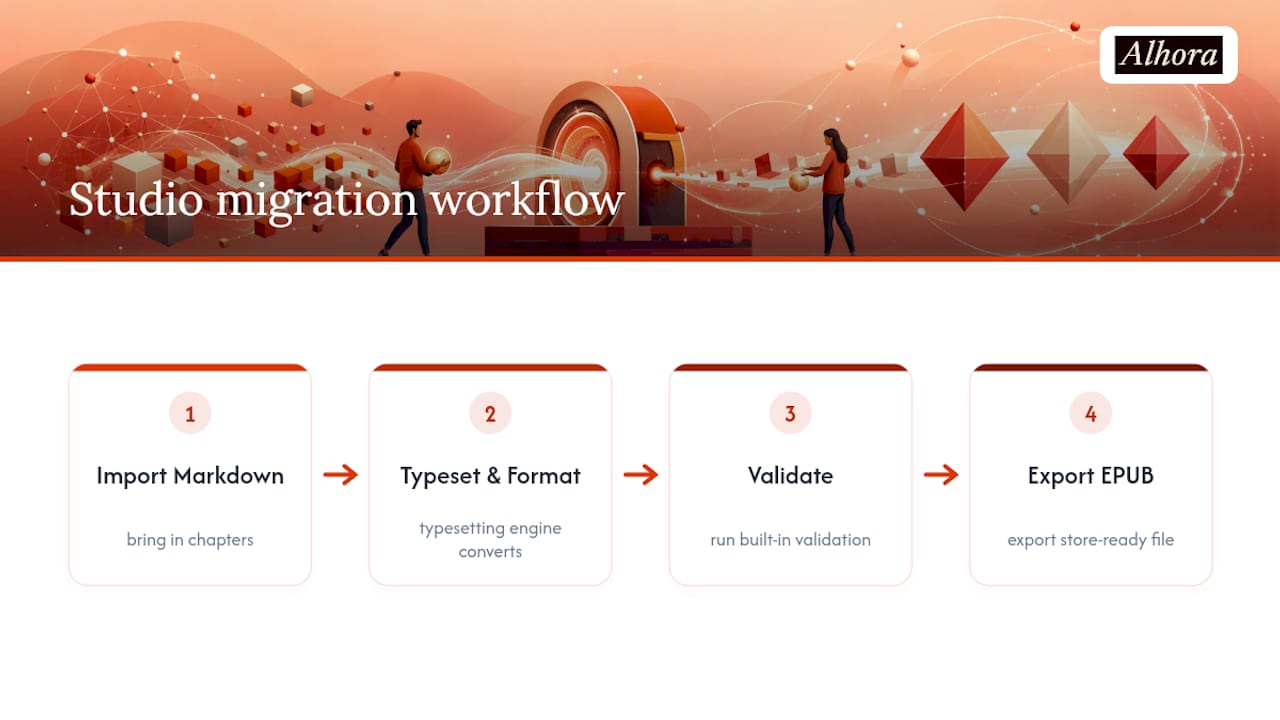
The migration path is short: bring in your Markdown chapters, let the typesetting engine convert and format them, run the built-in validation pass, then export directly to the store of your choice. For authors juggling KDP-specific formatting requirements on top of everything else, that single pass replaces several rounds of manual fixes.
DIY Scripts or Professional Typesetting: What's the Real Trade-off?
CLI workflows earn their keep on simple, text-heavy manuscripts with a tight budget and a short deadline. Pandoc or mkepub gets a clean draft out the door fast.
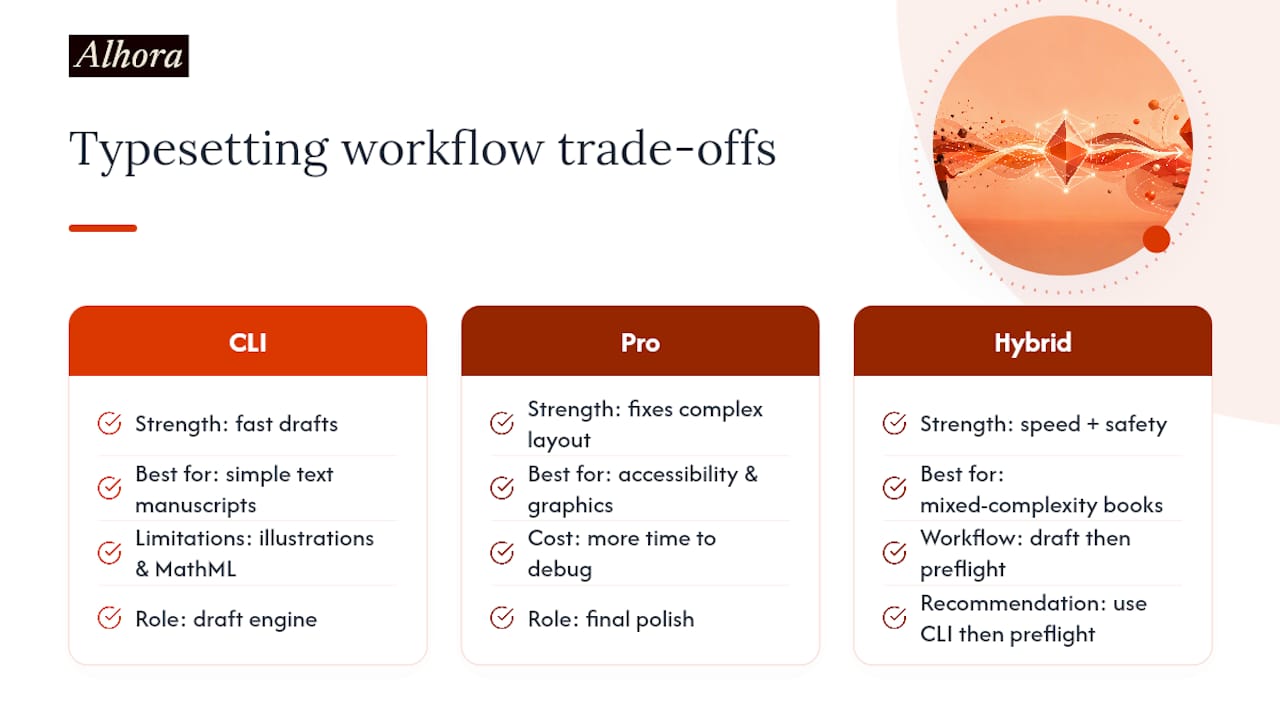
The math changes once illustrations, footnotes, or strict store accessibility rules enter the picture. A blown spine order or a botched MathML fallback costs more time to debug than the CLI ever saved.
The strongest workflow blends both: draft and iterate with CLI tools, then run a professional preflight before the file goes live. Treat the command line as your draft engine and the final polish as a separate, deliberate step.
— James
Skip the Rebuild Cycle With Alhora
Alhora replaces the repeated pandoc-tweak-validate loop with one workspace where typesetting, preflight checks, and store exports happen in the same pass. Instead of debugging spine order or MathML fallbacks by hand, you get real-time validation against publishing standards as you format, on Mac, Windows, Linux, or ChromeOS.
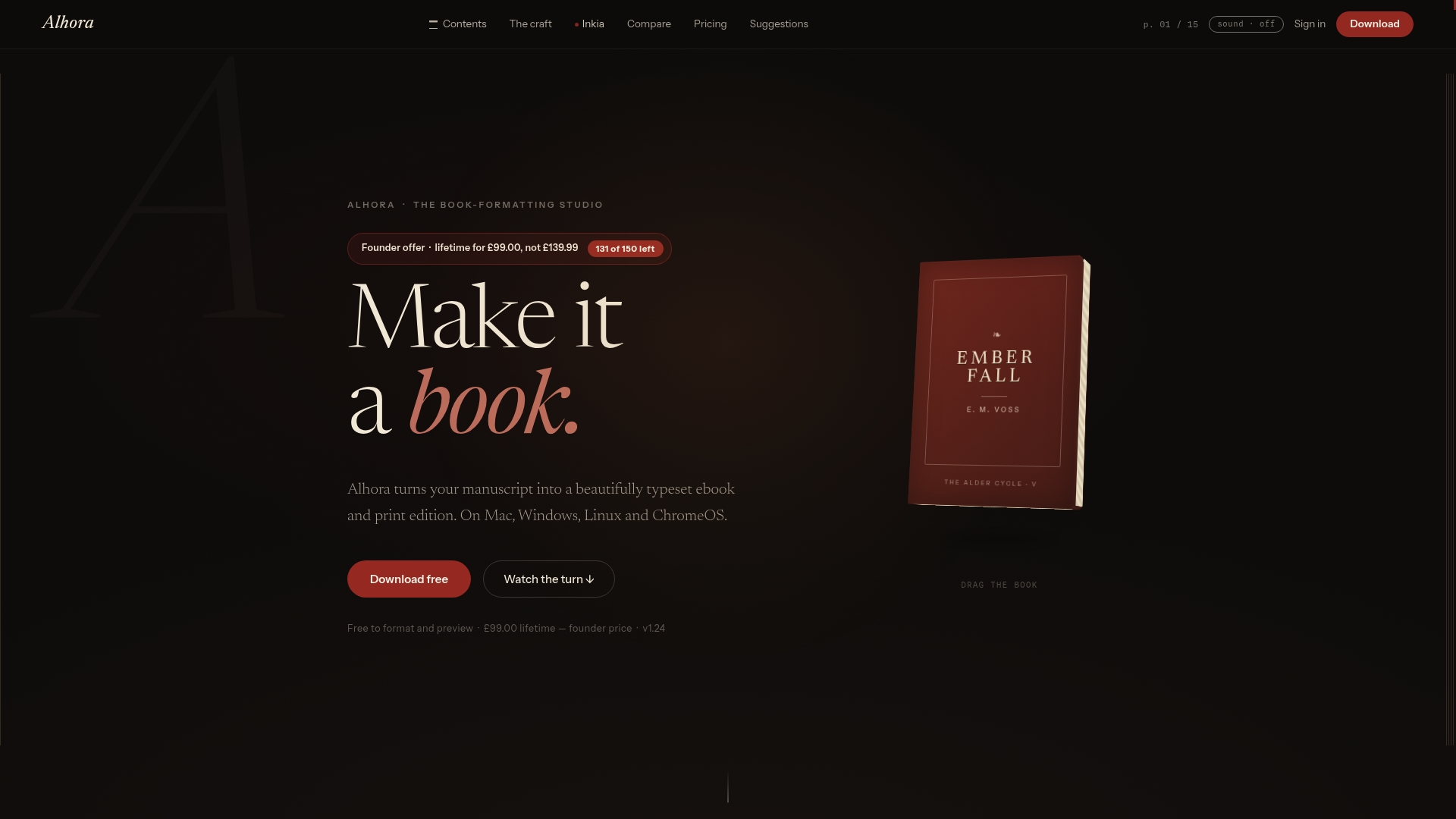
Authors moving a Markdown manuscript into ebook and print formats can start directly from Ebook Formatting Software: EPUB for Every Store, where the typesetting engine handles layout, cover placement, and metadata in one project. If KDP is your main target, the KDP formatting walkthrough covers store-specific setup. A one-off license runs a fixed price per book. Import your chapters, run the audit, and export a store-ready EPUB the same afternoon.
Where to Learn More About Markdown to EPUB Tools
For command syntax and deeper configuration options, these are the primary references behind the workflows above:
- Pandoc's EPUB documentation covers the full writer options, CSS flags, and metadata handling.
- md2epub on PyPI documents project scaffolding and the
compilecommand for KDP-ready builds. - md-to-epub on npm explains bulk conversion and frontmatter config for JavaScript-based projects.
- MathML guidance from the DAISY Knowledge Base details accessible math rendering for EPUB.
Sources
- Creating an ebook with pandoc
- md2epub v0.3.1
- md-to-epub
- suzushin7/mkepub
- MathML guidance for publishers
FAQ
Does Kindle Support Markdown?
Kindle doesn't read Markdown files directly. You convert Markdown to EPUB or a Kindle-compatible format first, using pandoc, a project CLI, or a formatting tool like Alhora, then upload that converted file to KDP.
What Is the Best Word to EPUB Converter?
For a Word manuscript, pandoc converts .docx to EPUB in a single command and handles most formatting cleanly. If your manuscript needs custom typesetting or store-specific preflight beyond a basic conversion, a tool like Alhora bridges that Word or Markdown source into a validated, publish-ready EPUB.
How Do I Turn PNG Files Into an EPUB?
Reference your PNG files with relative paths in your Markdown, and most conversion tools bundle them into the EPUB automatically during the build. Tools like mkepub can also auto-convert PNG to compressed JPG during compilation to keep file size down.
How Do I Make My Own EPUB File?
Write your manuscript in Markdown with chapter files organized in a folder, add a YAML metadata block for title and author, then run a build command through pandoc or a project CLI like md2epub or md-to-epub. Validate the result with EPUBCheck and preview it in Calibre before uploading anywhere.