
Apple Books rejects files for one of two reasons: the EPUB fails EPUBCheck validation, or it violates a specific Apple Books formatting rule around fonts, navigation, images, or metadata. There's no mystery rejection. The fix is always traceable to a line in an error report.
Here's what to do in the next 20 minutes. Run EPUBCheck against your EPUB, or Acrobat Preflight against your PDF, and read the actual error text rather than guessing at what "probably" broke. Check three things first: are all fonts embedded, does the manifest list every file in the package, and does the navigation document resolve every internal link. Then re-upload with margin to spare.
- Run EPUBCheck (EPUB) or Acrobat Preflight (PDF) before touching anything else
- Check fonts, manifest entries, nav.xhtml, and image color space
- Fix only what the error report names, not what you assume is wrong
- Re-validate until you hit zero errors, not just fewer errors
Apple recommends uploading final files at least 10 days before your scheduled release, because every resubmission restarts the review clock from zero. A same-day fix that misses one more error costs you another full review cycle.
TL;DR:
- Running EPUBCheck or Acrobat Preflight early helps identify and fix specific errors related to fonts, manifest, navigation, and images before resubmission.
- Most rejections result from manifest mismatches, missing or unembedded fonts, broken navigation, or non-compliant cover art specifications, which can often be fixed mechanically.
- Upload files at least 10 days before the scheduled release to avoid review delays caused by multiple resubmissions restarting the review process.
- Automated formatting tools like Alhora can prevent common structural and formatting errors by generating compliant files automatically before review.
- Validating files immediately after each export and maintaining a version log reduces repeated errors and minimizes resubmission cycles.
Table of Contents
- Common Apple Books Preflight Errors and What They Mean
- How Do You Fix EPUB Errors Before Resubmitting?
- What Should You Check When Preflighting a PDF?
- Which Tools Should You Run Before You Upload?
- Your Pre-Upload Checklist Before You Hit Submit
- Why a Managed Formatting Workflow Prevents These Errors
- A Formatting Path That Skips the Resubmission Loop
- Sources
Common Apple Books Preflight Errors and What They Mean
Most rejection reports fall into four buckets, and once you know which bucket you're in, the fix is usually mechanical rather than mysterious.
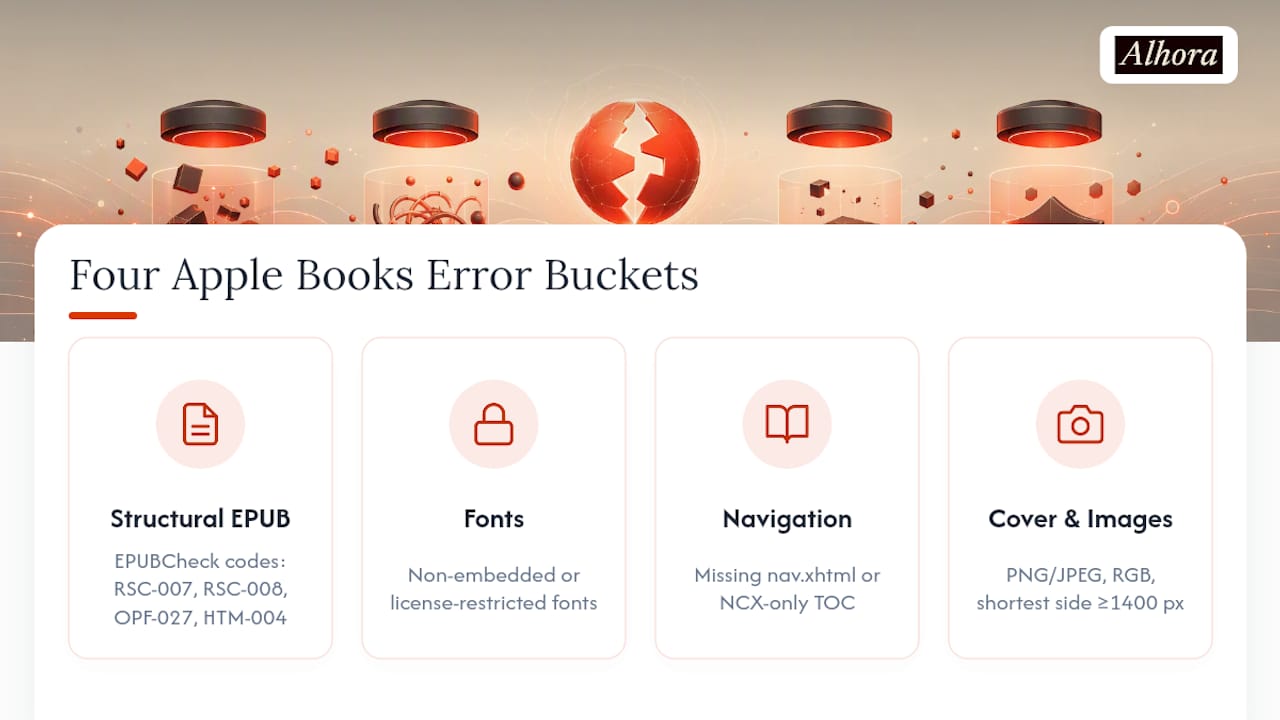
Structural EPUB errors from EPUBCheck. RSC-007 means a file referenced in your package is missing. RSC-008 flags a manifest mismatch, where content.opf lists a file that doesn't exist or omits one that does. OPF-027 signals an undefined property in the manifest. HTM-004 means invalid XHTML, usually an unclosed tag or a malformed attribute. Duplicate ID errors happen when two elements in the same XHTML file share an id value, which breaks internal linking and can crash EPUB readers. A practical troubleshooting guide covering these exact codes shows that most of them trace back to sloppy exports from word processors rather than anything the author did wrong by hand.
Font failures. Non-embedded fonts are the single most common silent killer. If your EPUB references a font file that isn't packaged inside it, or the font's licensing forbids embedding, Apple Books will either substitute a default font or reject the file outright. Obfuscation mismatches (where the font is encrypted but the manifest doesn't match the encryption key) also trigger rejection.

Navigation and TOC problems. A missing nav.xhtml, an outdated NCX-only table of contents, or internal links pointing at renamed files all count as functional failures. Apple's own asset guide treats a broken table of contents as a nonfunctioning book, which is a hard rejection category, not a warning.
Image and cover constraints. Cover art must be PNG or JPEG, in RGB color space with a shortest side of at least 1400 pixels. Apple prefers packages under 1GB and hard-caps submissions at 2GB.
Not every EPUBCheck flag is fatal. Warnings about deprecated CSS properties or accessibility suggestions often let a file through ingestion. Errors, by contrast, almost always block it.
How Do You Fix EPUB Errors Before Resubmitting?
Fixing EPUB errors follows a predictable order. Skip a step and you'll just surface the next error on your following upload attempt.
- Export a fresh EPUB 3 from your source file, whether that's InDesign, Pages, or a dedicated formatting tool, into a new working copy so you're not layering fixes on a corrupted base file.
- Run EPUBCheck and read every line of output. Open the specific file it names, whether that's content.opf, nav.xhtml, or a chapter's XHTML file, in Sigil or a plain code editor.
- Fix manifest mismatches by confirming every file physically inside the package appears in content.opf, and deleting any manifest entries pointing to files that no longer exist.
- Resolve duplicate IDs and XHTML syntax errors. Close every tag, quote every attribute value, and correct nesting where a
<p>opens inside another<p>or a list tag closes out of order. - Embed fonts correctly, or strip references to fonts you don't have redistribution rights for. If you're using font obfuscation, verify the obfuscation key in the manifest matches how the font was actually encoded.
- Validate images and cover art for format, RGB color space, and pixel dimensions, then run EPUBCheck again until it returns zero errors, not just fewer of them.
- Preview the file in Apple Books on macOS, and test on an actual iPhone or iPad if you can get access to one before you upload.
EPUBCheck's error messages include the exact file name and line number where the problem lives. Opening that specific file instead of scanning the whole manuscript for a guess saves hours on a long book.
Pro Tip: Keep a version log every time you export. If your fifth resubmission fixes the font issue but reintroduces a manifest error from an earlier draft, a dated log tells you which export step caused the regression instead of forcing you to diff the whole file again.
What Should You Check When Preflighting a PDF?
PDFs matter for fixed-layout books, photo books, and print proofs, where reflowable EPUB formatting doesn't apply and exact page geometry does. A print provider's preflight process is stricter than an EPUB check because a bad PDF doesn't just fail to render, it prints wrong.
Acrobat Preflight against a PDF/X-4 profile catches the errors that matter most: incorrect color space (RGB where the printer needs CMYK, or vice versa), unflattened transparency, fonts that reference a system font instead of embedding it, wrong page dimensions, and bleed, trim, or gutter measurements that don't match the physical trim size.
The fixes are usually mechanical once you know what Preflight flagged:
- Downsample oversized images rather than shipping 600 DPI scans for a 300 DPI print job
- Flatten transparency layers before export instead of leaving them live
- Re-export from InDesign using the correct PDF preset rather than patching the existing file
- Embed every font explicitly, even ones you assume are "standard"
If your printer or POD provider supplies an export preset, use it and re-check the output against Preflight rather than trusting your own settings. For a batch of ten or more titles, test one or two files fully first, fix whatever recurring issue shows up across the series, then bake that fix into a reusable export preset so you're not repeating the same correction file by file.
Pro Tip: A transparency flag on one book in a series usually means every book built from the same template has it. Fix the template, not just the file that got caught.
Which Tools Should You Run Before You Upload?
EPUBCheck is the canonical validator because Apple's own ingestion pipeline runs the same checks. A file that passes EPUBCheck cleanly has a real shot at passing Apple's review, while a file with unresolved errors almost never does. Some retailers, including Amazon's KDP, will silently rebuild a broken EPUB during conversion, which is exactly why a file can pass KDP and bounce from Apple Books. Apple serves your original file. Nothing rebuilds it for you.
Once EPUBCheck names a problem, Sigil or a plain code editor lets you open content.opf, nav.xhtml, or the flagged XHTML file directly and edit the offending line.
For print files, Acrobat Preflight with a PDF/X-4 profile does the equivalent job, flagging color space, font embedding, and transparency issues before a printer ever sees the file.
- Run EPUBCheck first, always, before any device testing
- Fix flagged files in Sigil rather than re-exporting blind
- Run Acrobat Preflight for any PDF headed to print
- Preview the corrected file in Apple Books on macOS
- Sample-check on an actual iPhone or iPad after any major structural change
Device testing matters because a file can validate cleanly and still render oddly on a specific device, particularly with complex fixed layouts.
Your Pre-Upload Checklist Before You Hit Submit
Run this sequence every single time, even on a manuscript you've formatted a dozen times before.
- Confirm the file is EPUB 3 and EPUBCheck returns zero errors, not warnings you've decided to ignore.
- Verify every font, image, and CSS file referenced in your content is actually declared in the OPF manifest.
- Confirm nav.xhtml or your table of contents exists and every internal link resolves to a real file.
- Check cover art is PNG or JPEG, RGB, and at least 1400 pixels on the shortest side.
- Review metadata fields for completeness and confirm the filename follows Apple's delivery naming rules.
- Schedule the upload at least 10 days ahead of release, and log the version number for this specific submission.
Skipping step six is the most common unforced error. A perfectly valid file uploaded three days before launch still triggers a delayed release if Apple's review queue runs long.
Why a Managed Formatting Workflow Prevents These Errors
Most of the errors covered here (manifest mismatches, unembedded fonts, malformed nav files) come from manual export steps, not from anything wrong with the manuscript itself, as explained in the editorial feedback process explained for writers. Alhora's typesetting engine builds the manifest, embeds fonts, and generates a compliant navigation document automatically, so those specific EPUBCheck failures never get a chance to occur in the first place.
- Automated manifest and font-embedding checks run before export, not after rejection
- AI-assisted checks flag formatting issues but never rewrite your text, so creative control stays with the author
- Built-in validation passes catch cover art, color space, and file-size issues before you ever open EPUBCheck
Pro Tip: If you're formatting a series, batch validation catches template errors once instead of letting them repeat across five separate rejection cycles.
One Habit That Prevents Most Rejections
The single biggest pattern in Apple Books rejections isn't a rare technical bug. It's authors validating too late, after the file already feels finished, instead of after every meaningful export. Run EPUBCheck the moment you generate a new EPUB, not the night before your release date.
Keep a short version log too. When your third resubmission introduces a duplicate ID error that wasn't there in version two, a dated log tells you exactly which export step caused it instead of forcing you to comb through the whole file again. Validate early, log everything, and the resubmission loop mostly disappears.
— James
The clearest fix for most Apple Books rejections is running EPUBCheck immediately after every export and correcting the exact errors it names before resubmitting.
| Point | Details |
|---|---|
| Run EPUBCheck first | Validate every export immediately rather than waiting until the file feels finished. |
| Match manifest to package | Every font, image, and CSS file must be declared in content.opf and physically present. |
| Fix cover and image specs | Cover art needs PNG or JPEG format, RGB color space, and at least 1400 pixels on the shortest side. |
| Build in a 10-day buffer | Upload final files at least 10 days before release since resubmissions restart the review clock. |
| Consider a managed formatter | Alhora automates manifest, font embedding, and validation checks to prevent these errors before export. |
Resources for Deeper Validation Guidance
- Prepare your book - Apple Books Partner Support for official submission and timing requirements
- Apple Books Asset Guide for formatting rules, disallowed elements, and image specs
- KDP Accepted, Apple Books Rejected? Here's Why for specific EPUBCheck error codes and fixes
- Apple Books app syncing troubleshooting for ruling out device-side display issues
A Formatting Path That Skips the Resubmission Loop
Alhora is built for exactly the failure points covered above: manifest drift, unembedded fonts, and navigation files that don't validate on the first try. Instead of exporting from a word processor and hoping EPUBCheck agrees with it, Alhora's typesetting engine generates the manifest, embeds fonts, and builds a compliant nav document as part of the export itself, so the errors this article walks through mostly never happen.

It suits independent authors and small publishers who want a professionally typeset EPUB and print PDF without learning to hand-edit content.opf every time Apple's review comes back with a rejection. The AI-assisted checks flag issues, not fix them for you silently. You stay the one making creative calls, while the platform catches what EPUBCheck would have caught anyway, just before export instead of after rejection. For authors formatting a series, batch formatting catches a template error once instead of five separate times across five separate books. If you're tired of resubmission cycles eating your release calendar, start a manuscript in Alhora and see your first validated export before you ever touch EPUBCheck manually.
Sources
- Prepare your book - Apple Books Partner Support
- Apple Books Asset Guide
- KDP Accepted, Apple Books Rejected? Here's Why