
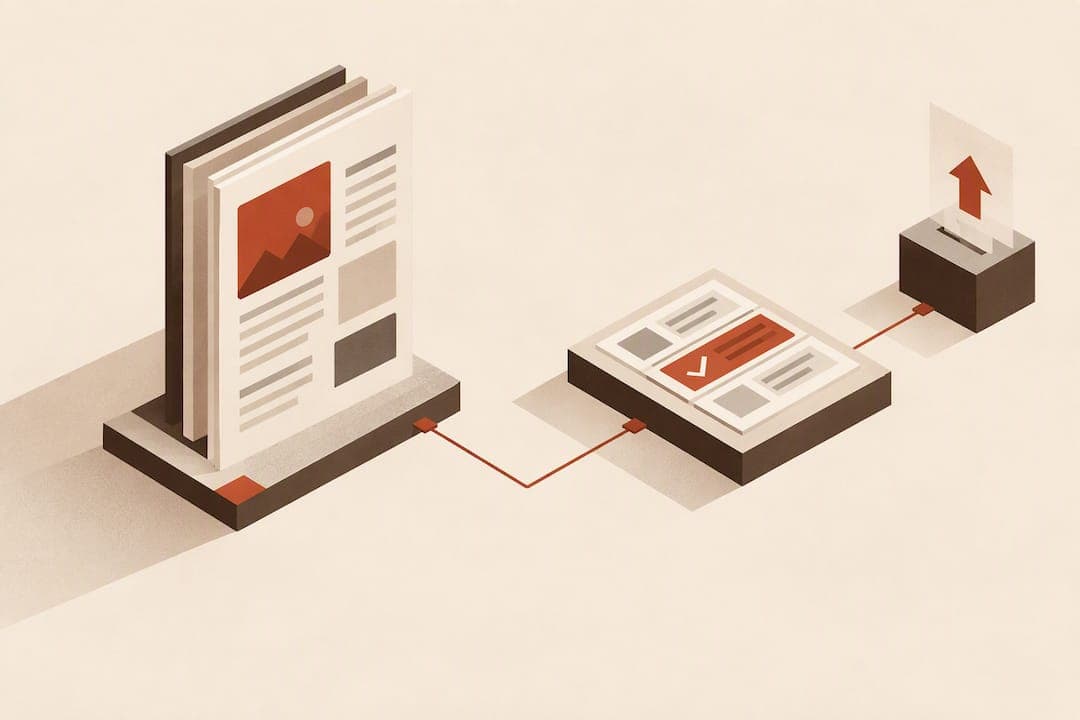
Use a standard EPUB file (EPUB 3 recommended), not MOBI or PDF. Build a reflowable EPUB unless your book genuinely needs fixed layout, such as a picture book or comic. Then run an EPUB validator and test the file on a Kobo app or device before you publish.
Key Takeaways
Most Kobo-friendly EPUBs are reflowable and built with strict adherence to formatting and validation rules to ensure correct rendering and accessibility.
| Point | Details |
|---|---|
| Use linked stylesheets | Linked CSS files improve consistency and prevent Kobo's injected tags from inheriting unpredictable inline styles. |
| Embed and declare fonts | Embed fonts in fixed-layout books and declare fallback fonts for reflowable books to maintain readability across devices. |
| Structure EPUB properly | Ensure correct packaging structure with a mimetype file, META-INF folder, and an OEBPS folder, and avoid loose files outside the structure. |
| Validate before publishing | Run EPUB validation tools like EpubCheck and re-test after every significant change to catch errors early. |
| Follow Alhora's workflow | Alhora offers tools and presets to help prepare EPUB files that meet Kobo standards, reducing ingestion problems. |
Table of Contents
- Reflowable vs. Fixed Layout: Which EPUB Type Does Your Book Need?
- Kobo Formatting Rules for CSS, Fonts, Images, and Metadata
- How to Validate and Test Your EPUB Before Kobo Upload
- Fixed-Layout EPUBs and Accessibility on Kobo
- Common Kobo Rendering Problems and How to Fix Them
- How Alhora Helps You Avoid Kobo EPUB Headaches
- Should You Fix Every Error or Publish and Iterate?
- Format Once, Export Everywhere
- FAQ
- Sources
Reflowable vs. Fixed Layout: Which EPUB Type Does Your Book Need?
Reflowable EPUB is the default for most books. Text adapts to screen size, font choice, and reader settings, which is exactly what a novel or standard nonfiction title needs. If your manuscript is primarily text, reflowable is the right call.
Fixed-layout EPUB (FXL) locks every element in place, page by page, like a PDF with EPUB internals. It makes sense for:
- Picture books with text tied to specific illustrations
- Comics and graphic novels
- Cookbooks or workbooks with complex grids and callouts
- Children's books where layout and text must align exactly
Kobo supports EPUB 3.3 and older versions, but only a subset of elements in each. Building in EPUB 3 gives you access to modern navigation and metadata features while staying compatible with legacy readers. Unless your book depends on exact visual placement, reflowable is the safer, more flexible choice.
Kobo Formatting Rules for CSS, Fonts, Images, and Metadata
Kobo's ingestion process reformats your file during upload, and that process is unforgiving of sloppy code. Following a few structural rules up front avoids most rendering surprises.
- Use linked stylesheets, not inline styles. Kobo injects its own div and span tags during processing, and those tags can inherit loose inline styles in unpredictable ways. A linked CSS file with specific selectors renders far more consistently.
- Embed fonts and declare fallbacks. Fixed-layout books need embedded fonts to look right. Reflowable books should still declare font fallbacks so text stays readable if a custom font fails to load. Check glyph support and ligatures before finalizing.
- Give the cover its own XHTML file. Placing cover text in the same file as body content can unintentionally trigger Kobo's Fixed Layout reader for that page, which disables text resizing.
- Keep image files clean. Use JPG or PNG, skip spaces and special characters in filenames, and keep individual images reasonably sized so the total EPUB stays under 100MB.
- Use Heading 1 for chapter titles. Kobo's navigation detects semantic headings, and a missing Heading 1 tag is one of the most common reasons a table of contents fails to appear.
- Set rendition metadata correctly. Declare
rendition:layoutas reflowable or pre-paginated, setrendition:spreaddeliberately, and avoid forcing orientation unless your layout truly requires it.
Pro Tip: Before uploading, open your EPUB's CSS file and search for the word "style=" inside your XHTML. Any match is an inline style that should move into your linked stylesheet.
How to Validate and Test Your EPUB Before Kobo Upload
Formatting rules only help if you confirm they worked. A short validation routine catches problems before readers do, and before Kobo's own ingestion flags them.
- Run EpubCheck or the Pagina validator. Kobo Writing Life recommends validating your file before submission. Treat critical errors as blockers; some non-critical warnings are cosmetic on Kobo but can still block distribution through partners like OverDrive.
- Preflight Word-converted files. Headings formatted with list styling instead of true Heading 1 tags, fonts embedded inside the DOCX itself, and manually typed page numbers in a table of contents are common causes of conversion errors. Fix these in the source file, not after conversion.
- Check packaging structure. Your EPUB container needs a correct mimetype file, a META-INF folder, and an OEBPS structure with no loose files floating outside it. Some workflows also expect the ISBN in the filename.
- Test on Kobo Desktop plus one other platform. Rendering differs between eInk devices, the Kobo Desktop app, and the Kobo Android app, so checking just one is not enough. Sideload the file onto a device when possible to preview it directly.
- Re-validate after every significant change. A single CSS edit can introduce a new error, so re-run your validator each time rather than waiting until the end.
A quick debugging walkthrough for catching the fix you want to fix EPUBCheck errors efficiently: reproduce the issue on Kobo Desktop, undo the most recent styling change, re-run the validator and sideload again, then test native navigation. This isolates the cause faster than rewriting large sections of code.
Fixed-Layout EPUBs and Accessibility on Kobo
Choose fixed layout sparingly. Text cannot resize, and rendering can differ across Kobo platforms in ways that are harder to predict than with reflowable files.
- Provide alt text for every meaningful image, since FXL books lean heavily on visuals that screen readers otherwise skip.
- Keep reading order logical in the file's markup, not just visually on the page.
- Add accessibility metadata such as
dcterms:conformsTowhere it applies to your file. - Use
rendition:spreadvalues of "auto" or "landscape" rather than forcing a fixed spread, which avoids portrait two-page rendering problems. - Embed fonts for FXL files and test how the page behaves when a reader zooms in, since WCAG and EPUB accessibility guidance calls for readable text and support for zooming up to 200%.
Kobo also recommends EPUBs meet at least WCAG 2.0 Level AA, with accessibility metadata supported through ONIX. Certification isn't required, but following the guidance tends to smooth ingestion and improve the reading experience. For a structured walkthrough, our EPUB accessibility checklist maps WCAG points directly to EPUB markup choices.
Common Kobo Rendering Problems and How to Fix Them
Most Kobo display issues trace back to a small set of causes. Spotting the symptom quickly narrows down the fix.
- Overlapping text or spacing. Usually an inline style conflicting with Kobo's injected tags; remove the inline style and rely on linked CSS.
- Wrong fonts appearing. Check that your font is actually embedded and that a fallback is declared for devices that can't load it.
- Missing table of contents. Almost always a heading that isn't tagged as Heading 1, especially common after converting from Word.
- Images appearing off-screen or oversized. Often a leftover fixed-layout setting; confirm your
rendition:spreadvalue matches your intended layout. - Unexpected fixed-layout behavior on the cover page. Move the cover image into its own XHTML file and repackage; this resolves most cases.
Non-critical validator warnings can sometimes be left alone if you're publishing only through the Kobo Store, but they need to be fixed if you plan to distribute through OverDrive, which requires error-free files.
Pro Tip: When a rendering issue appears after multiple edits, isolate one change at a time and re-validate between each. Bulk fixes often hide which specific change caused the problem.
How Alhora Helps You Avoid Kobo EPUB Headaches
We built a tool to run live validation against publishing standards as you format, not after you've already uploaded and failed ingestion. Export presets are tailored to store requirements, so cover placement, font embedding, and metadata checks happen before you upload your book.
We also guide you through the Word-conversion pitfalls that cause the most common Kobo errors, with device preview built in. The workflow is simple: preflight your EPUB, export it, run it through a validator, then test on your devices.

Should You Fix Every Error or Publish and Iterate?
If OverDrive distribution matters to you, fix every validation error first. Otherwise, prioritize what readers notice: a broken table of contents, unreadable fonts, and oversized images that bloat your file are worth fixing before anything else.

Format Once, Export Everywhere
Kobo-specific checks covered above (CSS, fonts, cover placement, metadata) can be handled inside one export workflow, so you're not juggling a validator and a separate formatting tool. Visit our ebook formatting software page to see the EPUB export presets built for Kobo and other stores.

Alhora is available as a one-off license at £99 per user, with exports for Mac, Windows, Linux, and ChromeOS.
FAQ
Does Kobo use the EPUB format?
Yes. Kobo Writing Life converts uploaded files into EPUB and validates them during ingestion, so a standard EPUB is the format you should prepare and upload.
Is Kobo using the EPUB or MOBI format?
Kobo uses EPUB, not MOBI. If you upload a Word document, Kobo Writing Life converts it to EPUB automatically, so there's no need to generate a MOBI file yourself.
What is the best ebook format for Kobo eReaders?
A standard reflowable EPUB, built in EPUB 3 where possible, works best for most books on Kobo devices. Choose fixed layout only for picture books, comics, or designs that depend on exact placement, since FXL text cannot resize and may render differently across Kobo platforms.
How do I convert a Word document to EPUB for Kobo?
Keep your Word file simple: use Heading 1 for chapter titles, avoid manually typed page numbers in your table of contents, and don't embed fonts inside the DOCX itself. Uploading a clean Word file to Kobo Writing Life triggers automatic conversion, or you can format and export directly through Alhora's Word import tool for more control.
What is the difference between EPUB and PDF for ebooks?
EPUB text reflows to fit the reader's screen and font settings, while PDF locks every page exactly as designed, which is closer to how fixed-layout EPUB behaves. A detailed comparison of EPUB and PDF can help you decide which fits your book before you start formatting.
Sources
- Validating and Testing Your eBooks – Kobo Writing Life Help Centre
- What is an ePub? – Kobo Writing Life
- kobolabs/epub-spec
- EPUB Accessibility - Fixed Layout Challenges and Best Practices
- Accessibility FAQs – Content Operations