
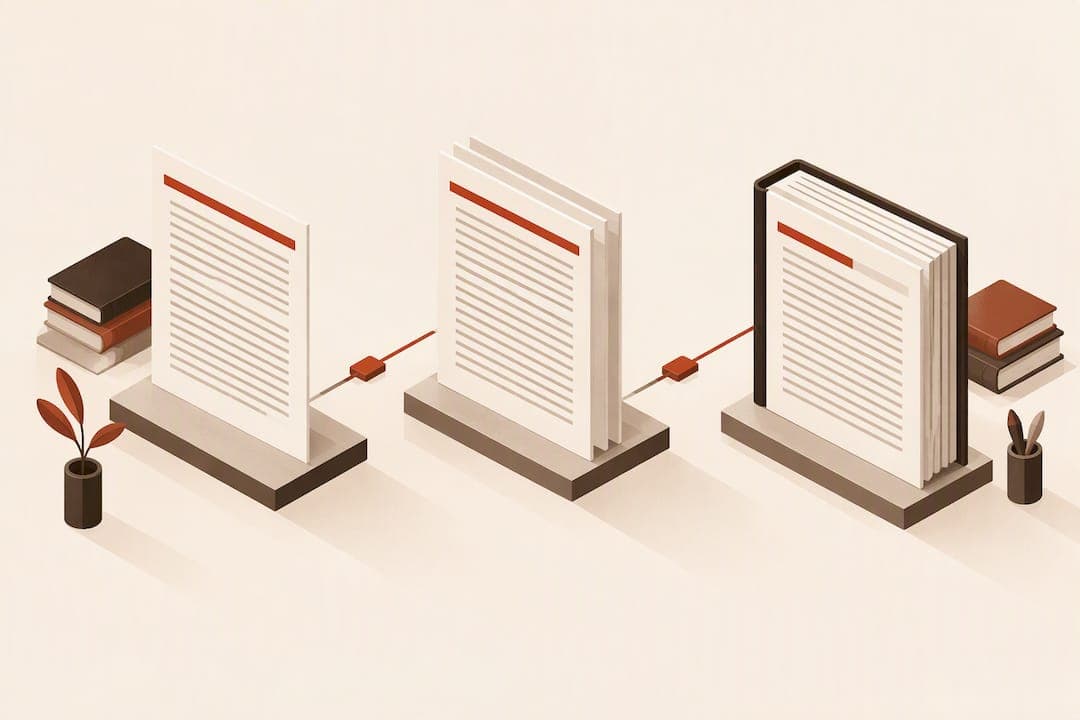
A running header is the repeated text at the top of a page, typically the book title on the left page and the chapter title on the right, that helps readers find their place in a multi-page work. You build one by controlling section breaks and header settings in Word, or by using master pages and variables in a layout app like Adobe InDesign or Adobe FrameMaker. The steps below cover both paths.
Key Takeaways
Effective running headers require proper section management and automated updating tools in Word, InDesign, or FrameMaker to ensure consistency and prevent errors.
| Point | Details |
|---|---|
| Choose header content strategically | Decide what should appear in headers based on genre and book structure to serve reader navigation effectively. |
| Use section breaks for control | In Word, insert section breaks at chapter starts and unlink headers from previous sections for customization. |
| Leverage master pages and variables | InDesign uses master pages and text variables to automatically update headers based on chapter content. |
| Implement markers in FrameMaker | Mark chapters with headers and use variables for consistent, automated header updates across files. |
| Validate headers with automation tools | Tools like Alhora perform real-time checks for header continuity, matching, and formatting before publishing. |
Table of Contents
- Publishing conventions for running heads
- Building running headers in Word step by step
- Setting running heads in InDesign with master pages and variables
- FrameMaker and specialized layout tools: markers and variables
- Fixing the most common running header mistakes
- How production validation catches header errors before export
- When running heads earn their place on the page
- Let a formatting tool handle the header checks for you
- Sources
- FAQ
Publishing conventions for running heads
Before touching any software, decide what your running heads should say. Convention varies by genre, and the choice depends mostly on your book's structure, according to Chicago Manual of Style guidance on multivolume sets, which notes that there are few strict rules and editors should choose what best serves the reader.
Common patterns include:
- Fiction often uses the book title on the verso (left) page and the chapter title on the recto (right) page, or skips running heads entirely in minimalist designs.
- Nonfiction and reference works often pair the part or section title on the verso with the chapter title on the recto, sometimes adding guide words for dictionaries or encyclopedic entries.
- Multi-author collections typically show the volume title on one side and the individual chapter author or title on the other.
- Running heads are dropped on display pages, chapter openers, dedication pages, and full-illustration pages, where publishing convention favors a clean opening with a drop folio instead.
Long chapter titles cause the most friction. Editors typically shorten them into a short phrase, assign a manual marker, or rely on a cross-reference that updates automatically if the chapter title changes later.
Building running headers in Word step by step
Word handles running headers through section breaks, not page breaks. A page break moves text to a new page but carries the same header settings forward. A section break lets you assign different header content to different parts of the manuscript, which is the mechanism Microsoft's own documentation points to for controlling header transitions.
- Insert a Next Page or Odd Page section break at the start of each chapter and before front matter such as the title page and copyright page.
- Open the Header & Footer tools and enable Different Odd & Even Pages and Different First Page, since these settings apply document-wide once turned on.
- Click into each header container and disable Link to Previous individually. Word stores header and footer coding in the section break that follows each section, and every section after the first has six separate containers to manage, so unlinking one does not unlink the rest.
- Insert a STYLEREF or cross-reference field tied to your chapter heading style so the running head pulls the current chapter title automatically.
- For chapters with long titles, replace the field with a short manual marker instead of fighting the auto-pulled text.
- Turn on non-printing marks, scroll through the manuscript to confirm every section break lands where intended, and export a test PDF to check that headers behave correctly across chapter transitions.
Pro Tip: Fix one chapter's header sequence completely before copying the pattern to the rest of the manuscript. Chasing a linking error across 30 chapters costs far more time than getting chapter one right first.
If you export through Amazon KDP, verify the header behavior survives conversion; some retailers strip or reflow headers depending on file format.

Setting running heads in InDesign with master pages and variables
InDesign handles running heads through master pages rather than section breaks. Build two masters, one for verso pages and one for recto pages, each with its own header text frame positioned to match your trim size.
- Create A-Master and B-Master spreads with header frames placed where your design calls for them, then apply each to the correct page side.
- Use Text Variables to insert the running chapter title automatically, pulling from a paragraph style such as Chapter Title so the header updates whenever the text changes.
- Set up Cross-References as an alternative to variables when you want the header to point to a specific heading instance rather than the nearest occurrence.
- For long titles, create an abbreviated variable manually rather than letting the automatic text variable pull the full heading.
- Apply masters consistently through the Pages panel, and override or detach them on chapter-opening pages and front-matter pages where a running head should not appear.
This approach mirrors the logic in Word: a container tied to a rule, updated automatically, with a manual override for edge cases. The Book Designer describes this same variable-based approach as standard practice for avoiding mismatched headers after late-stage title edits.
FrameMaker and specialized layout tools: markers and variables
FrameMaker takes a marker-based approach instead of master-page overrides. You insert a Header/Footer marker at the start of each chapter, and the software builds a book-level variable that tracks the current marker text across the document.
- Insert a Header/Footer marker at each chapter or major heading so FrameMaker knows what text belongs in the running head for that stretch of pages.
- Create a book-level variable when your project spans multiple files, so the running head updates consistently across the entire document set.
- Use a shortened marker text when the actual heading is too long to fit the header space cleanly.
- For multi-volume sets, keep marker naming consistent across files so headers don't break when documents are recombined or reordered.
Markers propagate forward until the next marker appears, which is efficient for long manuscripts but requires discipline: a missing marker at a chapter start means the previous chapter's title bleeds into the new section.
Fixing the most common running header mistakes
Most running header problems trace back to one of three causes: the wrong break type, a Link to Previous setting left active, or an edit made in the wrong header container.
- If a header repeats content from the previous chapter, check whether a Next Page section break was actually inserted, or whether a simple page break was used instead.
- If a header you edited doesn't change, check whether Link to Previous is still enabled for that specific container. Since each header type requires its own unlinking, fixing the odd header does nothing for the even one.
- If headers appear on pages where they shouldn't, such as chapter openers, confirm you edited the First Page Header container rather than the standard one.
- If page numbers reset unexpectedly, check the section break's numbering format setting rather than the header content itself.
Run this audit before final export: show non-printing marks, click through every section break, and check each header container's Link to Previous status one by one. A five-minute pass here catches the errors that otherwise surface only after a reader emails you about a header that says the wrong chapter title.
How production validation catches header errors before export
A formatting engine can check for the problems a manual read-through often misses: running heads that persist on display pages, front-matter sections that inherited body-text header rules, or a chapter heading field that failed to populate. Authors using Alhora have raised exactly this kind of issue, including requests around preventing headings from auto-becoming chapter names and handling front matter and chapter placement correctly.
- Continuity checks confirm the same running head doesn't carry across a chapter boundary where it shouldn't.
- Front-matter rules flag headers appearing on pages like the title page or copyright page.
- Missing-text checks catch a running head field that resolves to blank because a variable or marker wasn't set.
Reported issues around chapter header continuity show these mistakes happen often enough that authors actively request better safeguards.
When running heads earn their place on the page
Running heads pull their weight in nonfiction, reference works, and multi-author volumes, where readers jump around and need a quick way to confirm location. Many novels skip them entirely for a cleaner page, especially in minimalist trade design where every header line competes with white space and reading rhythm. Decide based on how readers will actually use the book: a cover-to-cover novel rarely needs one, a book readers dip into repeatedly usually does.
— James
Let a formatting tool handle the header checks for you
Building a clean running-head system by hand in Word or InDesign works, but it takes careful attention across every section break and master page in a full manuscript. Alhora runs real-time validation against publishing standards as you format, catching header and front-matter mismatches before they reach an export file.

- Section continuity checks confirm a running head doesn't carry into the wrong chapter.
- Header variable checks catch blank or mismatched chapter title fields before export.
- Preflight checks run automatically ahead of KDP, IngramSpark, or Apple Books export.
If your manuscript is short and simple, the manual Word workflow above will get you there. If you're formatting a longer book, a series, or multiple export formats at once, a tool built for the job saves the repeated manual checking. Alhora is available as a one-off purchase at £60 per license. Once your file passes export, verify page numbering survived the conversion using a tool like LawtonPDF's page number editor before you publish.
Sources
- Purdue OWL — MLA formatting and style guide (MLA guidance)
- Dummies — How to design different headers and footers in Word
- Microsoft Q&A — How to give headers and footers different formatting rules
- Chicago Manual of Style — Q&A on running heads for multivolume sets
- MSU LibGuides — Elements of the book page
FAQ
What should go in a running head?
A running head typically carries the book title on one page and the chapter title on the facing page, though the exact split depends on your book's structure, according to Chicago Manual of Style. Academic papers follow a different, simplified rule.
Do running headers appear on every page?
No. They are commonly omitted on display pages such as chapter openers, dedication pages, and full-illustration pages, where a drop folio is used instead. Front matter like the title page and copyright page also typically skips running heads.
What does a running head mean in MLA format?
In MLA-formatted papers, the running head is a simplified version showing the author's last name and the page number, placed in the upper-right corner per Purdue OWL's guidance. This differs from the verso/recto conventions used in trade book publishing.
How do I create a running header in Word?
Insert Next Page or Odd Page section breaks between chapters, enable Different Odd & Even Pages and Different First Page, then disable Link to Previous for each header container individually. Microsoft's documentation notes that header coding is stored in the section break itself, so each container needs its own settings.
Why does my running header show the wrong chapter title?
This usually means a STYLEREF or cross-reference field is pulling from the wrong heading instance, or a section break was placed incorrectly. Checking that each header container is unlinked separately resolves most mismatches.