

Use a 0.5" top, outside, and bottom margin with a 0.75" inside margin for most 5.5"×8.5" and 6"×9" trade paperbacks under 300 pages, then widen the inside margin as page count grows. The one rule that overrides everything else: your gutter (inside margin) must always be larger than your outside margin, and it has to grow as your book gets thicker. Platform minimums like Amazon's exist to keep your text from getting sliced off during trimming, not to tell you what looks good.
TL;DR:
- Thicker books with more pages require larger inside margins to accommodate spine curvature, especially when using heavier or cream paper stock.
- Testing a physical proof spread at actual size is crucial for verifying gutter comfort and avoiding text crowding near the binding.
- Platform minimum margins, like 0.25" for KDP, are safety thresholds, not optimal design margins; higher margins improve readability and layout quality.
- Using mirror margins in layout tools ensures the gutter aligns with the binding, preventing layout issues on double-sided printed pages.
- Paper type significantly impacts gutter width, with heavier or coated paper demanding wider margins to prevent texts from crowding at the spine during reading.
Table of Contents
- Quick Reference: Recommended Margins by Trim Size and Page Count
- How Do You Calculate the Gutter You Need?
- How Do You Set Mirror Margins in Word, Pages, or InDesign?
- Printer Minimums vs. Designer-Recommended Margins
- How Margins Affect Line Length, Font Size, and Line Spacing
- Preflight Checklist Before You Upload Your Final File
- How Alhora Helps You Get Margins Right the First Time
- Does Paper Type Change How Wide Your Margins Should Be
- Common Margin Mistakes That Cause Printing Problems
- Author Perspective: Quick Decisions and Trade-Offs
- Sources
Quick Reference: Recommended Margins by Trim Size and Page Count
Trim size comes first. Pick it before you touch a single margin setting, since 5"×8" and 5.5"×8.5" tend to suit fiction, while 6"×9" is the workhorse for nonfiction. Once that's locked in, page count decides how wide your gutter needs to be.
The gutter grows with page count because thicker books curve harder at the spine when they lie open. A 500-page paperback swallows more of your inside margin into the binding than a slim 100-page novella does. Books.by's margin-spec data breaks this into bands that make the relationship concrete:
Wikibooks lands on a similar principle for bound books at 6"×9" or smaller: 0.5" outer margins with a 0.75" inside margin as a safe baseline, then adjust upward once your manuscript pushes past 400 pages. Anything larger than 6"×9", such as an 8.5"×11" workbook or journal, generally moves to a full 1" margin all around because the page itself is bigger and needs more visual breathing room.
If your book has full-bleed images, photos, or design elements that run to the edge of the page, keep critical text at least 0.25" inside the trim line regardless of your stated margin. That 0.25" safe zone protects against minor cutting variance during binding, and it matters more on image-heavy layouts where a caption or page number sits close to the edge.
How Do You Calculate the Gutter You Need?
The gutter isn't a fixed number. It's a function of three things: how many pages your book has, how thick your paper stock is, and what binding method your printer uses. A 120-page novella and a 450-page fantasy epic in the same trim size need different inside margins, because more pages mean more curvature pulling text toward the spine.
Here's a workable process for landing on the right figure:
- Estimate your final page count after formatting, not your manuscript word count. Fonts, trim size, and line spacing all shift this number.
- Match that count to a page-count band (24–150, 151–400, 401+) using the table above for your trim size.
- Add a buffer if you're using thicker paper stock (cream or heavier white paper), since bulkier paper curves more at the spine than standard stock.
- Print a two-page spread test at actual size, fold it, and check whether text near the spine is still comfortably readable when the book lies open.
That last step matters more than any formula. A printed proof shows you exactly how much text disappears into the curve of the spine, which no on-screen preview replicates accurately. Testing a physical spread at normal reading posture remains the fastest way to catch a gutter that's technically "correct" on paper but still crowds the text in your hand.
Pro Tip: Print your proof spread single-sided on regular paper, then hold it open at a 120-degree angle, the way you'd actually read it on a couch or in bed. If the first two or three characters of each line near the spine feel cramped, add another 0.0625" (a sixteenth of an inch) to your inside margin and reprint.
How Do You Set Mirror Margins in Word, Pages, or InDesign?
Mirror margins (also called facing pages) flip your inside and outside margins automatically so the gutter always lands next to the binding, not on the outer edge every other page. Skip this setting and your layout breaks the moment you print double-sided, because the gutter alternates sides on odd versus even pages.
Here's how to turn it on in the tools most self-publishers already use:
- In Microsoft Word: Go to Layout → Margins → Custom Margins. In the Page Setup dialog, change "Multiple pages" to Mirror margins, then enter your inside and outside values separately (for example, 0.75" inside and 0.5" outside). Word's mirror margins setting is what keeps that gutter locked to the binding edge across the whole document.
- In Apple Pages: Open Document Setup, turn on Facing Pages, then set your inside and outside margin values in the same panel. Pages handles the mirroring automatically once that toggle is on.
- In Adobe InDesign: When creating a new document, check Facing Pages in the New Document dialog. This unlocks separate inside/outside margin fields and lets you control gutter width independently from your outer margins and slug area.
For readers converting between measurement systems, a 0.625" gutter is roughly 16mm, 0.75" is about 19mm, and 1" comes to roughly 25mm. Some export tools default to unequal margins even when facing pages is enabled, so check your print-ready PDF before uploading, since a mismatched default can undo the mirroring you just set up. A KDP margin requirements guide walks through the Word settings step by step if you want a visual reference.
Printer Minimums vs. Designer-Recommended Margins
Amazon KDP sets its minimums at 0.25" without bleed and 0.375" with bleed, and it's worth being blunt about what those numbers mean: they're the smallest margin the printer will accept without risking text loss during trimming, not a target for how your finished book should look.
Treat platform minimums as a safety floor, never a design goal:
- KDP's 0.25" minimum (no bleed) leaves almost no room for reader comfort, and text set that tight often looks cramped against the trim edge.
- KDP's 0.375" minimum (with bleed) still sits well below the 0.5"–0.75" range most designers recommend for actual reading.
- Platform minimums exist for print safety, not layout quality; aim meaningfully above them if you want a book that reads like it came from a traditional publisher.
- IngramSpark and other print-on-demand printers publish their own minimums, and they don't always match KDP's numbers exactly.
Before you upload a final file anywhere, check that specific printer's current specs. Margin rules do shift between printers and between paperback and hardcover formats, and a number that worked for one project two years ago isn't guaranteed to still be current.
How Margins Affect Line Length, Font Size, and Line Spacing
Margins don't work in isolation. They set the width of your text block, and that width determines how many characters fit on each line. Wikibooks points to 65 to 70 characters per line as the target for comfortable reading, a range that goes back decades in print typography. Too narrow, and readers feel like they're reading through a straw. Too wide, and their eyes lose the line when they jump back left.
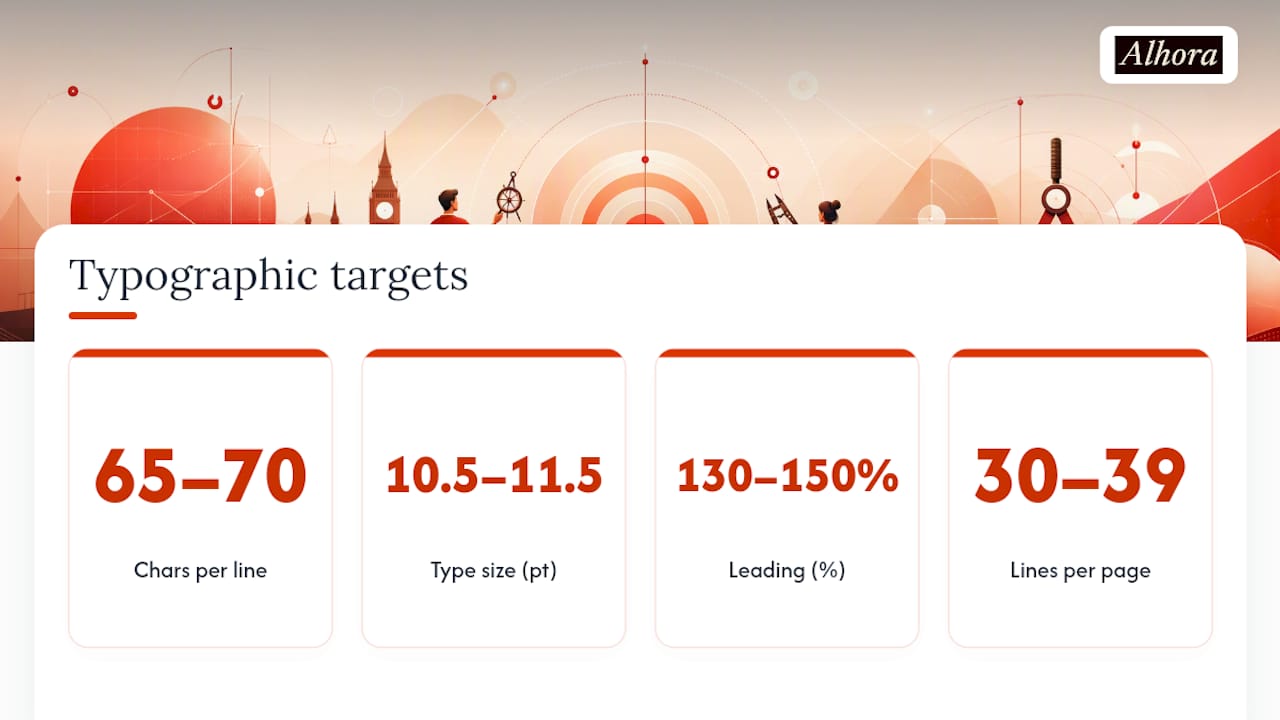
To measure it, count characters (including spaces) across a typical full line of your formatted text. If you're consistently landing above 70 or below 65, adjust your outside margin, your font size, or both, rather than touching the gutter.
Top and bottom margins carry their own logic when running heads or folios (page numbers) are involved. A narrower top margin with a header often reads as more balanced than a wide, empty top strip, while the bottom margin usually stays slightly more generous to visually anchor the page. For type size and leading, most trade fiction runs 10.5 to 11.5 point type with leading around 130% to 150% of the font size, landing somewhere around 30 to 39 lines per page depending on trim size, a range the Book Designer's layout guidance covers in more detail.
Preflight Checklist Before You Upload Your Final File
Run through these checks before you submit a print file anywhere:
- Confirm mirror margins are active so the gutter falls at the binding on every page, not alternating sides.
- Verify the gutter meets your page-count band's minimum from the trim-size table, not just your original starting number.
- Check that nothing critical sits inside the 0.25" safe zone from the trim edge, especially on bleed pages.
- Look at header, footer, and folio placement to confirm they clear the margin and don't crowd the trim.
- Order a physical proof and read a chapter at normal reading posture, not just flip through it on a desk.
A platform's online previewer is useful for catching obvious errors, but it can't replicate how a spine curves under real paper weight. A printed proof spread is still the only reliable way to confirm your gutter and margins behave the way you designed them.
Pro Tip: When your proof arrives, open it flat on a table and press down gently near the spine, the way a reader would while eating breakfast with a book propped open. If you have to fight the pages to see the first word on each line, your gutter needs another bump before you approve the file for wide release.

How Alhora Helps You Get Margins Right the First Time
A Book Margin Calculator maps your trim size and estimated page count directly to a recommended gutter and outer margin, so you're not guessing which band your manuscript falls into. Alongside that, Automatic preflight checks flag hyphenation issues, widows and orphans, and trim or safe-area violations before you ever export a file, catching the kind of margin problems that only show up after a printed proof arrives. For deeper walkthroughs on genre-specific interior settings, the novel interior style guide and Alhora's blog cover the finer points this article doesn't have room for.
Does Paper Type Change How Wide Your Margins Should Be
Paper stock affects your margins more than most first-time authors expect. Cream paper and heavier white paper stocks (often 55lb or higher) carry more bulk per page than standard 50lb white stock, which means a 400-page book on cream paper can end up noticeably thicker in spine width than the same page count on lighter stock.
That extra thickness changes how the book lies open. Thicker paper resists flattening, so pages near the spine curve more sharply, pulling text further from view unless your gutter compensates. If you're printing on cream stock or anything above standard weight, treat your book as though it sits one page-count band higher than its actual count when choosing a gutter width. A 380-page book on heavy cream paper often behaves, physically, more like a 420-page book on standard stock.
Coated or glossy paper, common in image-heavy books and photo collections, adds a different wrinkle: it's stiffer and doesn't fold as easily, which can make a tight gutter feel even more restrictive during reading. Illustrated books and art books generally benefit from erring toward the wider end of the recommended gutter range for their page-count band, even if the page count itself sits on the lower side.
None of this shows up reliably in a digital proof. It's another reason a physical proof copy, printed on the same paper stock you plan to use for the final run, catches problems a PDF preview simply can't reveal.
Common Margin Mistakes That Cause Printing Problems
The single most common mistake is setting equal margins on all four sides and skipping mirror margins entirely. This works fine for a single-sided PDF but falls apart the moment a printer binds the book, because the gutter needs extra room the outside margin doesn't, and without facing pages enabled, that extra room ends up on the wrong side of half your pages.
A close second: copying a margin setup from a completely different trim size. A gutter width that works for a 6"×9" hardcover doesn't automatically transfer to a 5"×8" paperback, since the physical proportions and expected page count band are different.
Ignoring page count until after formatting is finished causes its own headaches. Authors often set a gutter early in the writing process, then add three more chapters, and never revisit whether that gutter still matches the new, longer page count. Always lock in your final page count estimate before finalizing margins, and revisit them if your manuscript changes significantly.
Finally, relying entirely on a platform's on-screen previewer instead of a physical proof leads to margin surprises after the print run is already ordered. Screens don't curve, bind, or fold, so a layout that looks perfectly safe in a browser previewer can still crowd text at the spine once it's a physical book in your hands. Order the proof. Every time.
Author Perspective: Quick Decisions and Trade-Offs
Mass-market fiction can lean toward tighter margins and lower page counts to keep production costs down, but reading comfort should win for anything literary or nonfiction where readers linger. My one-line rules: fiction gets 0.5"/0.75" as a floor, nonfiction with citations or footnotes needs extra bottom margin, and image-heavy books need wider gutters regardless of page count. Always proof physically. Screens lie about spines.
— James
Ready to skip the guesswork on your own manuscript? Alhora's book formatting software runs these margin and gutter calculations automatically as you format, checking trim size, bleed, and safe-area violations before you export a single file for KDP, IngramSpark, or any other platform.
Sources
- Set Trim Size, Bleed, and Margins — Amazon KDP Help
- Books
- Basic Book Design/Margins - Wikibooks
- How to set page margins and orientation in Word — Expertrain