

KDP paperback margin requirements are non-negotiable: outside, top, and bottom margins must meet specific minimum values for books without and with bleed. The inside (gutter) margin varies based on page count, increasing as the book gets thicker. Get that wrong and KDP rejects your file.
The official rule: "Top, bottom, and outside margins must be at least 0.25 inches (6.4 mm) for books without bleed, and at least 0.375 inches (9.6 mm) for books with bleed. Inside margins vary by page count." — KDP: Set Trim Size, Bleed, and Margins
Two things to do right now: confirm your final trim size, then look up your page-count tier in the gutter table below and apply that value before you touch anything else. The KDP File Setup Calculator will give you exact numbers for your specific trim and page count in under two minutes.
Key Takeaways
Meeting KDP margin requirements comes down to one rule: set your trim size and final page count first, then apply the correct gutter value from the official table before you configure anything else.
| Point | Details |
|---|---|
| Outside / top / bottom minimums | At least 0.25" without bleed; at least 0.375" with bleed, per KDP's official specs. |
| Gutter scales with page count | Ranges from 0.375" (24–100 pages) to 0.875" (601–828 pages); always check your tier. |
| Set trim size before margins | Adding front/back matter can push you into a higher page-count tier and change your gutter requirement. |
| Use the File Setup Calculator | KDP's calculator outputs exact margin, bleed, and spine values for your trim size and page count. |
| Alhora automates margin compliance | Alhora applies gutter scaling, preflight checks, and KDP-ready PDF export automatically. |
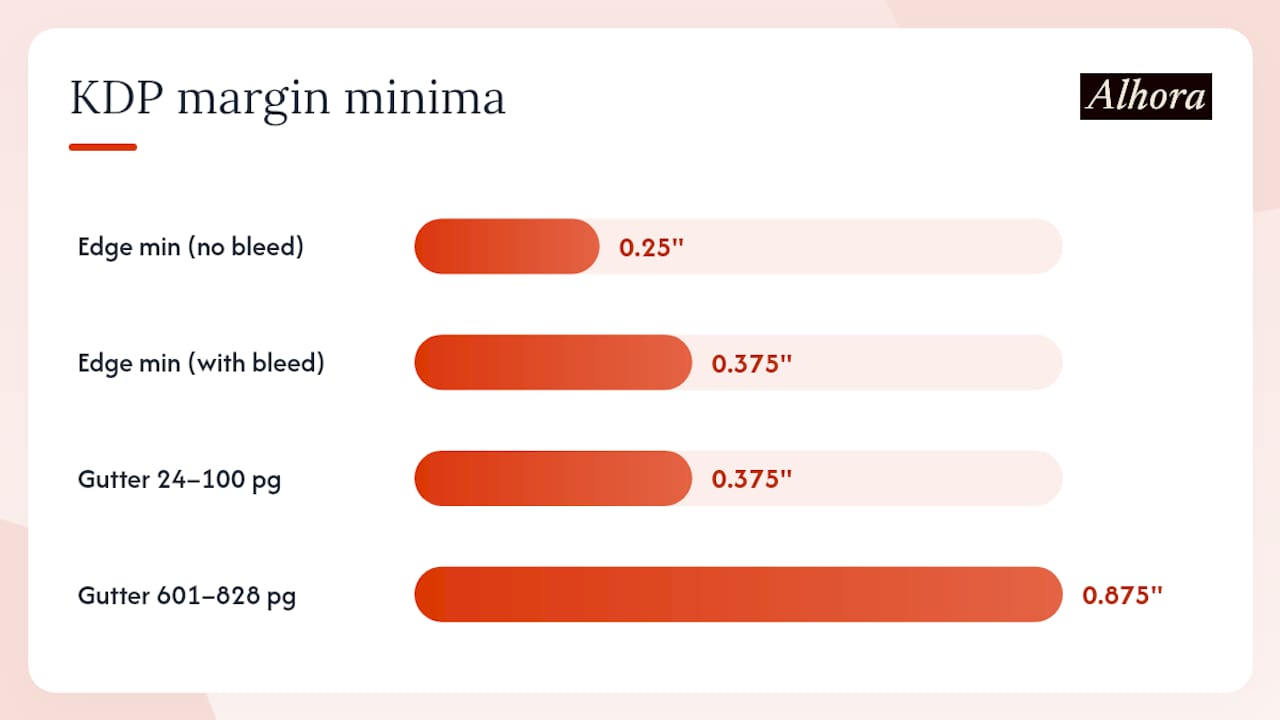
Table of Contents
- What are the official KDP margin minimums by page count?
- Trim size vs. bleed: which one do you actually need?
- How do you set margins in Microsoft Word and Apple Pages?
- How do page count and trim size affect your cover dimensions?
- How should you prepare images and artwork for KDP print?
- What causes KDP submission failures and how do you fix them?
- How do you use KDP's File Setup Calculator?
- How does a professional formatter help you avoid margin errors?
- Alhora takes the margin math off your plate
- Sources
What are the official KDP margin minimums by page count?
The gutter minimum is the one figure that changes with every book. KDP's Paperback Submission Guidelines publish the full table; the values below are reproduced directly from that source.
The gutter grows because thicker books flex more at the spine, pulling the inner edge of each page toward the binding. A smaller gutter margin, suitable for thinner books, might cause text to be obscured in a thicker, higher-page-count novel.
One thing authors miss: top, bottom, and outside margins do not have to match each other. KDP only requires they each meet the minimum. You can set a 0.5" top margin and a 0.75" bottom margin for a more classical typographic look, and that is perfectly valid as long as neither drops below 0.25" (or 0.375" with bleed).
Trim size vs. bleed: which one do you actually need?
Trim size is the finished physical dimension of your book after the printer cuts the pages. Common US sizes include 5" × 8", 5.5" × 8.5", and 6" × 9". You pick this before anything else, because it determines your page count, your cover dimensions, and your spine width.
Bleed is a printing extension: artwork or background color that you want to print all the way to the physical edge of the page must extend beyond the trim line by a set amount, so the cutter has room to trim without leaving a white sliver. KDP requires that bleed extension on all four sides when you choose the bleed option.
Choosing bleed changes your outside margin minimum from 0.25" to 0.375". It also means your artwork files need to be sized larger than the trim, with content extended into the bleed zone.
When do you need bleed?
- Full-page photographs or illustrations that touch the page edge
- Chapter headers or section dividers with colored backgrounds that run to the edge
- Any decorative border that bleeds off the page
When you do NOT need bleed:
- Standard text-only interiors (novels, memoirs, nonfiction without heavy design)
- Books where all images sit inside the text area with white space around them
A practical note: KDP explicitly states that top, bottom, and outside margins do not have to be equal, only that each meets its minimum. So a design choice like a wider bottom margin for page numbers is fine.
How do you set margins in Microsoft Word and Apple Pages?
Setting up in Microsoft Word
KDP's Word formatting guide walks through the full workflow. Follow this sequence:
- Open Layout (or Page Layout) → Size and set your custom trim dimensions (e.g., 5.5" wide × 8.5" tall).
- Go to Layout → Margins → Custom Margins.
- Set Top, Bottom, and Outside to at least 0.25" (or 0.375" if using bleed).
- In the Inside field, enter your gutter value for your page-count tier (e.g., 0.625" for a 400-page book).
- Set Multiple Pages to Mirror Margins so the inside margin alternates correctly on left and right pages.
- Apply to Whole Document.
- Export: File → Save As → PDF. In the options dialog, choose Standard (publishing online and printing) and confirm the page size matches your trim.
One common trap: Word separates the "Inside" field from a separate "Gutter" field in some versions. If you see both, put your full gutter value in Inside and leave the Gutter field at zero. Splitting the value between both fields doubles the margin unintentionally.
Setting up in Apple Pages
- Go to File → Page Setup and enter your trim dimensions as a custom paper size.
- Open the Document panel on the right and set Top, Bottom, Left (outside), and Right (inside/gutter) margins.
- For a mirrored layout, enable Facing Pages in the Document panel. Pages will then label fields as Inside and Outside.
- Export: File → Export To → PDF. Choose Best image quality.
Pro Tip: Before exporting, run a preflight check in Adobe Acrobat or a free tool like PDF24 to confirm fonts are embedded and the page size exactly matches your trim. A PDF that is even 0.01" off will fail KDP's size validation.
KDP's previewer may attempt minor corrections on small issues, but it is not a substitute for proper typesetting. Severe layout problems require a corrected re-upload.
How do page count and trim size affect your cover dimensions?
Your interior page count and trim size are the two inputs that determine every cover measurement. Change either one after you have built your cover and you are rebuilding the cover from scratch.
The calculation chain works like this:
- Final page count (including all front and back matter) determines spine width. KDP's Print Options page notes that paper type also affects spine width: white paper and cream paper produce different thicknesses per page.
- Spine width is calculated from page count × paper thickness per page. KDP provides the exact formula and a cover calculator through its Format Your Paperback page, which also offers downloadable cover templates sized to your trim and page count.
- Total cover width = back cover width + spine width + front cover width + bleed on all four sides.
Steps to get a correct cover PDF:
- Finalize your interior file and confirm the exact page count.
- Select your paper type (white or cream) in KDP's cover calculator.
- Download the cover template or enter your trim size and page count into the calculator to get spine width.
- Build your cover art to those exact dimensions, extending artwork into the bleed zone on all four sides.
- Keep all text and critical design elements inside the safe zone, away from the trim and spine fold lines.
Incorrect interior margins do not change spine width directly. But if margin errors force you to reflow text and your page count shifts, your spine width changes and your cover file becomes wrong.
How should you prepare images and artwork for KDP print?
Print quality lives and dies at 300 DPI. KDP requires a minimum of 300 dots per inch for all interior images at their final printed size. An image that looks sharp on screen at 72 DPI will print blurry.
Key technical requirements:
- Resolution: 300 DPI minimum at the final print size. For covers, 300 DPI is the floor; higher is fine.
- File types: TIFF and high-quality PNG are preferred for interior images. High-quality JPEG is acceptable. For covers, a flattened PDF with embedded images works well.
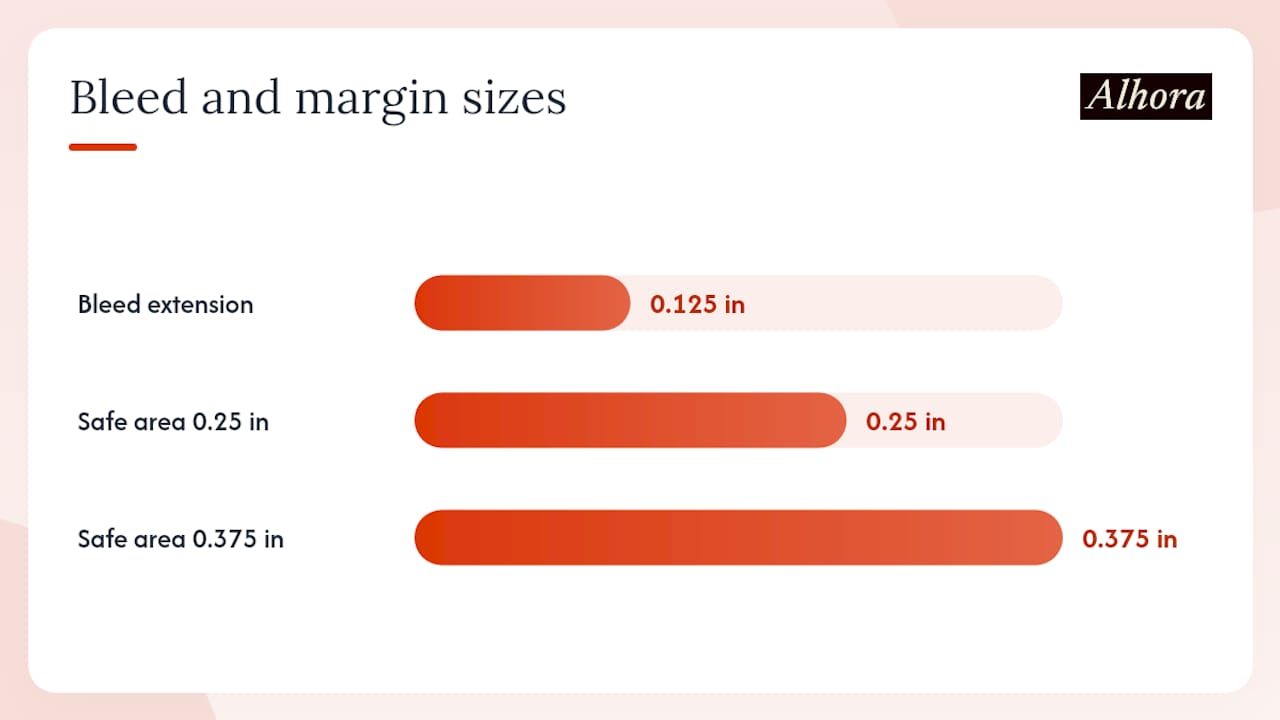
- Bleed extension: If your image bleeds to the edge, extend the artwork at least 0.125" beyond the trim on each bleeding side. Use the KDP File Setup Calculator for the exact bleed value for your trim size.
- Safe area: Keep all text, faces, and critical design elements at least as far from the trim edge as your outside margin minimum (0.25" or 0.375"). For the spine, stay inside the spine boundary lines on the cover template.
- Color mode: KDP converts RGB files to CMYK for print. For color interiors and covers, submitting a high-quality color file gives KDP the best source material to work from. Colors may shift slightly in conversion, so check KDP's color guidance if accurate color reproduction matters for your book.
What causes KDP submission failures and how do you fix them?
Most rejections fall into five categories. Each has a straightforward fix.
- Margins below minima: Your gutter or outside margin is smaller than the required value for your page-count tier. Fix: open your layout file, correct the margin values using the table above, and re-export.
- Missing bleed on full-bleed artwork: You selected the bleed option but your artwork does not extend to the bleed boundary. Fix: resize your artwork to include the bleed extension and re-export.
- Fonts not embedded: KDP's validator cannot process text it cannot read. Fix: in Word, use Save As PDF with the standard publishing option; in InDesign or Affinity Publisher, use Export to PDF/X-1a or PDF/X-4, which embed fonts by default.
- Incorrect PDF page size: Your PDF page dimensions do not match your declared trim size. Fix: check the page size in Acrobat (File → Properties → Description) and re-export at the correct trim dimensions.
- Images below 300 DPI: Low-resolution images pass the upload but print poorly. Fix: replace with 300 DPI versions at the correct print size before re-exporting.
Before every upload: open your PDF in Adobe Acrobat Reader, check File → Properties for page size and font embedding, and run the KDP Previewer after upload to catch visual issues. The previewer shows you what the printed book will look like, but it cannot fix structural errors in your file.
How do you use KDP's File Setup Calculator?
The File Setup Calculator removes all the guesswork from margin and spine math. It outputs exact measurements for your specific trim size and page count in one pass.
- Go to KDP's Tools and Resources page and open the File Setup Calculator.
- Select Paperback as your book type.
- Enter your trim size (width × height in inches).
- Enter your final page count (include all front matter, body, and back matter).
- Select your paper type (white or cream).
- Download or note the output: interior margin minimums, bleed dimensions, and spine width.
The calculator gives you three numbers that matter: the minimum gutter for your page count, the bleed extension if you need it, and the spine width for your cover. Feed those directly into your layout software and cover file.
Pro Tip: Run the calculator twice: once early in your project to set up your template, and again after you finalize all front and back matter. Adding a dedication page or a bibliography can push you into the next page-count tier and change your required gutter.
How does a professional formatter help you avoid margin errors?
Formatting software built for KDP handles the margin math automatically, which removes the most common source of upload failures. Here is what that looks like in practice.
Alhora, a book-formatting platform available on Mac, Windows, Linux, and ChromeOS, applies gutter values based on your page count automatically. As you add or remove pages, the gutter requirement updates. Its preflight checks flag font-embedding issues, DPI problems, and bleed gaps before you export, not after KDP rejects your file.
Specific features relevant to KDP margin compliance:
- Automatic gutter scaling tied to live page count
- Trim-size enforcement so your PDF page dimensions always match your declared trim
- Proof simulator that shows how the printed page will look before upload
- Export presets configured for KDP's PDF requirements, including font embedding
Vendor note: Alhora is a commercial formatting platform. The features described above are drawn from its published product documentation. Authors should verify current feature availability at Alhora before purchasing.
Kindle Create is a free alternative worth knowing: it handles simple, text-heavy paperbacks well, but it is not suitable for books with complex layouts, tables, footnotes, or full-bleed images. For those books, a dedicated typesetting tool is the more reliable path.
The one habit that saves the most re-uploads
KDP's margin rules are strict, but they are also completely predictable. Every number in the gutter table is published, every export requirement is documented, and the File Setup Calculator eliminates any remaining ambiguity. The authors who re-upload three times are almost always the ones who set margins before finalizing their page count, or who skipped the preflight step before submitting.
Set your trim size first. Run the calculator. Lock your margins. Then write your front and back matter. That order matters more than any single margin value.
Alhora takes the margin math off your plate
Formatting a KDP paperback correctly means tracking gutter values, bleed extensions, font embedding, and PDF page sizes simultaneously. Miss one and you re-upload. Alhora handles all of it automatically.

The platform's typesetting engine applies the correct gutter for your live page count, enforces your trim size on export, and runs preflight checks that catch font and DPI issues before they reach KDP's validator. You get a proof simulator to review the printed layout, and export presets that produce a KDP-ready PDF without manual configuration.
- Automatic gutter scaling as page count changes
- Proof simulator for visual review before upload
- Font embedding and DPI checks built into the export workflow
- KDP-configured PDF export presets
Authors who want to skip the formatting troubleshooting and go straight to a clean upload can start with Alhora today.
Sources
These are the primary sources for every spec and calculator referenced in this article: