
For KDP, you need two separate files: a print-ready PDF for KDP Print and a reflowable EPUB or KPF for Kindle eBooks. Get those two files right, and most of the automated rejection reasons disappear before you ever hit upload.
Before you export anything, run through this quick check:
- File types: Print interior as a PDF with embedded fonts and 300 DPI images; ebook as EPUB or KPF (or a clean .docx converted to EPUB). Never upload a PDF as your Kindle ebook file.
- Cover vs. interior: KDP Print requires two separate files — one for the interior and one for the full wrap cover (front + spine + back). The cover must be sized to your trim dimensions plus spine width plus bleed.
- Export settings to verify: Fonts embedded, images at 300 DPI minimum, no tracked changes, no comments, and no placeholder text from any template you used.
Metadata matters too. The title and author name in your manuscript's front matter must match exactly what you entered during KDP title setup. A mismatch is one of the most common rejection triggers in KDP's automated review.
Key Takeaways
Formatting a book for KDP requires two separate files, precise margin and bleed settings, embedded fonts, and metadata that matches your KDP title setup exactly.
Table of Contents
- How do you format a book for KDP print?
- How do trim size, bleed, and margins actually work?
- How do you build and export a KDP-ready cover?
- How do you format a Kindle eBook for KDP?
- Which tool should you use: KDP templates, Kindle Create, or a typesetting tool?
- What export settings does KDP require?
- What should you check before uploading to KDP?
- How do you fix common KDP upload errors?
- How Alhora handles the steps that cause the most rejections
- A recommended workflow for first-time indie publishers
- Alhora takes the guesswork out of KDP formatting
- Official KDP resources and further reading
How do you format a book for KDP print?
KDP print formatting starts with one decision that shapes everything else: your trim size. The most common choice for nonfiction and fiction is a 6" × 9" trim size, though KDP supports a range of sizes including smaller and larger options. Pick your trim size before you touch margins, because every other measurement depends on it. You can find the full list of supported trim sizes on KDP's formatting page.
Front matter, body matter, and back matter
A properly ordered manuscript follows a predictable structure that KDP's reviewers and readers both expect:
- Front matter: Half-title page, full title page, copyright page, dedication (optional), table of contents, foreword or preface (if applicable)
- Body matter: Chapters, parts, or sections — the core content
- Back matter: Acknowledgments, appendices, bibliography, author bio, index (if applicable)
Page numbering typically begins with the first page of body matter (Chapter 1 or its equivalent). Front matter pages, if numbered at all, use Roman numerals (i, ii, iii). Most authors omit page numbers from the title page, copyright page, and any full-page image pages entirely.
Margins and gutter by page count
The inside margin (gutter) is the one most authors get wrong. A thicker book needs a wider gutter because the binding pulls the inner edge away from the reader's eye. KDP's step-by-step formatting guide publishes a specific minimum gutter table:
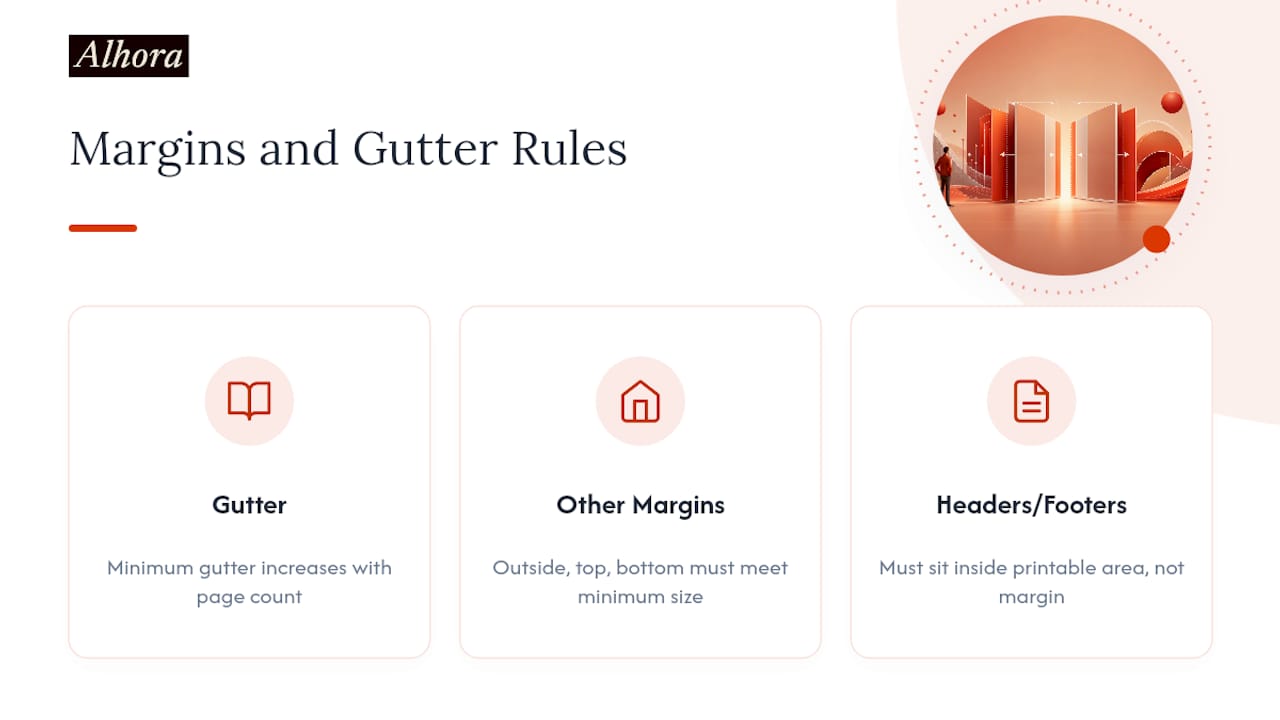
The inside (gutter) margin should increase as the page count grows to accommodate thicker bindings, with specific minimum sizes per page count range.
Outside, top, and bottom margins should meet a minimum size to ensure readability and printing safety, with slightly larger margins providing more comfortable reading. Headers and footers must fall within the printable area — not in the margin itself.
Fonts, sizes, and embedding
For body text, serif fonts read better in print. Georgia, Garamond, and Palatino are reliable choices at 10–12pt for standard trim sizes. Chapter headings typically run 18–24pt. Whatever fonts you use, they must be embedded in the exported PDF — KDP's automated system will flag a non-embedded font and reject the file.
Pro Tip: Before you export, search your document for any leftover placeholder text from a KDP template ("Your Book Title Here," "Author Name," sample chapter text). One stray line of placeholder content can trigger an automated rejection just as surely as a margin violation.
How do trim size, bleed, and margins actually work?
KDP trims 0.125" (3.2 mm) from the top, bottom, and outside edge of every printed page. That physical cut is why bleed exists: if you want an image or background color to reach the very edge of the finished page, you have to extend it past where the blade will cut.
The bleed formula
When your interior requires bleed, add 0.125" to the top, bottom, and outside edge of your page dimensions. For a 6" × 9" trim:
- Width with bleed: 6.125" (outside edge only gets the extra 0.125")
- Height with bleed: 9.25" (top and bottom each get 0.125")
The inside (gutter) edge does not get bleed because the binding covers it.
KDP rule: If any page in your interior file has an image or background that reaches the edge, the entire interior file should be set up with bleed to ensure consistent printing. You cannot mix bleed and non-bleed pages in a single upload.
When bleed is required
- Any page where an image, color block, or graphic extends to the physical edge of the finished page
- Full-page photos or chapter-opener artwork that fills the page edge to edge
- Decorative borders that touch the page boundary
If your book is text-only with standard margins, you do not need bleed. Most fiction and straightforward nonfiction falls into this category.
Statistic callout: KDP's trim allowance is exactly 0.125" (3.2 mm) on three sides. Build that number into your document setup from day one — retrofitting bleed into a finished 300-page manuscript is a painful afternoon.
KDP's cover calculator and official templates already account for these dimensions. Use them rather than calculating from scratch.
How do you build and export a KDP-ready cover?
KDP Print requires a single full-wrap cover file: front cover, spine, and back cover combined into one PDF or high-resolution PNG, sized to your trim dimensions plus spine width plus bleed on all outside edges. Alternatively, you can use KDP's built-in Cover Creator for a simpler approach, though it limits design flexibility.
Calculating spine width
Spine width depends on two variables: page count and paper color. Black-and-white interior paper is slightly thinner than cream paper, so the same page count produces a different spine width on each stock. KDP's cover calculator does this math for you — enter your trim size, page count, and paper type, and it returns the exact spine width in inches.
A practical note for designers: Never guess the spine width. A cover that's even 0.05" off will either clip the spine text or push it onto the front or back panel. Run the cover calculator every time you change your page count, because editing your interior after the cover is built is a common source of last-minute reprints.
Cover file requirements
- Format: PDF (recommended for print-ready files with embedded fonts) or PNG at 300 DPI minimum
- Resolution: All images at 300 DPI; lower resolution images print visibly soft
- Color mode: CMYK is preferred for print accuracy; RGB files are accepted but colors may shift slightly in print
- Fonts: Embedded in the PDF; never leave fonts unembedded in a cover file
- Bleed: 0.125" on all outside edges (top, bottom, left outside edge of back, right outside edge of front)
Pro Tip: After you export your cover PDF, open it in Adobe Acrobat Reader and check the document properties to confirm fonts are embedded and the page dimensions match your calculated cover size exactly. A two-minute check here saves a re-upload cycle.
KDP provides downloadable cover templates in Word, PNG, and PDF formats. The manuscript blank templates ZIP includes interior templates; cover templates are generated through the cover calculator tool on the KDP dashboard.
How do you format a Kindle eBook for KDP?
The single most important thing to understand about ebook formatting: the file must be reflowable. Readers adjust font size, typeface, and line spacing on their Kindle devices, so your layout cannot be fixed. Static headers and footers, forced page breaks between every paragraph, and hard-coded page numbers all break the reading experience and often cause conversion errors.
Accepted file types
KDP accepts EPUB, KPF (Kindle Package Format, created by Kindle Create), and .docx files that it converts to EPUB on upload. Of these, a clean, well-structured EPUB is the most reliable source file. A .docx works for straightforward text-heavy books, but complex formatting often survives the conversion poorly.
Clickable table of contents
A clickable TOC is not optional for ebooks — it is how readers navigate on a device. Build it using your word processor's or design tool's built-in TOC generator linked to heading styles (Heading 1, Heading 2), not manually typed page numbers. In EPUB, the TOC is encoded in the NCX or Navigation Document; most export tools generate this automatically when your headings use semantic styles.
For print, a TOC lists page numbers. For ebooks, those page numbers are meaningless — link chapter titles to their anchors instead.
Images in ebooks
- Use JPEG for photographs and PNG for graphics with transparency
- Keep individual image file sizes reasonable (under 127 KB per image is a common guideline for smooth loading across older devices)
- Add alt text to every image for accessibility
- Avoid full-bleed images that depend on exact placement — reflowable ebooks cannot guarantee where an image lands relative to text
Hyperlinks and interactive elements
All URLs in an ebook should be live hyperlinks. For footnotes, use endnotes linked to the reference in the text and back again — most EPUB tools handle this with a simple footnote style. Avoid JavaScript-dependent interactive elements; Kindle devices do not support them.
Pro Tip: Test your ebook file in the Kindle Previewer on at least three simulated device sizes before uploading. What looks clean on a tablet can have broken paragraph spacing or missing images on a Paperwhite.
Key dos and don'ts:
- Do use semantic heading styles (Heading 1 for chapter titles, Heading 2 for subheadings)
- Do validate your EPUB with EPUBCheck before uploading
- Don't embed decorative fonts that block conversion or display incorrectly on older Kindle firmware
- Don't use text boxes, columns, or floating images — they do not reflow
- Don't include fixed page numbers in ebook body text
For simple, text-heavy books, Kindle Create handles the conversion and produces a KPF file directly. It is not suited for books with bleeding images, complex tables, or heavy footnote use.
Which tool should you use: KDP templates, Kindle Create, or a typesetting tool?
The right tool depends on your book's complexity. Here is a practical breakdown:
| Use case | Best tool |
|---|---|
| Simple text-heavy fiction or memoir | KDP Word templates or Kindle Create |
| Nonfiction with tables and footnotes | Word templates with careful manual formatting |
| Illustrated books or image-heavy layouts | Dedicated typesetting tool |
| Series with consistent formatting across volumes | Typesetting tool with batch export |
| Complex print layouts with precise typography | Typesetting tool (e.g., Alhora) |
KDP Word templates
KDP's downloadable Word templates come pre-set with the correct page size, margins, and front-matter samples for common trim sizes. They are the fastest starting point for authors comfortable in Microsoft Word. The main pitfall: copying and pasting your manuscript into a template often imports your original document's styles, overriding the template's formatting. Paste as plain text, then reapply the template's styles manually.
The blank templates ZIP includes files for the most common trim sizes. KDP also offers an Amazon Endure font download alongside the templates for authors who want a KDP-native typeface.
Kindle Create
Kindle Create is free, straightforward, and produces a KPF file that uploads directly to KDP. It works well for novels and straightforward nonfiction. Its limits are real, though: it does not support paperback layouts with bleeding images, complex tables, or multi-column designs. If your book has any of those elements, Kindle Create will frustrate you.
Dedicated typesetting tools
For authors publishing a series, books with many images, or anyone who wants precise control over typography (hyphenation, widow and orphan prevention, drop caps), a dedicated typesetting tool pays for itself in time saved and rejections avoided. These tools export both print-ready PDFs and validated EPUBs from a single source file, which eliminates the risk of the print and ebook versions drifting apart in formatting.
What export settings does KDP require?
Export print interiors as a print-ready PDF with embedded fonts and 300 DPI images. Export ebooks as a validated EPUB or KPF.
Print PDF export checklist
- PDF standard: PDF/X-1a is the gold standard for print; a high-quality PDF with embedded fonts and no transparency issues also works
- Fonts: Embedded, not subset-only where possible; cover PDFs should have fonts converted to outlines as a fallback
- Images: 300 DPI at final print size; do not scale up low-resolution images in the layout tool
- Color profile: CMYK for color books; grayscale for black-and-white interiors
- Transparencies: Flatten before export to avoid rendering artifacts in print
KDP's guidance is direct: Save your paperback interior as a print-ready PDF with embedded fonts. A PDF that passes Acrobat's preflight check for print production will almost always pass KDP's automated validation too.
EPUB validation
Before uploading an EPUB, run it through EPUBCheck (available as a standalone tool or via the EPUB Validator at the IDPF). Then open it in Kindle Previewer to see exactly how KDP will render it. Kindle Previewer simulates multiple device types and flags conversion warnings before you upload.
Statistic callout: KDP recommends images at 300 DPI for print interiors. For ebooks, lower resolution is acceptable for display, but using the same 300 DPI source images and letting the export tool downsample is cleaner than maintaining two separate image libraries.
File naming and versioning
Name your files with a consistent convention before upload: BookTitle_Interior_v3_final.pdf and BookTitle_Ebook_v3.epub are far easier to manage than final_FINAL_useThis.pdf. Keep a version log — even a simple text file — noting what changed between versions. When KDP flags an error and you re-upload, you want to know exactly which file you fixed.
What should you check before uploading to KDP?
Most KDP rejections are preventable. The automated review catches the same categories of errors repeatedly, and almost all of them are fixable in under an hour if you know what to look for.
Before you upload, verify:
- Tracked changes and comments are accepted/resolved and removed (Word: Review tab → Accept All Changes)
- All template placeholder text is deleted (search for "Your Book Title," "Author Name," "Lorem ipsum," and any sample chapter text)
- Metadata in the manuscript (title page, copyright page) matches your KDP title setup exactly
- All images are 300 DPI at their final print size
- Margins meet KDP minimums for your page count (see the gutter table above)
- Trim size in your document matches the trim size selected in KDP
- Bleed is set up correctly if any page has edge-to-edge images
- Fonts are embedded in the PDF
- No blank pages appear where they should not (check especially around chapter breaks)
- The table of contents links correctly (ebook) or lists accurate page numbers (print)
After upload, use KDP's online previewer to check pagination, margins, and how chapter breaks fall. Pay particular attention to the first and last pages of each chapter — those are where orphaned lines and awkward page breaks most often appear.
Order a printed proof copy before you approve the book for sale. The online previewer is useful, but it does not replicate the physical experience of holding the book and checking that the spine text is centered, the margins feel right, and the images print at the quality you expected. KDP's proof copy turnaround is typically a few business days, and it is worth every day of the wait.
How do you fix common KDP upload errors?
The most frequent KDP validation errors fall into four categories: margin or bleed violations, missing or non-embedded fonts, low-resolution images, and leftover placeholder text. Each has a clear fix.
Margin and bleed violations
Root cause: The document's page setup does not match the trim size selected in KDP, or the gutter is smaller than the minimum for your page count.
Fix: Open your document's page setup and confirm the page dimensions match your KDP trim size exactly. Check the gutter against the table in the interior formatting section above. If you have bleed images, confirm the page dimensions include the 0.125" bleed extension and that the bleed images actually extend to the document edge.
Missing or non-embedded fonts
Root cause: A font used in the document is not embedded in the exported PDF, often because it was installed on your system but not licensed for embedding.
In Word, go to File → Options → Save and check "Embed fonts in the file." For cover files, convert all text to outlines before export as a reliable fallback.
Low-resolution images
Root cause: Images placed in the document are below 300 DPI at their final print size, or they were scaled up in the layout tool beyond their native resolution.
Fix: Replace the image with a higher-resolution version. Scaling up a 72 DPI web image to fill a half-page print area will not produce a 300 DPI result — you need the original high-resolution file.
Placeholder text
Root cause: Sample text from a KDP template was not fully deleted before export.
Fix: Use your word processor's Find function to search for common placeholder strings ("Your Book Title," "Chapter Title," "Lorem ipsum"). Also check headers and footers, which are easy to overlook.
KDP's automated review is consistent: the same errors appear in the same places for the same reasons. If you get a rejection, read the error report carefully — KDP usually identifies the page number or element causing the problem, which cuts diagnostic time significantly.
Pro Tip: Before re-uploading after a rejection, open your corrected PDF in Adobe Acrobat and use the Print Production preflight tool to check for the same categories KDP checks: font embedding, image resolution, and page dimensions. Fixing one error sometimes reveals a second that was hiding behind it.
When KDP's error report is unclear or the error persists after your fix, KDP support can review the specific validation report. Most formatting issues, though, are faster to fix yourself than to wait for a support response.
How Alhora handles the steps that cause the most rejections
Alhora automates the typesetting checks that trip up most first-time KDP publishers, while keeping every creative decision in the author's hands.
The platform's typesetting engine runs margin and gutter checks against KDP's published minimums as you work, so a 400-page manuscript with an undersized gutter surfaces as a warning before export, not as a rejection after upload. Bleed-aware exports calculate the correct page dimensions automatically based on your trim size selection. Typography rules — widow and orphan prevention, hyphenation, justification — run continuously, so the exported PDF reflects professional typesetting standards without manual line-by-line review.
Alhora exports both a print-ready PDF and a validated EPUB from the same source file, which means the print and ebook versions stay in sync when you make a late edit. The proof simulator shows how the finished book will look before you order a physical proof, which is useful for catching spine text placement and margin feel early.
Where manual judgment still matters: creative layout choices (a custom chapter-opener design, a unique decorative font with specific licensing terms) still require the author's direct attention. Alhora flags potential issues but does not override your decisions.
- Automatic gutter and margin checks against KDP minimums
- Bleed-aware PDF export with correct page dimensions
- Widow and orphan prevention, hyphenation, and justification
- Proof simulator for pre-print visual review
- Validated EPUB export for Kindle ebook upload
- Batch formatting for series with consistent style across volumes
Pro Tip: If you are formatting a series, set up your styles and export settings in Alhora once, then apply them across all volumes. The consistency check across books in a series is one of the features that saves the most time for authors publishing multiple titles.
Disclosure: Alhora is the publisher of this article.
A recommended workflow for first-time indie publishers
Start with your manuscript in a clean state: accept all tracked changes, remove comments, and strip out any formatting you applied manually (bold chapter numbers, hand-set indents) in favor of named paragraph styles. Styles are what every export tool reads — raw manual formatting is what causes conversion chaos.
Pick your trim size before anything else. For most first books, 6" × 9" is the right call: it is familiar to readers, well-supported by KDP templates, and gives you comfortable margins without wasting paper. Download the KDP Word template for that trim size, or open Alhora and select it from the trim size menu.
Apply your paragraph styles systematically: body text, chapter headings, subheadings, front matter pages. Set your gutter based on your estimated page count (use the table above; it is better to set it slightly larger than the minimum than to discover a violation after 200 pages of layout work). Export a draft PDF and open it in KDP's online previewer to check pagination before you finalize anything.
For the ebook, export an EPUB from the same source file if your tool supports it. Run it through EPUBCheck, then open it in Kindle Previewer. Fix any warnings before upload.
Recommended sequence:
- Clean manuscript (styles, tracked changes, placeholder text removed)
- Select trim size and set gutter for your page count
- Apply paragraph styles and build front/body/back matter structure
- Export draft PDF, check in KDP Previewer, order a proof copy
- Export EPUB, validate with EPUBCheck, test in Kindle Previewer
- Match metadata to KDP title setup, then upload
Version naming matters more than most authors expect. Name every export with a version number and a brief note of what changed. When KDP flags an error on version 7 and you need to compare it to version 6, a clear naming convention saves real time.
Getting a second pair of eyes on the proof copy is worth it for any book you plan to sell at full price. A formatter or a detail-oriented reader will catch things the author's eye skips after months of working on the same manuscript.
Alhora takes the guesswork out of KDP formatting
Formatting a book for KDP means managing two separate file types, a precise set of margin and bleed rules, font embedding requirements, and a metadata match that has to be exact. Alhora handles the technical layer so you can focus on the writing.

With Alhora, your manuscript goes through automatic gutter and margin checks calibrated to KDP's published minimums, bleed-aware PDF export, and validated EPUB generation, all from a single source file. The proof simulator shows you the finished book before you commit to a physical proof copy. For authors publishing a series, batch formatting keeps every volume consistent without rebuilding styles from scratch.
Alhora is available on Mac, Windows, Linux, and ChromeOS, with monthly, annual, and lifetime license options. The AI-assisted proofreading add-on flags issues without rewriting your text, so your voice stays yours throughout.
If you are ready to move from manuscript to KDP-ready files without the re-upload loop, try Alhora and see how far a single export session gets you.
Disclosure: Alhora publishes this article.
Official KDP resources and further reading
The sources below are the authoritative references for every specification covered in this guide. Bookmark the ones that match your current stage in the workflow.
Official KDP help pages:
- Formatting Your Book — the central hub for print and ebook file requirements, accepted formats, and export guidance; start here if you are new to KDP formatting
- Set Trim Size, Bleed, and Margins — the definitive reference for the 0.125" trim allowance, bleed rules, and minimum margin tables
- Build Your Book: Format a Paperback Manuscript (Word for Windows) — step-by-step instructions for setting up a Word document, including the gutter table by page count
- Paperback and Hardcover Manuscript Templates — where to download Word templates, the Amazon Endure font, and find sample front-matter layouts
- KDP Paperback Manuscript Blank Templates (ZIP) — direct download of blank templates for common trim sizes; the fastest starting point for a new print interior
Third-party references:
- SelfPublishing.pro: How to Format Your Book for Amazon KDP — a practical walkthrough covering style cleanup, EPUB conversion with tools like Calibre, and Kindle Previewer testing
- Amazon royalty structure for ebook authors — useful background on Amazon's publishing terms when you are deciding between KDP's 35% and 70% royalty tiers
- Book Formatting (KDP Help) — KDP's own guidance on metadata matching and the most common automated rejection causes
Before you finalize: use the KDP online previewer after every upload attempt, and order a printed proof copy before approving the book for sale. The previewer catches pagination and margin issues; the proof copy catches everything the screen misses.